OneCal Review 2026: Features, Pricing & Verdict
- Published on
Table of Contents
Try OneCal free
If you manage more than one calendar on a daily basis, you should have come to the realization that calendars don’t communicate with each other that well, and double-bookings are inevitable. Situations like accepting a meeting on your work calendar before realizing that you’ve got a booked slot on your personal calendar are normal.
The problem is simple: Google Calendar, Outlook, and iCloud Calendar do not talk to each other and they don’t know the availability in other calendars.
OneCal is built to fix this by allowing users to connect all their calendars and keeping them in sync in real-time. The result of the calendar synchronization is that busy slots in one calendar show up as busy slots in other calendars. The OneCal real-time calendar synchronization is helpful, as it duplicates your calendar events across all your calendars, so no matter where you get booked, the person who booked the meeting with you will always see your full availability.
1. TL;DR - Our verdict at a glance
Score: 4.7 / 5
OneCal is the most polished calendar sync tool in the industry. What’s great about OneCal is that the setup is simple, intuitive, and setting up the calendar synchronization takes a few minutes. The calendar synchronization is fast, very reliable, and most importantly, has privacy configurations.
The Scheduling Links feature is quite complete, offering individual and group bookings, branding, and a lot of configuration to make it yours.
The Unified Calendar Management view is very helpful for managing all your calendars in a single interface. The new Android and iOS apps are also a game changer, as we get all the above functionality in a single app.
It is not free, but the lowest plan starts at $5 per month and most people will know if it is worth it within a day.
-
Best for: freelancers, consultants, recruiters, executives, and anyone with two or more calendars across different providers.
-
Skip if: you only have one calendar, or you need a full team scheduling stack with round-robin routing and CRM integrations like Calendly Enterprise.
2. What is OneCal?
OneCal is a calendar management platform that mainly does three things:
The first is calendar synchronization: Essentially, you connect your Google Calendar, Outlook, and iCloud Calendars, choose how they should synchronize with each other, and OneCal keeps them in sync in the background. When you accept a meeting on your work calendar, the time gets blocked in the other calendars (per your configuration) a few seconds later. If you cancel that event, the matching block gets removed from the other calendars.
The second is the scheduling links. You can publish a scheduling link (similar to a Calendly page) that pulls availability from all your calendars. Following this logic, a person can click on that link and book a meeting according to your availability. You can pre-determine the meeting durations, ask questions to prospects, and more.
The third is a unified calendar page, that allows you to view and manage the calendars you’ve connected within OneCal. The same interface is available on the OneCal web app and mobile apps (Android and iOS).
OneCal has been around since 2022 and now has thousands of paying customers, including teams at Stripe, Amazon, Shopify, Cornell, the University of Texas, and USC.
Per their product updates, it seems like the team ships features and improvements regularly, and according to the G2 OneCal reviews, the customer support answers support queries quite fast.
3. Who should use OneCal?
3.1 Best for
OneCal is built for people who run their lives across more than one calendar. The most common types of users we have seen are:
- Freelancers and consultants: The most common use case is freelancers and consultants with separate calendars for each client or each business.
- People with strict work-life separation. If you're a person who likes to keep work on Outlook and personal life on iCloud Calendar or Google Calendar.
- Recruiters and account executives. If you're a recruiter or account executive that needs the availability to stay accurate across multiple work accounts.
- Couples and families. Couples who want to block each other’s busy time without sharing event titles or guest lists.
- People who run a side project or community. If you run a side project, a part-time job alongside a day job and need both calendars to respect each other.
To understand better who OneCal is for, let's read these two G2 reviews: "We are all independent contractors and usually have corporate calendars provided by clients, plus our own businesses. after 3-4 weeks of testing I am starting to introduce it to other contractors I know. At this point I am using it daily and the updates to calendars with changes are reflected very quickly which is perfect."
"I love that I can both connect + sync my calendars and manage my booking links all in one spot. The customer service is very helpful. It was very easy to set-up and I like all the options for syncing my calendars"
3.2 Not ideal for
As with everything, OneCal is not ideal for everyone. We wouldn't recommend OneCal if:
- You only have one calendar. You could use the OneCal Unified Calendar interface to manage your calendar, but it's not worth the hassle, as you can use the native calendar apps for this.
- You need a full team scheduling product. Even though the Scheduling Links offered by OneCal are very powerful and now integrate with Zapier, OneCal can't fully replace the Calendly enterprise features, including features like round-robin routing, Salesforce or HubSpot deep links, and team-wide analytics.
4. OneCal Key features
4.1 Real-time calendar sync across Google Calendar, iCloud Calendar and Outlook
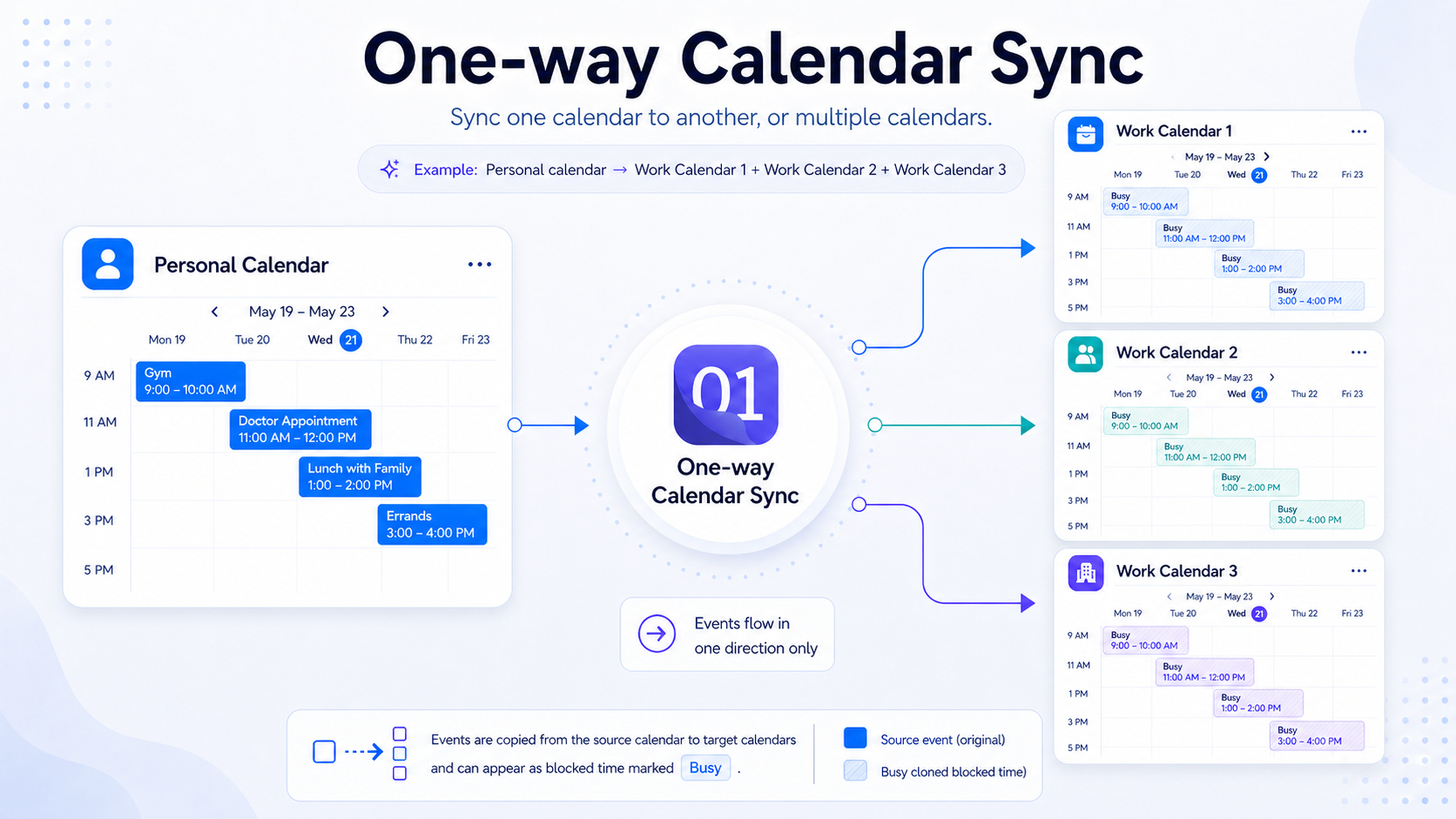
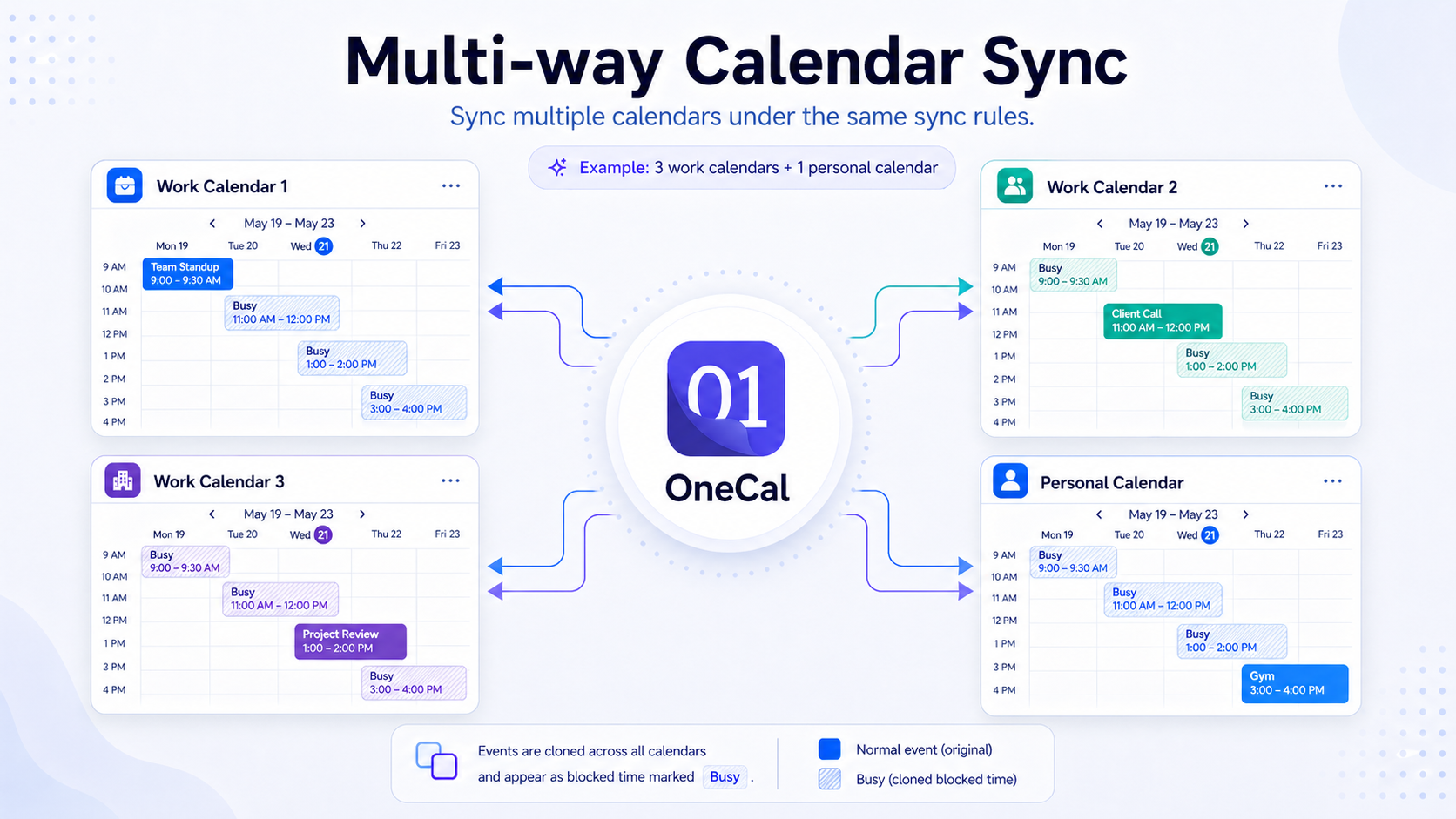
Based on the research, OneCal is the only competitor in the market with support for one-way and multi-way calendar synchronization. The terms might be confusing at first, that's why the explanation and illustrations below should make it easier to understand:
One-way sync: You can configure events from one calendar to be synced to another calendar — that's why it's named one-way. Events go from a single source calendar to a single target calendar.
Multi-way sync: You can select 2 or more calendars, and OneCal will keep them all in sync with each other. Contrary to the one-way sync, which syncs one calendar to another, a multi-way sync can keep multiple calendars in sync at the same time, in every direction.
We did some tests for both one-way and multi-way syncs, with a Google Calendar and Outlook Calendar that have 100 events each, here are the results:
- One-way sync, Google → Outlook: The initial sync took around 5 seconds, changes synced almost in real-time, ~4 seconds
- Multi-way sync, Google - Outlook: The initial sync took around 7 seconds, changes synced almost in real time, less than ~4 seconds after the update.
Based on our testing, OneCal handled the messy parts of calendar sync that you do not want to think about: recurring events, single instance changes inside a recurring series, cancellations, all-day events, and time zone changes. It also avoided loops, where an update would bounce back and forth between two synced calendars forever.
4.2 Privacy controls and event masking
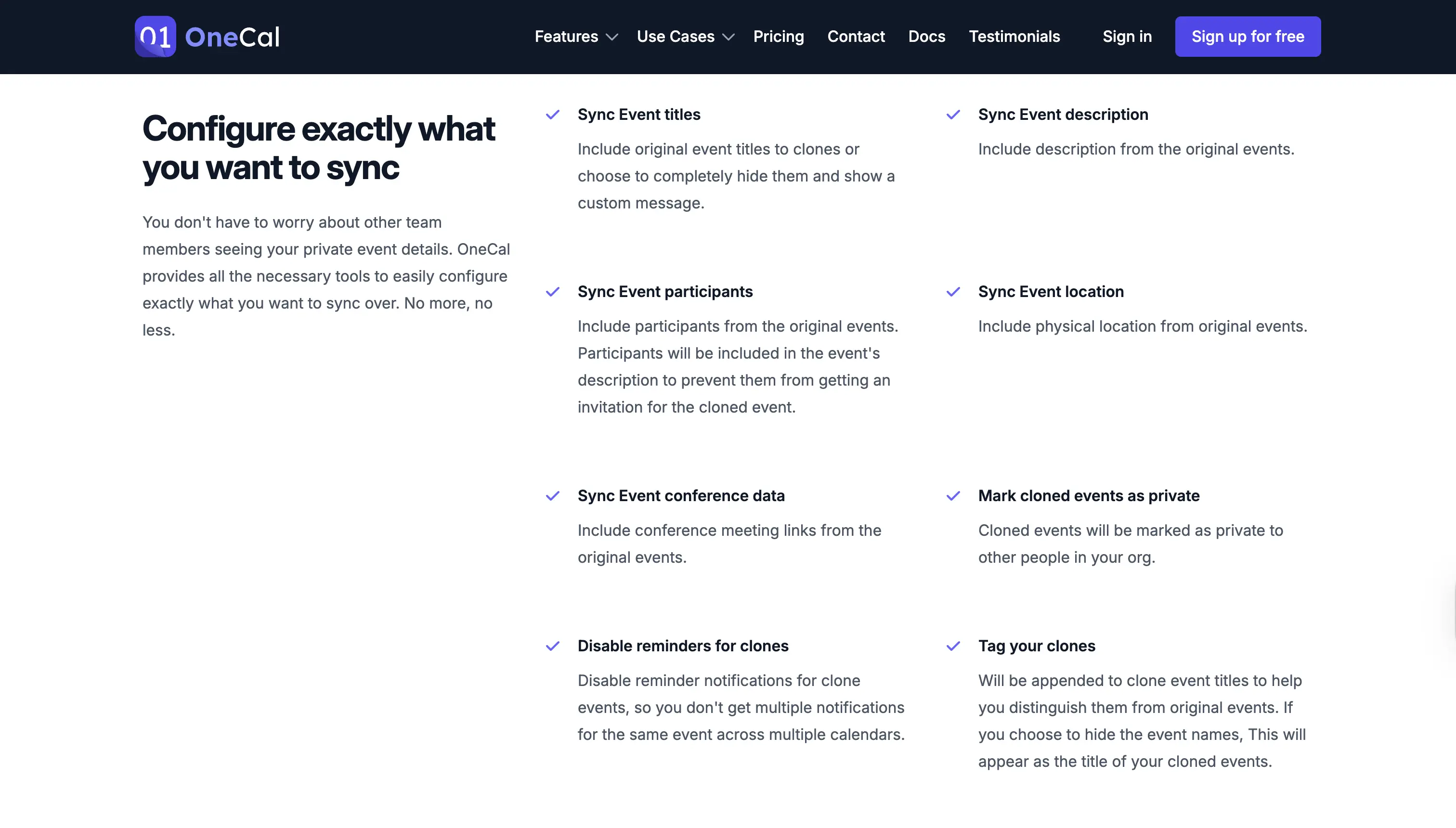
When it comes to calendar synchronization, perhaps even more important than the speed of the calendar synchronization, is the privacy. In this regard, OneCal pulls clearly ahead of every other tool we tested. For each sync, you can choose exactly what gets synced across calendars:
- The event title: You can sync the event title as it is, or omit it from the clone events, by entering a custom title for all events, like "Busy".
- The event identifier: If you choose to synchronize the event title between calendars, you can also add an identifier that's appended to the title, so you can distinguish clones from original events. Identifiers like (Clone) are quite common. An event like "Dentist Appointment" becomes "Dentist Appointment (Clone)" when it gets cloned to the destination calendars.
- The event description
- The event attendees: OneCal has done something clever here, as the event attendees don't get synced as normal attendees to the destination calendar, instead, they get appended to the event description. This is done so the attendees don't get multiple invites, for each event that gets cloned to your destination calendars.
- Event Location
- Event Conference Data: OneCal has done something clever for the conference data as well, as we did put it through different conference providers, between Outlook, Google Calendar and iCloud Calendar, and always synced the conference provider, even when a provider like iCloud Calendar doesn't have support for conference providers.
Another useful calendar synchronization feature that we noticed in OneCal is that you can choose to sync events by your RSVP. It makes sense to not sync events that you've declined.
A particularly nice feature we noticed is the "Exclude events by color" feature, that allows you to exclude events from being synchronized by their color. We immediately figured out a couple of cases for this feature, like having a dentist appointment on your personal calendar and not wanting it to show up as busy on your work calendar. You can assign a green color to that meeting, and OneCal will completely ignore it and not sync it to the other calendars.
A common setup looks like this: someone syncs their personal iCloud calendar to their work Outlook calendar, but rewrites every synced title to "Busy" and strips the description, location, and attendees. The work calendar shows the time as blocked, with no other detail. Their boss sees a busy slot. They see the real meeting on their personal calendar.
You can mix and match these settings per sync. So you can sync your work and personal calendars one way (with full privacy) and your two work accounts the other way (with full details).
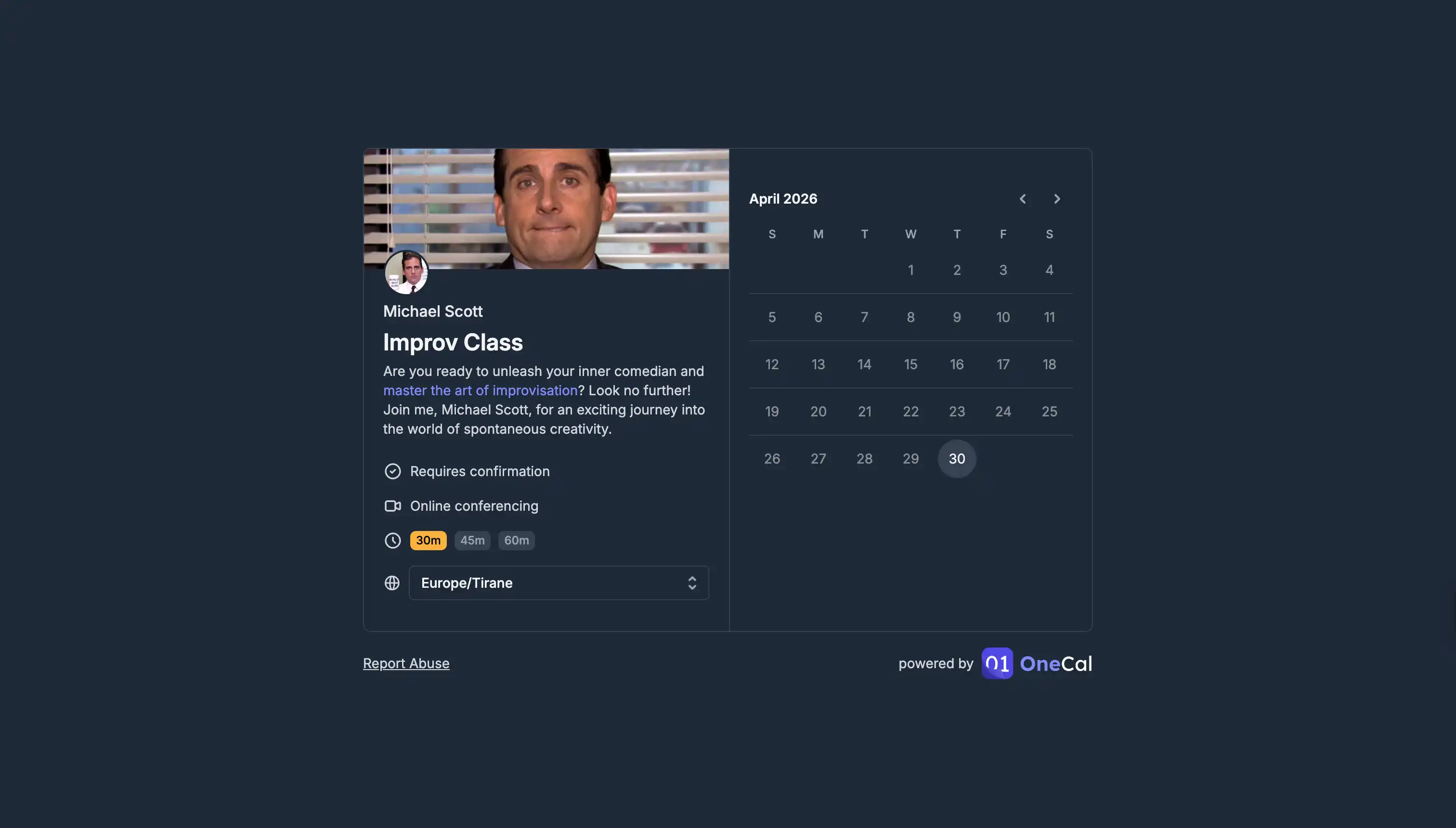
4.3 Scheduling links
The OneCal Scheduling Links are surprisingly well thought-out, as we expected them to be a secondary feature to the calendar synchronization feature.
You create a link, set the meeting length, the working hours, the buffer time before and after, and the calendar where new bookings should land. OneCal then publishes a clean booking page where invitees can pick a time that works for both of you. Because OneCal already knows about every calendar you have connected, the booking page automatically respects the busy time on all of them - not just the one the booking link is tied to.
You get two types of booking links:
- One-on-one links: These are links where you are the only host. The scheduler can invite other guests to the meetings (you can disable this functionality).
- Collective links: These are links that are used for booking time when more than one person needs to be present (you and a colleague, for example). The page only shows times when everyone is free. The links also pull availability from multiple people, based on the calendar availability and the availability you have configured in OneCal and linked to that scheduling link.
Booking links integrate with Zoom, Google Meet, and Microsoft Teams out of the box. A new conferencing link is generated and added to the meeting automatically. You can also brand the booking page with your own logo and remove the OneCal branding on paid plans.
Other important scheduling links features are:
- Branding: You can upload a cover image, update the color of the scheduling link
- Localization: You can choose what language the scheduling link is presented in
- Zapier integration: You can integrate the OneCal Scheduling Links with thousands of apps, as OneCal integrates with Zapier. Common use cases are adding meetings to your CRM as soon as you get booked through the OneCal Scheduling Links.
- Workflows: You can create custom workflows for each scheduling link, including reminders before and after the meeting.
- Social media embedding: You can add your social media links, as well as custom links to your scheduling links.
4.4 Multi-account support
OneCal connects to:
-
Google Calendar (personal Gmail and Google Workspace)
-
Microsoft Outlook (personal Outlook.com, Microsoft 365, and Exchange)
-
iCloud Calendar (using an Apple ID app-specific password - OneCal documents the setup steps)
You can connect multiple accounts of the same type. Three Google Workspace accounts and one iCloud account are fine. Two Outlook accounts and a personal Gmail are fine. The number of calendars you can sync depends on your plan, which we cover in the pricing section.
4.5 Unified calendar view
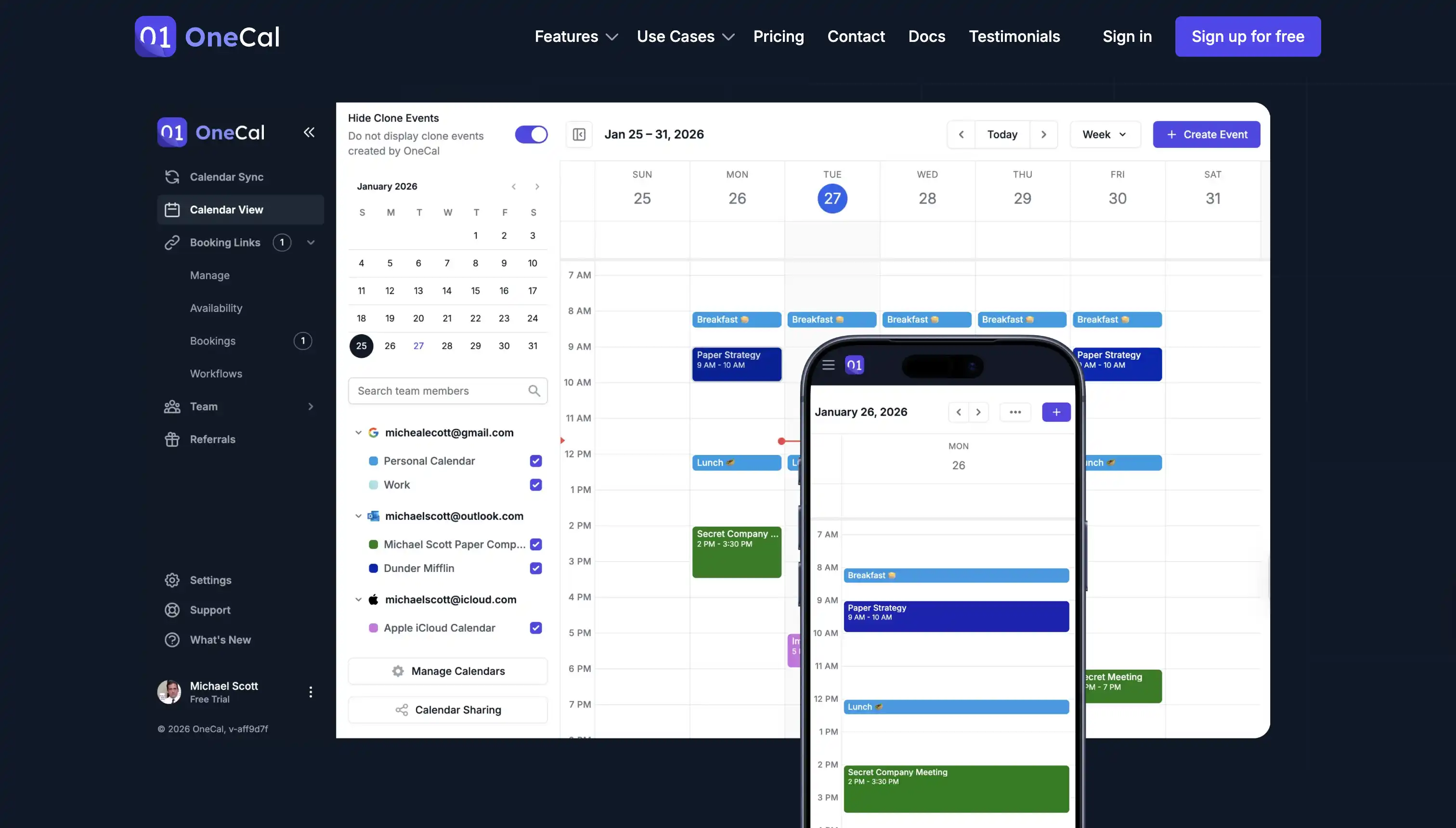
There is a reason why OneCal positions itself as a complete calendaring platform, as on top of having Calendar Synchronization and Scheduling Links, OneCal offers a Unified Calendar Interface that allows you to view and manage all your calendars directly. The OneCal Unified Calendar Interface is well integrated into the other OneCal features, for example, you can hide the cloned events created by the OneCal Calendar Sync feature. The Unified Calendar Interface works with all the calendar providers supported by OneCal (Google Calendar, Outlook and iCloud Calendar).
The Unified Calendar View allows you to switch between day, week and month view on web, and day, three-day, week and month view on the mobile apps.
4.6 Integrations and apps
The current OneCal integrations, as of April 2026 are:
- Calendars: Google Calendar, Outlook, iCloud Calendar
- Conferencing: Zoom, Microsoft Teams and Google Meet. These providers are available for Scheduling links and Unified Calendar View (when you create meetings).
- Zapier: As mentioned, you can integrate OneCal Scheduling Links with thousands of other apps supported by Zapier.
- MCP server: The MCP Server lets AI assistants like Claude read your availability and book time on your behalf. This is one of the more forward-looking features in any calendar synchronization tool right now.
- Android, iOS and macOS apps: OneCal has Android, iOS and MacOS apps, which means that you can use all the features straight from your phone or desktop.
5. OneCal pricing and plans (2026)
5.1 Free trial vs paid plans
OneCal offers a 14-day free trial of any paid plan. No credit card is required to start the trial. There is no permanent free plan, once the trial ends you need to pick a tier or your syncs stop running.
Although we do our best to keep articles up to date, including when companies change features or pricing, companies change their pricing model over time, and the information we display here might be outdated. Please make sure you check the pricing page for the most up to date pricing and features in each plan.
5.2 Pricing table
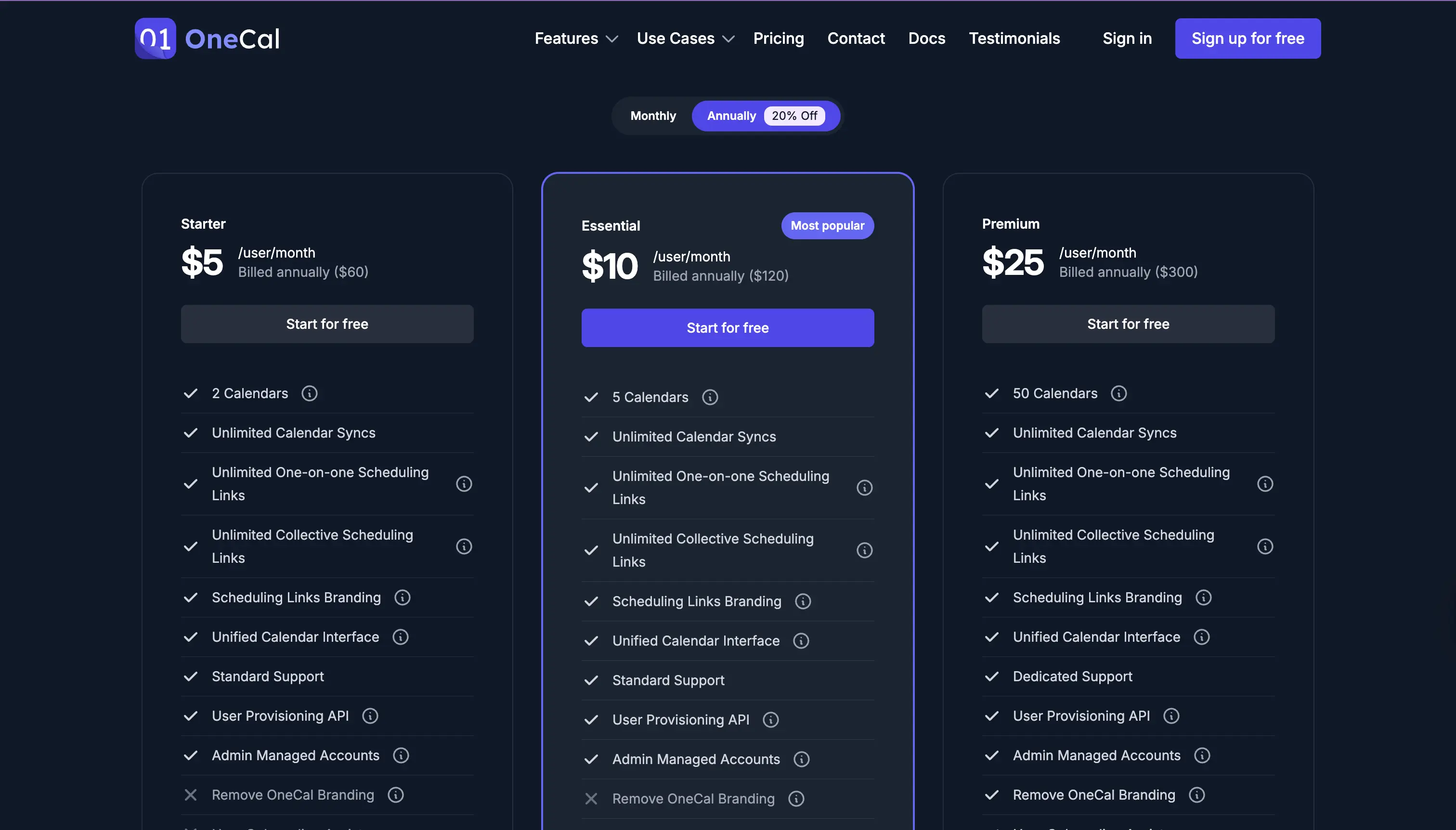
| Plan | Monthly | Annual | Calendars per user | Booking links |
|---|---|---|---|---|
| Starter | $5 / user | $60 / user / yr | 2 | Unlimited |
| Essential | $10 / user | $120 / user / yr | 5 | Unlimited |
| Premium | $25 / user | $300 / user / yr | 50 | Unlimited |
Annual billing is roughly a 20% discount over monthly. Every plan includes:
-
Unlimited calendar syncs (within the calendar count limit)
-
Unlimited one-on-one and collective scheduling links
-
Branded booking pages and the option to remove OneCal branding
-
The unified calendar view
-
iOS, Android, and macOS apps
-
Zoom, Google Meet, Microsoft Teams, Zapier, and MCP integrations
-
Standard support
The Premium plan adds dedicated support and onboarding help.
5.3 Is OneCal worth the price?
For anyone with two or more calendars, $5 a month is hard to argue against. The cost of one missed meeting or one awkward double-book is usually higher than a year of OneCal.
A note on which plan to pick:
- Starter ($5/mo) covers 2 calendars. Good if you only need to sync, say, one work and one personal calendar.
- Essential ($10/mo) covers 5 calendars. This is the right plan for most freelancers and consultants. It is also the plan OneCal marks as "most popular."
- Premium ($25/mo) covers 50 calendars. This is overkill for most individuals - it is mostly for power users with several client accounts or for small teams.
If you only have 2 calendars and you are budget conscious, Starter is fine. If you have 3 or more, jump straight to Essential.
We noticed that OneCal offers non-profit and student discounts. If you feel like you belong to these or similar categories, we'd contact them to get a discount.
6. OneCal Pros and cons
6.1 What we liked
- The calendar sync actually feels instant. We were pleasantly surprised by the calendar synchronization speed, updates in a calendar synced to the target calendars right away.
- Multi-way syncs in a single configuration. This feature is very useful for users with more than 3 calendars — with one-way syncs alone, you'd need 6 different setups to keep them all in sync. Using a multi-way calendar sync to sync multiple calendars is a no-brainer.
- Very detailed privacy controls. The calendar synchronization has all the privacy controls you'd expect. You can synchronize every event information to your other calendars, pick what to sync, or not sync anything. The choice is up to you, the app doesn't restrict you in that regard.
- The UI feels simple and most importantly, easy to use. We felt like we didn't need to hop into any guides or courses to get started using OneCal. This applies to all the features they offer.
- Customer support that replies fast. We didn't have any issues that needed support, but multiple G2 reviewers and testimonials confirm that the customer support team is reliable.
- Apps for every platform. Having a mobile app for Android, iOS and macOS is quite convenient.
- Useful integrations. Integrations like the MCP server, Zapier and Zoom are very useful, and we're sure users appreciate the team taking the time to develop integrations that make the app more useful.
- Scheduling links that work well for most people. Unless you need enterprise features like round robin, or custom integrations, the OneCal Scheduling Links felt quite competent, you can brand them, set limits, integrate with Zoom, and plenty more.
- Well-integrated Unified Calendar. The OneCal Unified Calendar felt well integrated, not a marketing gimmick. It was clear that the team had taken the time to develop something useful, as the App Store reviews for their newly released app are 5.0 out of 5. The Unified Calendar in the web app felt the same way, users that use Google Calendar or any other modern calendar won't feel the difference using the OneCal Unified Calendar. The bonus is that you get to manage all your calendars in a single screen, no need to open Google Calendar and Outlook side by side and juggle between them. The ability to hide cloned events created by the OneCal Calendar Sync also felt quite useful, as otherwise you'd get multiple instances of the same event if you were to view multiple calendars in a single view.
6.2 What could be better
- No permanent free plan. Although the 14 day free trial is very reasonable for testing the app and deciding if it's worth it, we wish the app had a free plan.
- iCloud sync is slower than Google Calendar and Outlook. This is a limitation worth mentioning, as our testing revealed that while syncing Google Calendar and Outlook Calendars felt real-time, that wasn't the case for iCloud Calendars. When we selected Apple iCloud Calendars as a source calendar, calendar updates took 10 minutes to reflect to other calendars. OneCal explains that this is an Apple API limitation, not a OneCal one, but it is worth knowing.
- Scheduling links are solid but not advanced. Although the scheduling links work quite well for 99% of the users, you should be aware that there is no support for round-robin team routing, no CRM-deep integrations, and no ability to collect payments.
7. OneCal vs competitors
Before we go to each competitor, it must be said that OneCal is a complete calendaring platform, having Calendar Synchronization, Scheduling Links and Unified Calendar Management features. Not all competitors offer the same features as OneCal, so we'll do our best to categorise what each competitor has in common.
7.1 OneCal vs Reclaim
Up first is Reclaim, an AI scheduling assistant that auto-plans your tasks and habits, with a calendar sync feature on the side. If you mostly want AI to plan your week, pick Reclaim. If you mostly want reliable multi-calendar sync with strong privacy, pick OneCal. Reclaim only supports one-way sync, does not connect to iCloud, and offers far fewer privacy controls.
What OneCal Features does Reclaim AI replace?
You can use Reclaim AI to partially replace the OneCal Calendar Sync and Scheduling Links, but with some limitations:
- Calendar Sync: Reclaim only supports one-way syncs from a source calendar to a target calendar. If you want events to flow in both directions, you have to set up two separate syncs. Reclaim also does not connect to iCloud, so iCloud users are out of luck. Privacy options are limited compared to OneCal — you cannot pick exactly which event properties get cloned.
- Scheduling Links: Reclaim has a scheduling links feature similar to OneCal's, with availability pulled from your connected calendars. It is a solid alternative if you only care about scheduling links and one-way sync.
- Unified Calendar Management: Reclaim does not offer a unified calendar interface. You will still need to switch between Google Calendar and Outlook to manage your events.
7.2 OneCal vs Fantastical
Next is Fantastical, a premium calendar client mostly used by people in the Apple ecosystem (Mac, iPhone, iPad). It is known for its clean design, natural language event input, and "calendar sets" that group multiple calendars into one view. Fantastical is mainly a calendar app to view and create events, while OneCal is mainly a calendar synchronization and scheduling platform.
What OneCal Features does Fantastical replace?
Fantastical only partially overlaps with OneCal's Unified Calendar Management and Scheduling Links features:
- Unified Calendar Management: Fantastical's calendar sets let you group multiple calendars into one view. This is similar to OneCal's unified calendar interface, with a more polished, native experience on Apple devices. Fantastical only works on Apple devices, however, so it is not an option for Windows or Android users.
- Scheduling Links: Fantastical has a feature called "Openings" that publishes a basic scheduling link. It is simpler than OneCal's scheduling links and is missing features like collective bookings, branded pages, and the more advanced configurations OneCal offers.
- Calendar Sync: Fantastical does NOT mirror events between calendars. Like Notion Calendar, it shows events from multiple accounts in one view, but does not actually clone events between them. If your colleague looks at your work calendar, they still won't see your personal events as busy.
Fantastical is great as a calendar client. It is not a replacement for OneCal's calendar synchronization.
7.3 OneCal vs Calendly
Lastly, Calendly is the most popular scheduling links tool in the world, used by millions of professionals to remove the back-and-forth of booking meetings. It is a focused product: it does scheduling links and not much else. Calendly does not synchronize calendars, and it does not offer a unified calendar view.
What OneCal Features does Calendly replace?
Calendly only overlaps with OneCal's Scheduling Links feature:
- Scheduling Links: Calendly's scheduling links are more advanced than OneCal's, especially for teams. Features like round-robin routing, Salesforce and HubSpot deep links, workflows, and team-wide analytics are available on Calendly but not on OneCal. If you need these, Calendly is the better tool.
- Calendar Sync: Calendly does NOT synchronize calendars. It reads availability from your connected calendars to know when you are busy, but it does not copy events between them.
- Unified Calendar Management: Calendly does not have a unified calendar view either.
The choice usually comes down to this: if you mostly need to give people a link to book time with you and your calendars are already in sync, Calendly is fine. If your real problem is that your calendars are not in sync, OneCal is the better tool — and its scheduling links are good enough for most individuals and small teams.
8. OneCal Real-world use cases
8.1 Freelancers juggling multiple clients
A freelance designer has three Google Workspace accounts (one per client) plus a personal Google Calendar. They set up a single multi-way sync in OneCal across all four calendars, with the synced events stripped down to a "Busy" title and no other details. When Client A books a meeting on their work calendar, the time shows up as "Busy" on Client B's calendar, Client C's calendar, and the designer's personal calendar, without any of them seeing the other clients' event titles, descriptions, or attendees. The designer sees their real events on each native calendar and never has to worry about double-bookings.
8.2 Consultants protecting personal time
A consultant has a personal iCloud calendar and a work Outlook calendar. They set up a one-way sync from iCloud to Outlook with the title rewritten to "Personal" and every other field stripped. Their boss sees a block of time marked as "Personal," but never sees "Therapy" or "Doctor's appointment." There is no risk of an awkward "What's this?" message in Slack.
8.3 Couples sharing availability
A couple wants to know when each other is busy without sharing event details. They set up a two-way sync between their personal calendars in OneCal, with the synced title rewritten to "Busy" and every other field stripped. Each partner sees when the other is occupied at a glance, but never sees event titles, locations, or attendees. They can plan weekends and trips together without double-booking, and without giving up privacy.
8.4 Teams sharing availability
A small sales team uses OneCal in two ways. First, each rep syncs their personal calendar into their work calendar as "Busy" so personal commitments never get double-booked by inbound demos. Second, the team publishes collective booking links so prospects can book joint demos with multiple team members in one click — the booking page only shows time slots where everyone is free across all of their connected calendars. No prospect can ever land on the founder's investor meeting or the rep's school pickup.
9. OneCal Security and privacy
Even though OneCal is a Calendar App, security is very important as calendars often contain events with very sensitive information. Information about OneCal's data security is very easy to find, you can reference the latest version at the OneCal data security page. In short, this is the OneCal security summary:
- No event content is stored. This is a good thing to hear, as it means that OneCal acts as a pass-through layer. It reads events from one calendar and writes them to another. It does not analyze, monetize, or persist event content.
- Encryption everywhere. Data is encrypted in transit with TLS and at rest with AES-256.
- OAuth 2.0 connections. OneCal never sees your password, and you can revoke access at any time from your Google or Microsoft account settings.
- Minimum permissions. We could review and confirm that OneCal asks minimal permissions from your calendar. Outlook and Google Calendar prompt you what permissions the app requires, and whether you explicitly agree to grant those permissions or not.
- Approved by Google and Microsoft. This gave us peace of mind, as the last thing we'd want to do is grant calendar access to a non-approved application. Fortunately, OneCal has passed both companies' app review processes.
For most people, this is more than enough. For regulated industries, the lack of a OneCal-issued SOC 2 report may be a blocker — it's worth asking their team about.
10. OneCal Customer support and user reviews
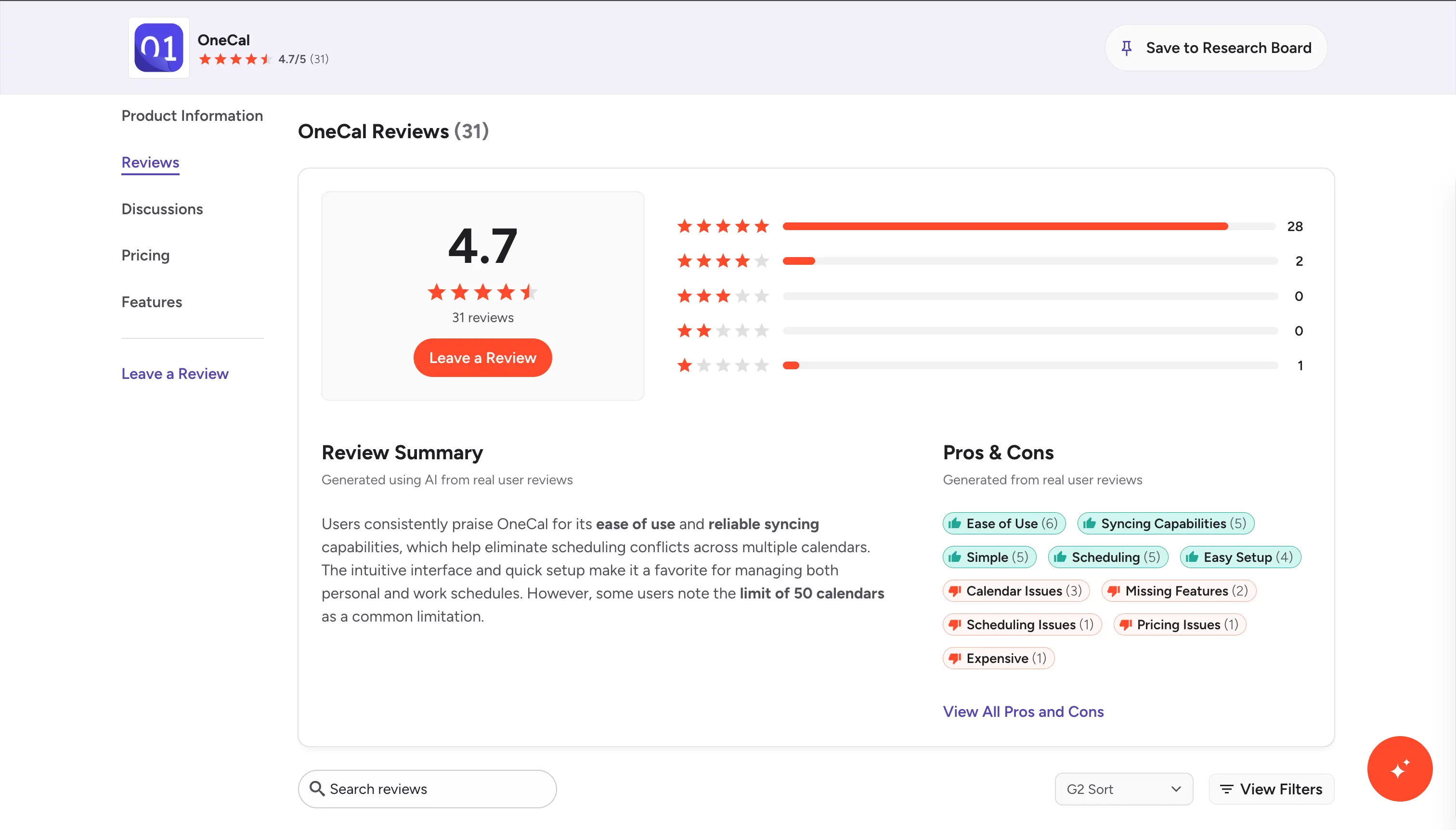
OneCal has strong reviews on both G2 and Product Hunt, scoring around 4.8 to 4.9 stars. Going through the OneCal testimonials page and the G2 OneCal reviews, a few clear themes come up again and again. We grouped the most common ones below and pulled the quotes that capture them best.
It just works for people with multiple calendars
This is the most common theme by far. OneCal customers tend to be people with two, three, or even more calendars across different providers, and they consistently say OneCal solved their problem without fuss.
Ryan Hoover, the founder of Product Hunt, wrote: "I have multiple calendars across different business and personal accounts, which has caused scheduling issues." OneCal fixed it for him.
Jimbo M., a small-business owner on G2, put it more bluntly: "OneCal solved ALL calendar issues! I have 5 different gmail calendars and OneCal is like, 'Not a problem!'"
Sara M., a Social Media Manager, said: "OneCal just like magic consolidates my work Outlook calendar with my personal Google calendar."
Setup is fast and the product is set-and-forget
Several reviewers specifically call out how little effort the product takes after setup.
Jeff B., a small-business user on G2, summed it up: "It's a once-and-done setup, a few minutes to add and sync the calendars."
Lindsey H. said the real-time sync "has been a true life-saver to have updates syncing in real-time and eliminates the need for a third-party calendar sharing view."
Marguerite F., a graphic designer, called out the design: "You have such a beautiful and well-designed UI for an app I plan on setting and forgetting!"
Customer support is repeatedly praised
This came up so often we almost stopped counting. Multiple reviewers specifically mention how fast and helpful the OneCal team is. This is quite unusual for a small SaaS product.
Jose P., a mid-market customer on G2, wrote: "Yes, there are similar services (more or less) that get near what OneCal does..." - and went on to specifically call out the support quality as a reason he chose OneCal.
Brandon K., a founder, kept it short: "Super easy to use, FANTASTIC support, pretty easy to integrate and implement."
Max Wenneker, a founder, wrote: "OneCal is a great tool that's getting greater every day thanks to an exceptionally responsive and capable development team."
It is a better deal than Calendly for many users
Several customers explicitly compare OneCal to Calendly. Most agree that if you don't need Calendly's enterprise features, OneCal is the better deal - especially because it includes calendar sync, which Calendly does not.
Egor Danilov, a Chief Product Officer, wrote: "I just tried OneCal and it's fantastic! I was paying for Calendly's booking links $11/month..." He switched to OneCal and got the same scheduling links plus calendar sync at a lower cost.
A verified user in Consulting on G2 said: "I love that I can both connect + sync my calendars and manage my booking links all in one spot."
It works well for consultants and contractors
People who manage many client calendars at once seem to be among OneCal's happiest users.
Johnny Josefsson, a small-business consultant, wrote: "OneCal is a great tool for our change management and interim C-level consultants who work with multiple clients."
Rosario Kornder Consulting said: "As a contracting firm, we need to maintain independent calendars for all our clients..." - and OneCal made it possible.
Tommy Rowe, Head of Product Management at Feather, summed up the pain: "Having multiple calendars has always been a pain. Missed invitations and unclear availability made managing schedules a nightmare."
What people complain about
It's not all praise. The most common complaints we found:
-
No permanent free plan. OneCal only offers a 14-day free trial. Some reviewers wish there was a forever-free tier for light users.
-
iCloud sync is slower than Google or Outlook sync. This is an Apple-side limitation (no real-time webhooks), not a OneCal issue, but it does come up in user feedback.
-
No round-robin team scheduling. A few power users mention they had to keep Calendly for round-robin meeting routing.
Both of the first two complaints came up in our own testing as well. Neither is a deal-breaker for the typical OneCal user.
11. Final verdict: should you use OneCal in 2026?
If you have two or more calendars and you have ever been double-booked, the answer is yes. OneCal is the most polished, reliable, and privacy-respecting calendar sync tool on the market right now. It is fast on Google and Outlook, has the best privacy controls in its category, and the team behind it ships and supports the product in a way that shows up in customer reviews.
The lack of a free plan is the only real friction. But the 14-day trial does not require a credit card, so you can find out within a couple of days whether it solves your problem.
You can start a free OneCal trial without entering a credit card. Connect a couple of calendars, set up one sync, and see how it feels. Most people know within a day.
12. Frequently asked questions
Is OneCal free?
OneCal is not free. It offers a 14-day free trial that does not require a credit card. After the trial, plans start at $5 per user per month on annual billing.
What calendars does OneCal sync?
OneCal syncs Google Calendar, Outlook (personal, Microsoft 365, and Exchange), and iCloud Calendar. You can sync any combination of these: a Google Calendar with an Outlook calendar, two Google calendars with an iCloud calendar, or all three providers at once - all in a single sync configuration.
Is OneCal safe?
Yes. OneCal uses OAuth 2.0, encrypts data in transit (TLS) and at rest (AES-256), runs on AWS inside a private VPC, and is approved by both Google and Microsoft. It does not store or analyze the content of your events. Its controls are aligned with SOC 2, ISO 27001, and GDPR.
How is OneCal different from Calendly?
Calendly is mainly a scheduling product with a small calendar-connection layer. OneCal is mainly a calendar sync product with booking links included. If your main need is "keep my calendars in sync," pick OneCal. If your main need is "let prospects book me with team round-robin routing and CRM integrations," pick Calendly.
Can I cancel anytime?
Yes. OneCal subscriptions are month-to-month or annual, and you can cancel at any time from your billing settings. Your account stays active through the end of your current billing period.