How to Sync Google Calendar with iPhone - The Complete 2026 Guide
- Published on
Table of Contents
Sync Your Calendars in Real-time
You can see and manage your Google Calendar right on your iPhone, next to your other calendars. There are two main ways to do it. You can add your Google account to the built-in Apple Calendar app, or you can install the Google Calendar app. This guide covers both, plus how to choose which calendars show up, whether changes sync both ways, how to fix Google Calendar when it is not showing, and how to keep several accounts in sync.
Quick note on wording. Adding your Google account to your iPhone makes your Google events appear in the Apple Calendar app, and edits sync both ways with Google. It does not copy those events onto your iCloud calendar. If your goal is to combine separate accounts, for example to block your Google work time on your personal iCloud calendar, that is calendar syncing, which we cover near the end of this guide.
How to add your Google Calendar to the iPhone Calendar app
This is the most common method. It adds your Google account to your iPhone, so your Google events show up in the built-in Apple Calendar app.
1. Open Settings and go to Calendar accounts
Open the Settings app on your iPhone, tap Apps, tap Calendar, then tap Calendar Accounts. (On older versions of iOS, this is under Settings, then Calendar, then Accounts.)
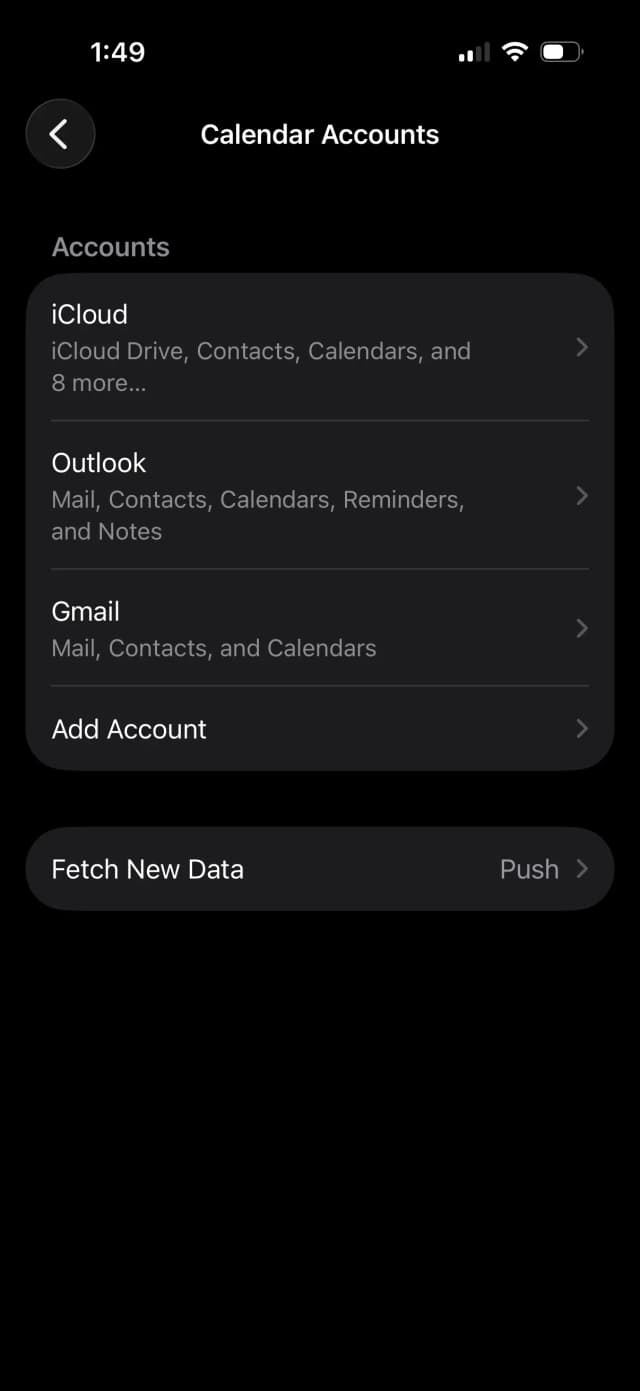
2. Add a new Google account
Tap Add Account, then choose Google from the list of account types.
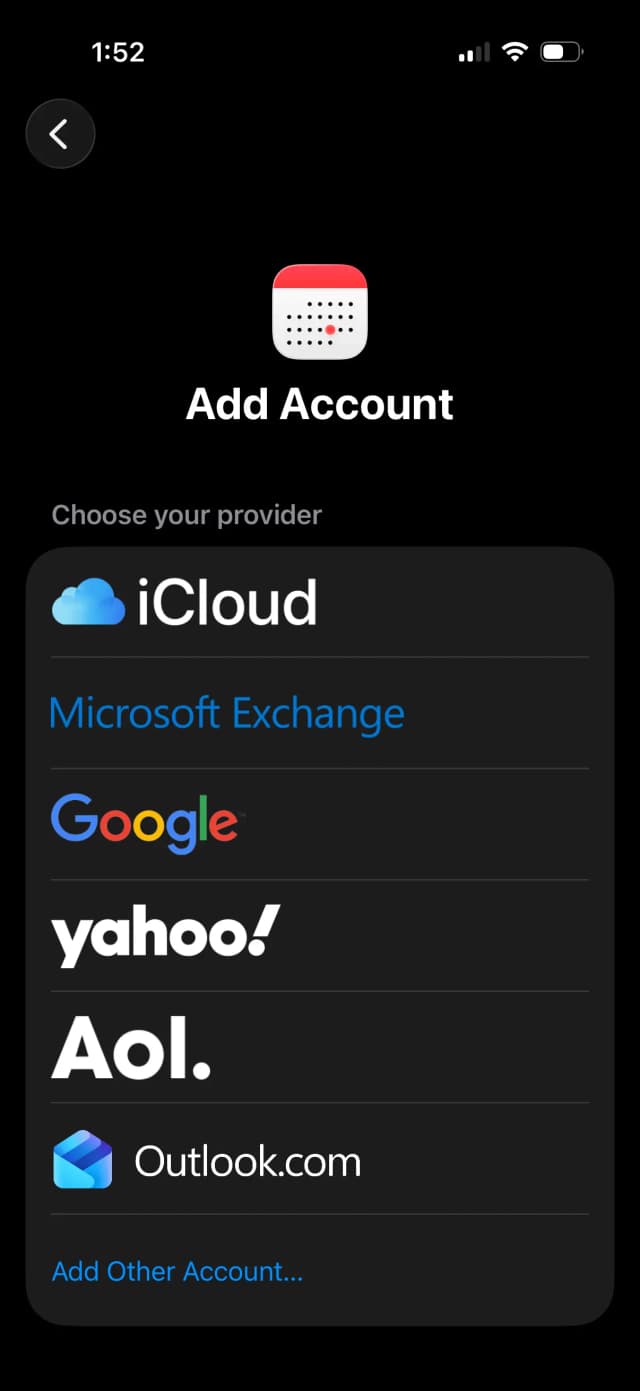
3. Sign in to your Google account
Enter your Gmail address and password, and complete any two-step verification if you use it. Tap Allow to let your iPhone access your Google account.
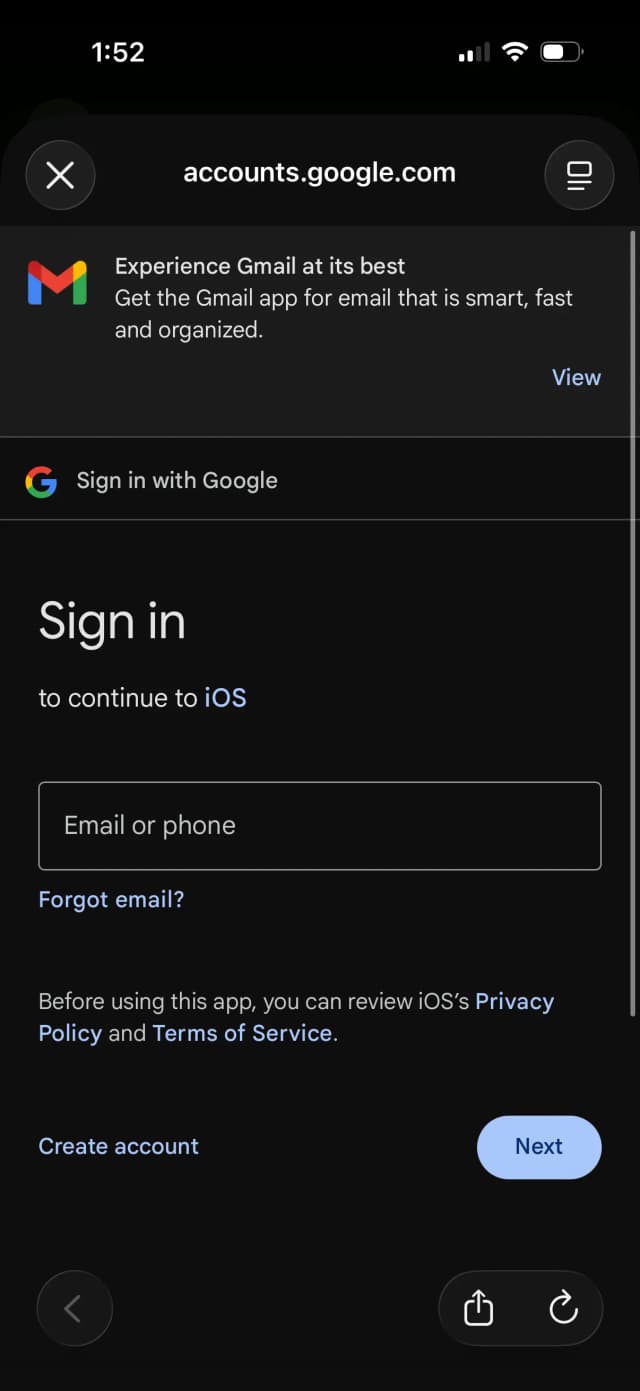
If you use 2-Step Verification and your iPhone is not on the latest version of iOS, the normal password may not work here. In that case, create an app password in your Google Account security settings and enter that instead of your regular password.
4. Turn on Calendars and save
On the next screen, make sure the Calendars toggle is turned on. You can leave Mail, Contacts, and Notes on or off as you like. Tap Save.
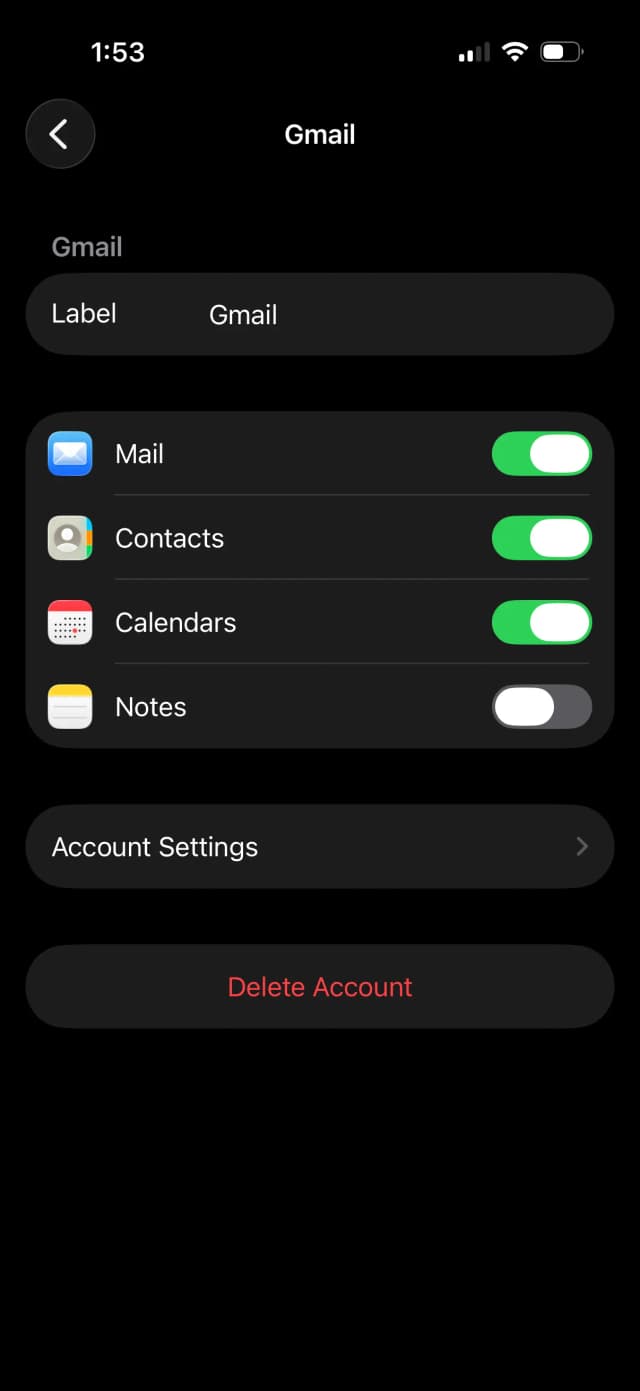
5. Open the Calendar app
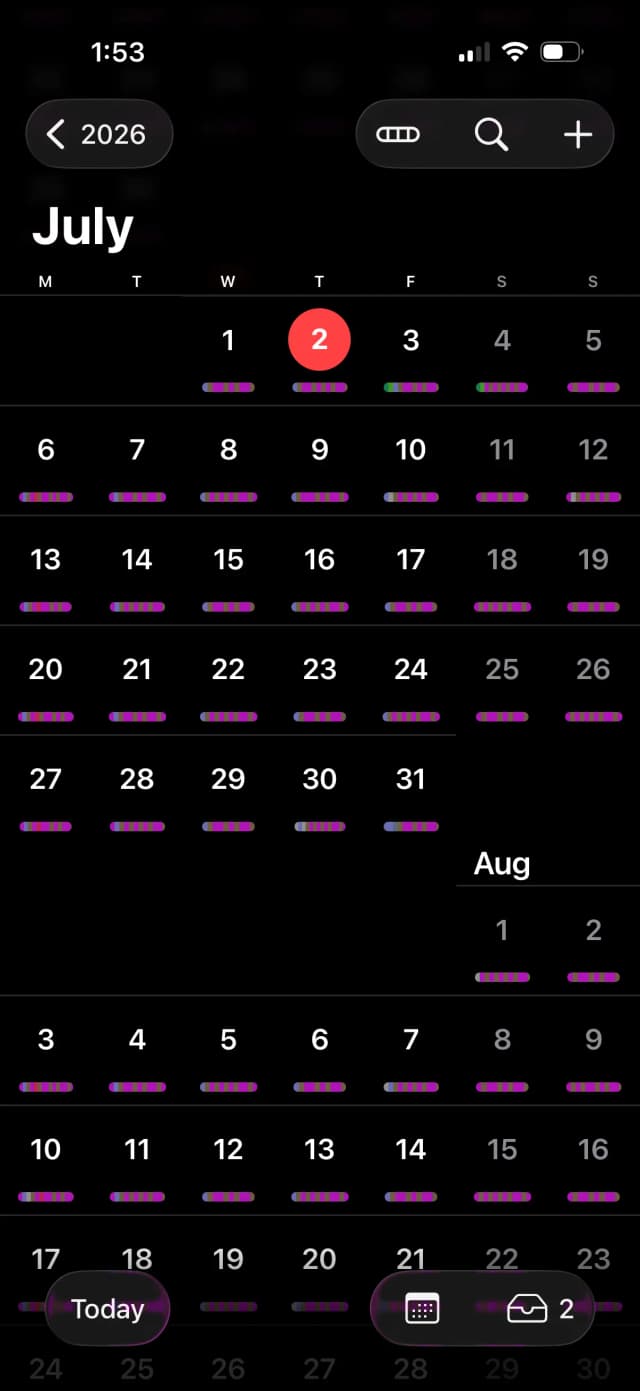
Open the Apple Calendar app on your iPhone. Your Google events now appear alongside your other calendars. They are grouped under your Google account in the Calendars list.
How to choose which Google calendars sync to your iPhone
If you have several Google calendars, such as a personal one, a work one, and a shared family one, your iPhone may not show all of them by default. Here is how to choose which ones appear.
- On your iPhone, open Safari and go to
calendar.google.com/syncselect. - Sign in with the same Google account you added to your iPhone.
- Tick the calendars you want to see on your iPhone, then tap Save.
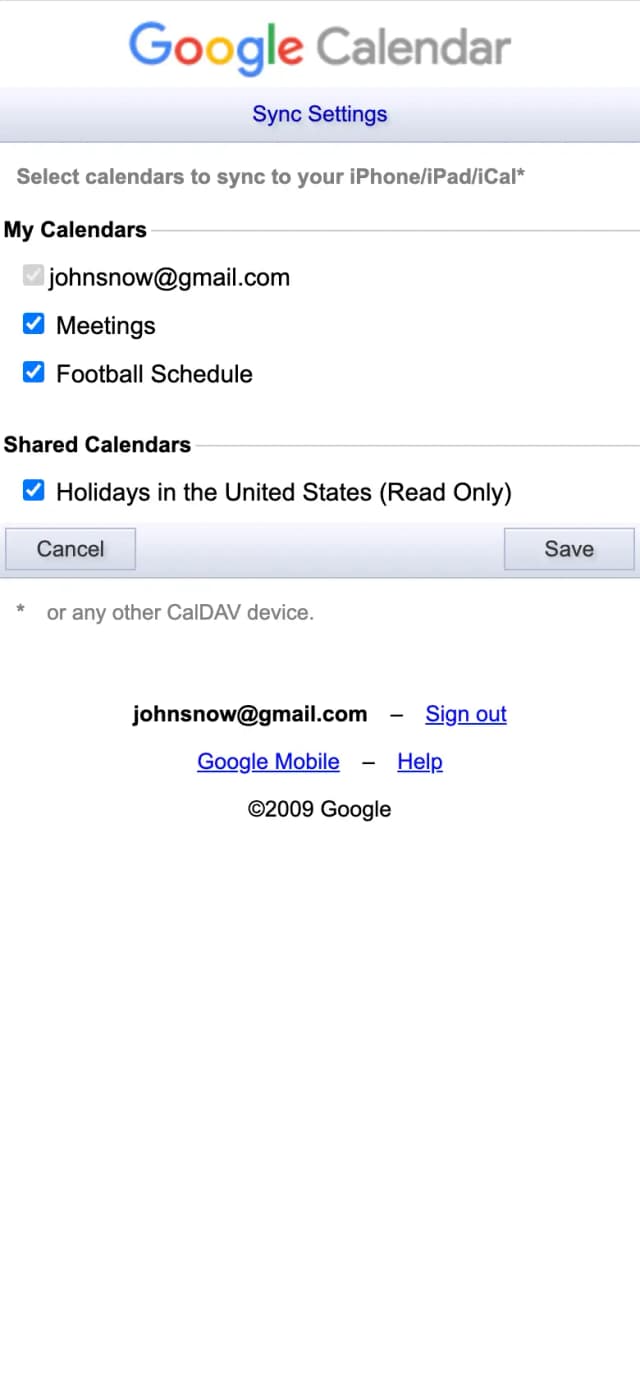
After you save, open the Apple Calendar app again and tap the Calendars tab at the bottom. The Google calendars you selected are listed there, and you can tick each one to show or hide it.
How to use the Google Calendar app on iPhone instead
If you prefer Google's own design and features, you can use the Google Calendar app rather than the Apple Calendar app.
- Open the App Store and install the Google Calendar app.
- Open the app and sign in with your Google account.
- Your calendars appear right away, and you can add more Google accounts from the app's menu.
The Google Calendar app is a good choice if you want Google features like Reminders, Tasks, and event colors that match Google Calendar on the web. You can use both apps at the same time if you want.
How to sync Google Calendar on iPad and Mac
The good news is that your account settings carry across your Apple devices, so you do not have to repeat much.
- On iPad. The steps are the same as on iPhone. Open Settings, tap Apps, tap Calendar, tap Calendar Accounts, add your Google account, and turn on Calendars. You can also install the Google Calendar app from the App Store.
- On Mac. Open the Apple menu, choose System Settings, click Internet Accounts, click Add Account, choose Google, sign in, and make sure Calendars is turned on. Your Google events then appear in the Calendar app on your Mac.
Because these connect to the same Google account, an event you add on one device shows up on the others.
Does syncing Google Calendar with iPhone work both ways?
Yes, for the calendars you own. When you add your Google account to your iPhone, the sync is two-way. If you create or change an event in the Apple Calendar app, it updates in Google Calendar, and if you change an event in Google, it updates on your iPhone.
There is one exception. Calendars that were shared with you or that you subscribed to are usually read-only. You can see those events on your iPhone, but you cannot edit them there.
A few Google features also do not carry over when you view Google Calendar inside the Apple Calendar app. You cannot create a brand new Google calendar from the Apple Calendar app, Google's own email notifications do not come through, and the Room Scheduler is not available. You will still get the normal iOS alerts you set on each event, but if you depend on Google's email reminders or those other features, use the Google Calendar app instead.
If you add a new event on your iPhone and want it to land on your Google Calendar, make sure Google is set as your default calendar. Go to Settings, tap Apps, tap Calendar, tap Default Calendar, and choose a calendar under your Google account.
Troubleshooting: Google Calendar not showing on iPhone
If your Google events are not appearing, run through these fixes.
- The Calendars toggle is off. Go to Settings, then Apps, then Calendar, then Calendar Accounts, tap your Google account, and make sure Calendars is turned on.
- The calendar is not selected. Some Google calendars are hidden until you pick them. Visit
calendar.google.com/syncselectin Safari and tick the ones you want, as described above. - The calendar is unchecked in the app. In the Calendar app, tap the Calendars tab and make sure the Google calendar has a tick next to it.
- Sync is set to manual. Go to Settings, then Apps, then Calendar, then Calendar Accounts, then Fetch New Data, and set it to Push or a shorter fetch time so changes come through faster.
- Background App Refresh is off. If you use the Google Calendar app, turn on Background App Refresh for it in Settings so it can update in the background.
- Give it a little time, or re-add the account. New calendars can take a few minutes to appear. If nothing shows up, remove the Google account and add it again with a fresh connection.
- You see duplicate events. Duplicates usually happen when the same Google account is connected in two places at once, for example added in Settings and also signed in to the Google Calendar app with the same calendars showing. Pick one method for that account, or untick the duplicate calendars in one of the apps. If duplicates remain, remove the Google account from Settings and add it back once.
How to sync Google Calendar across multiple accounts or with iCloud
Adding your Google account to your iPhone works well for one account. It gets more limited when you live across several calendars.
Here is the gap. Adding a Google account only shows those Google events in the Apple Calendar app. It does not copy them onto your iCloud calendar, and it does not connect two separate accounts. So if you have a Google work account and a personal iCloud calendar, a meeting on one will not block the time on the other, and you can still get double-booked. The same is true if you have two different Google accounts.
To truly keep separate calendars in step, the busy events need to exist on each one. That is calendar syncing, not just adding an account. A sync app copies your events from one calendar to the others, with the private details hidden if you want, so every calendar shows the same busy times and nothing can be booked over them.
This is exactly what a calendar sync app like OneCal does. It clones events between your Google, iCloud, and Outlook calendars in real-time, so your availability is always correct on every calendar and account, and you never get double-booked.
Tools like OneCal are the easiest way to keep more than one account in step. If you use Outlook on your Apple devices too, see our guide on how to connect Outlook Calendar to Apple Calendar. If you also pair Google with Outlook, read how to sync Google and Outlook calendars, or browse our roundup of the best calendar synchronization apps.
Frequently asked questions
How do I add my Google Calendar to my iPhone?
Open Settings, tap Apps, tap Calendar, tap Calendar Accounts, tap Add Account, and choose Google. Sign in, make sure the Calendars toggle is on, and tap Save. Your Google events then appear in the Apple Calendar app.
How do I add a Gmail calendar to my iPhone?
Your Gmail calendar is your Google Calendar, so the steps are the same. Add your Gmail address as a Google account under Settings, then Apps, then Calendar, then Calendar Accounts, and turn on Calendars.
Why is my Google Calendar not showing up on my iPhone?
The most common reasons are that the Calendars toggle is off for the account, the specific calendar is not selected at calendar.google.com/syncselect, or the calendar is unchecked in the Calendar app. See the troubleshooting section above for the full checklist.
Does adding Google Calendar to my iPhone sync both ways?
Yes, for calendars you own. Edits you make on your iPhone sync back to Google, and changes in Google appear on your iPhone. Calendars that were shared with you or that you subscribed to are read-only.
How do I link Google Calendar to Apple Calendar?
Add your Google account under Settings, then Apps, then Calendar, then Calendar Accounts. This links Google Calendar to the Apple Calendar app, so your Google events show up there. Note that this shows the events, it does not copy them onto your iCloud calendar.
Can I sync two Google accounts on my iPhone?
You can add more than one Google account, and both will show in the Apple Calendar app. However, the two accounts still do not block each other's time. To make separate accounts share the same availability, you need a calendar sync app that copies events between them.