What Is an ICS File? How to Open, Add, and Import One - 2026 Guide
- Published on
Table of Contents
Sync Your Calendars in Real-time
If you have ever received a meeting invite by email or tried to add an event to your calendar, you have probably run into an ICS file. It is the standard way calendar events are shared between different apps. This guide explains what an ICS file is in plain terms, how to open one, and how to add or import it into Google Calendar, Outlook, and Apple Calendar. We also cover the difference between importing a file once and subscribing to a calendar that keeps updating.
What is an ICS file?
An ICS file is a plain text file that holds calendar information, such as an event's title, date, time, location, and description. The name comes from the file extension .ics, which stands for iCalendar, the shared format that almost every calendar app understands.
Here is an ICS file at a glance:
- File extension:
.ics - Format name: iCalendar
- File type: Plain text calendar file
- Standard: RFC 5545, maintained by the Internet Engineering Task Force (IETF)
- First introduced: 1998
- MIME type:
text/calendar - Opens with: Google Calendar, Outlook, Apple Calendar, and most other calendar apps
Because Google Calendar, Outlook, and Apple Calendar all read the same format, an ICS file lets you move events from one app to another. Think of it as a common language for calendars. One app writes the event into an ICS file, and another app reads it back in.
An ICS file can hold a single event or many events at once. When you get a meeting invite by email, the attachment is often an ICS file, sometimes named invite.ics or meeting.ics. Opening that attachment is what lets your calendar app add the meeting.
What does an ICS file look like inside?
Because an ICS file is plain text, you can open it in any text editor to see how it is built. Each event sits between a BEGIN:VEVENT and END:VEVENT line, with one property per line. Here is a simple example:
BEGIN:VCALENDAR
VERSION:2.0
PRODID:-//CalendarSync//EN
BEGIN:VEVENT
UID:12345-67890-abcde
DTSTART:20260710T150000Z
DTEND:20260710T160000Z
SUMMARY:Project kickoff
LOCATION:Meeting Room 2
DESCRIPTION:Kickoff call with the design team
END:VEVENT
END:VCALENDAR
You do not need to understand every line. The key parts are SUMMARY (the event title), DTSTART and DTEND (the start and end times), and LOCATION. Your calendar app reads these lines and turns them into a normal event.
What is an ICS file used for?
ICS files show up in a few common situations.
- Meeting invitations. When someone invites you to a meeting, your email includes an ICS attachment so your calendar can add the event and track your response.
- Add to calendar buttons. Many websites, like event pages and booking confirmations, offer an "Add to Calendar" link that downloads an ICS file.
- Moving events between apps. You can export events from one calendar as an ICS file, then import them into another.
- Calendar subscriptions. Some calendars, such as sports schedules or team calendars, are shared as a live ICS link that your app can follow and keep up to date.
How to open an ICS file
On most devices, opening an ICS file just works, because your calendar app is set as the default for that file type. Here is what happens on each platform.
- On Windows. Double-click the ICS file and it opens in Outlook or the Windows Calendar app, where you can review and save the event.
- On Mac. Double-click the ICS file and it opens in the Apple Calendar app, which asks which calendar to add the event to.
- On iPhone or Android. Tap the ICS file or the email attachment, and your phone offers to add the event to your calendar.
Which apps can open an ICS file?
Almost every calendar app understands the ICS format. The most common ones are:
- On Windows: Microsoft Outlook, the Windows Calendar app, and Mozilla Thunderbird.
- On Mac: Apple Calendar, Fantastical, and Mozilla Thunderbird.
- On iPhone and iPad: Apple Calendar and the Google Calendar app.
- On Android: Google Calendar and Samsung Calendar.
- In a browser: Google Calendar and Outlook on the web.
How to view an ICS file without adding it
If you only want to read what is inside a file, without adding the event to your calendar, open it in a plain text editor. Use Notepad on Windows or TextEdit on Mac. You can also use a free online ICS viewer. This is handy when you want to check the details of an invite before you accept it.
If nothing happens when you open the file, see the troubleshooting section near the end of this guide.
How to add an ICS file to Google Calendar
Google Calendar lets you import an ICS file from a computer.
- Open Google Calendar on your computer.
- Click the gear icon in the top right, then choose Settings.
- In the left menu, click Import & export.
- Click Select file from your computer, choose your ICS file, and pick which calendar to add the events to.
- Click Import.
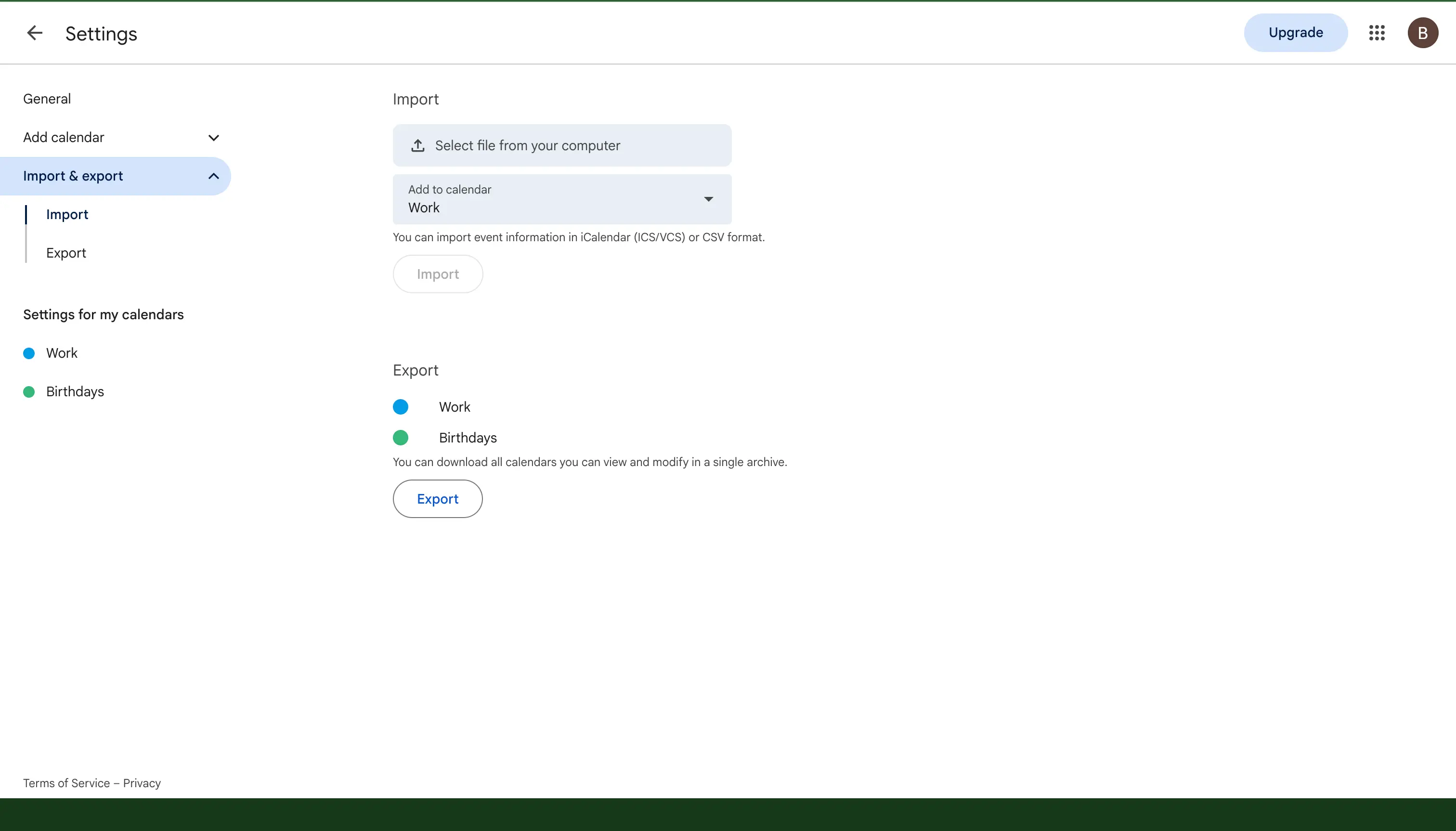
Your events now appear in the calendar you selected.
How to add an ICS file to Outlook
You can add an ICS file to Outlook in two ways, depending on the version you use.
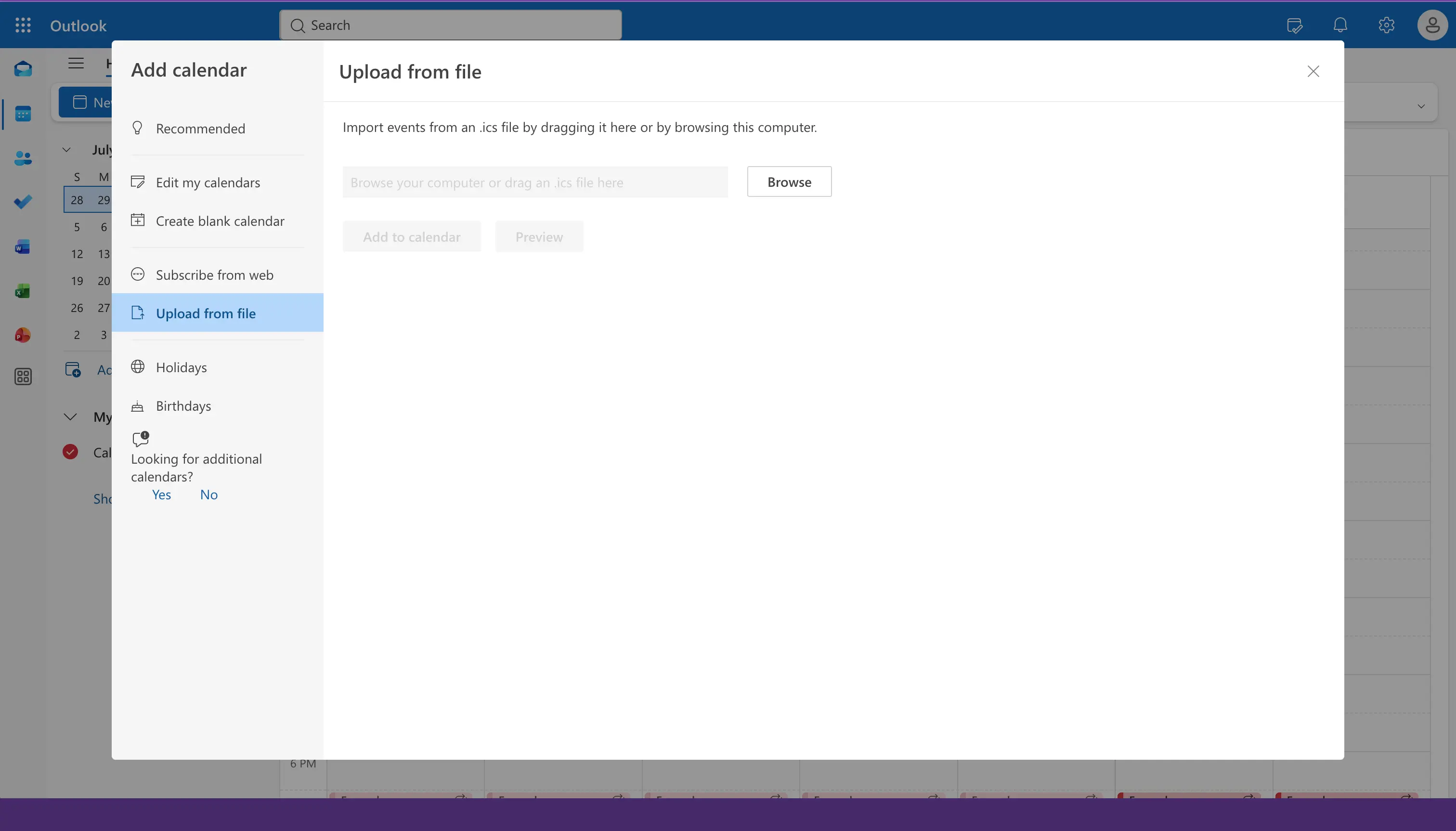
In new Outlook and Outlook on the web:
- Click the Calendar icon, then click Add calendar.
- Choose Upload from file.
- Browse to your ICS file, pick which calendar to add it to, and click Import.
In classic Outlook for desktop:
- Go to File, then Open & Export, then Import/Export.
- Choose Import an iCalendar (.ics) or vCalendar file.
- Select your ICS file and choose to open it as a new calendar or import the events.
How to add an ICS file to Apple Calendar
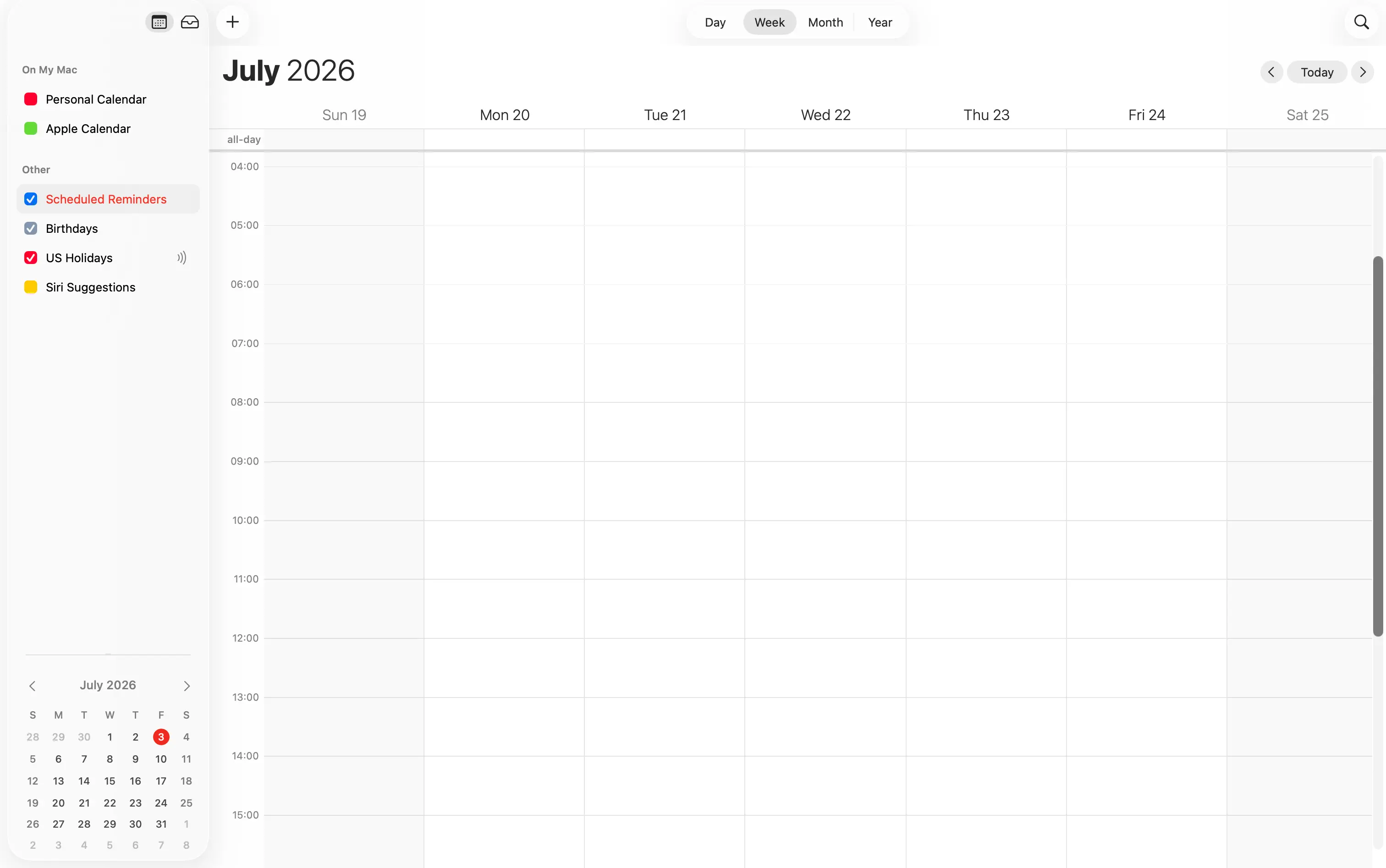
You can add an ICS file to Apple Calendar on both Mac and iPhone.
- On Mac. Open the Calendar app, go to File, then Import, choose your ICS file, and pick which calendar to add the events to.
- On iPhone. Tap the ICS file, for example from an email or the Files app, then tap Add All and choose a calendar.
How to create an ICS file
You might also want to make your own ICS file, so you can share an event with someone else. There are a few easy ways to do it.
- Export from your calendar. Most calendar apps can save an event or a whole calendar as an ICS file. In Google Calendar, open Settings, then Import & export, then Export. In Apple Calendar, select an event and choose File, then Export. In Outlook, open an event and use Save As to save it as an ICS file.
- Use an add to calendar link. If you run a website or send newsletters, an "Add to Calendar" button creates an ICS file for your readers automatically. Several free tools can generate these links for you.
- Write it by hand. Because an ICS file is plain text, you can copy the example from the section above into a text editor, change the details, and save the file with a
.icsextension.
Importing an ICS file vs subscribing to one
This is the part that trips people up, so it is worth being clear about.
- Importing copies the events from the ICS file into your calendar one time. After that, the events are yours, but they do not update. If the original calendar changes, your imported copy stays the same.
- Subscribing follows a live ICS link, sometimes called a webcal link, and checks it for changes. New events on the source calendar show up for you automatically, but the calendar is read-only, so you cannot edit those events.
To subscribe instead of import, use the "From URL" option in Google Calendar, or "Subscribe from web" in Outlook and Apple Calendar, and paste the ICS link rather than uploading a file.
Keep in mind that subscribed ICS calendars refresh slowly. Your calendar app decides how often it checks the link, and it can take from a few hours to a full day for new events to appear. Google Calendar in particular can be slow to pick up changes from an ICS link.
If you need your calendars to match in real-time, and to update both ways, an ICS subscription is not the right tool. That is a job for a calendar sync app like OneCal, which clones events between your Google, Outlook, and iCloud calendars within seconds.
ICS vs iCal vs iCalendar: what is the difference?
These names cause a lot of confusion, so here is the short version.
- iCalendar is the name of the format, the agreed set of rules for how calendar data is written.
- ICS is the file extension,
.ics, used for files that hold iCalendar data. - iCal is an older nickname, partly because Apple's calendar app used to be called iCal. People often say "iCal file" when they mean an ICS file.
For everyday use, you can treat ICS, iCal, and iCalendar as the same thing. They all point to that shared calendar format.
Are ICS files safe?
An ICS file is just plain text, so the file itself cannot carry a virus the way a program can. Opening one to view or add an event is safe.
The thing to watch out for is what is inside the event. A calendar invite can include a link or a location, and a bad actor could send an invite with a link that leads to a scam or phishing site. This is the same care you would take with any email. If you get an unexpected invite from someone you do not know, do not tap links inside it, and delete it if it looks suspicious. If you want to check an invite before you accept it, open the ICS file in a text editor first, as described above, so you can read it without adding anything to your calendar.
Troubleshooting: ICS file problems
If an ICS file is not behaving, try these fixes.
- The file will not open. Make sure a calendar app is installed and set as the default for
.icsfiles. On a computer, you can also open your calendar app first, then use its Import option to load the file by hand. - You see duplicate events. This usually happens when you import the same ICS file more than once, or when you both import a file and subscribe to the same calendar. Import a file only once, and remove any duplicate copies.
- The events do not update. If you imported a file, the events will never update, because importing is a one-time copy. To get updates, subscribe to the calendar's live link instead.
- The invite will not add. If a meeting invite named
invite.icswill not open, save the attachment to your device first, then open it from there, or import it into your calendar app by hand. - The event shows at the wrong time. This is almost always a time zone mismatch. Check that your device and your calendar are set to the correct time zone, and open the event to confirm the time zone it was created in.
Frequently asked questions
What is an ICS file?
An ICS file is a plain text file in the iCalendar format that stores calendar events. Calendar apps like Google Calendar, Outlook, and Apple Calendar use ICS files to share events with each other.
How do I open an ICS file?
On most devices you simply double-click or tap the file, and your default calendar app opens it. If it does not open, open your calendar app first and use its Import option to load the file.
What is an invite.ics file?
invite.ics is the name email programs often give to the calendar attachment on a meeting invitation. Opening it lets your calendar add the meeting and record your response.
Is an ICS file the same as an iCal file?
Yes, in everyday use. Both refer to the same iCalendar format. iCal is just an older name for it.
How do I create an ICS file?
The easiest way is to export from your calendar app. Most apps can save an event or a whole calendar as an ICS file from their Export or Save As menu. You can also use an add to calendar tool, or write the file by hand in a text editor and save it with a .ics extension.
Can an ICS file contain a virus?
The ICS file itself is plain text, so it cannot run a program or carry a virus. The risk is a link inside a calendar invite that leads to a scam site. Treat unexpected invites the same way you treat unexpected emails, and do not tap links you do not trust.
Does importing an ICS file keep my calendars in sync?
No. Importing copies the events once, and it does not update them later. To keep separate calendars matching in real-time and both ways, you need a calendar sync app, not an ICS file.
ICS files are for sharing, not for syncing
An ICS file is a simple and reliable way to move events between apps or add a one-off event. It is perfect for a single import or a meeting invite. What it cannot do is keep two calendars in step over time, because an import is frozen and a subscription is read-only and slow.
If your real goal is to keep your calendars matching, tools like OneCal clone events between your Google, Outlook, and iCloud calendars in real-time, so every calendar stays up to date automatically. To learn more, see our roundup of the best calendar synchronization apps, or read how to sync Google and Outlook calendars.