How to Create a Google Calendar for a Group - 2026 Guide
- Published on
Table of Contents
Keep Your Team's Calendars in Sync
A group calendar is one of the simplest ways to keep a team, a club, or a family on the same page. Everyone can see the same events in one place, and the right people can add and change them. In this guide, we will show you how to create a Google Calendar for a group, step by step, then how to share it with your people or a whole Google Group, and how each person adds it on their side.
What is a group calendar in Google?
Before you start, it helps to clear up a common mix up, because the word "group" is used in two different ways.
- A shared calendar for a group. This is a normal Google Calendar that you create and then share with several people. It is the setup almost everyone means by a "group calendar," and it is what this guide covers. You own it, and you decide who can view or edit it.
- A Google Group calendar. A Google Group is a mailing list with one shared email address that stands for the whole group. You can share your calendar with that one address so that everyone in the group gets access at once. The Google Group itself is not really a calendar, it is just a handy way to share one with many people.
So the plan is simple. You create one new calendar, and then you share it, either with people one by one, or with a Google Group if you have a larger team. Let us walk through it.
Step 1: Create a new calendar for your group
You start by making a brand new calendar that is separate from your personal one, so your own events and the group's events do not get mixed together.
- Open Google Calendar on your computer, since you cannot create a new calendar from the phone app.
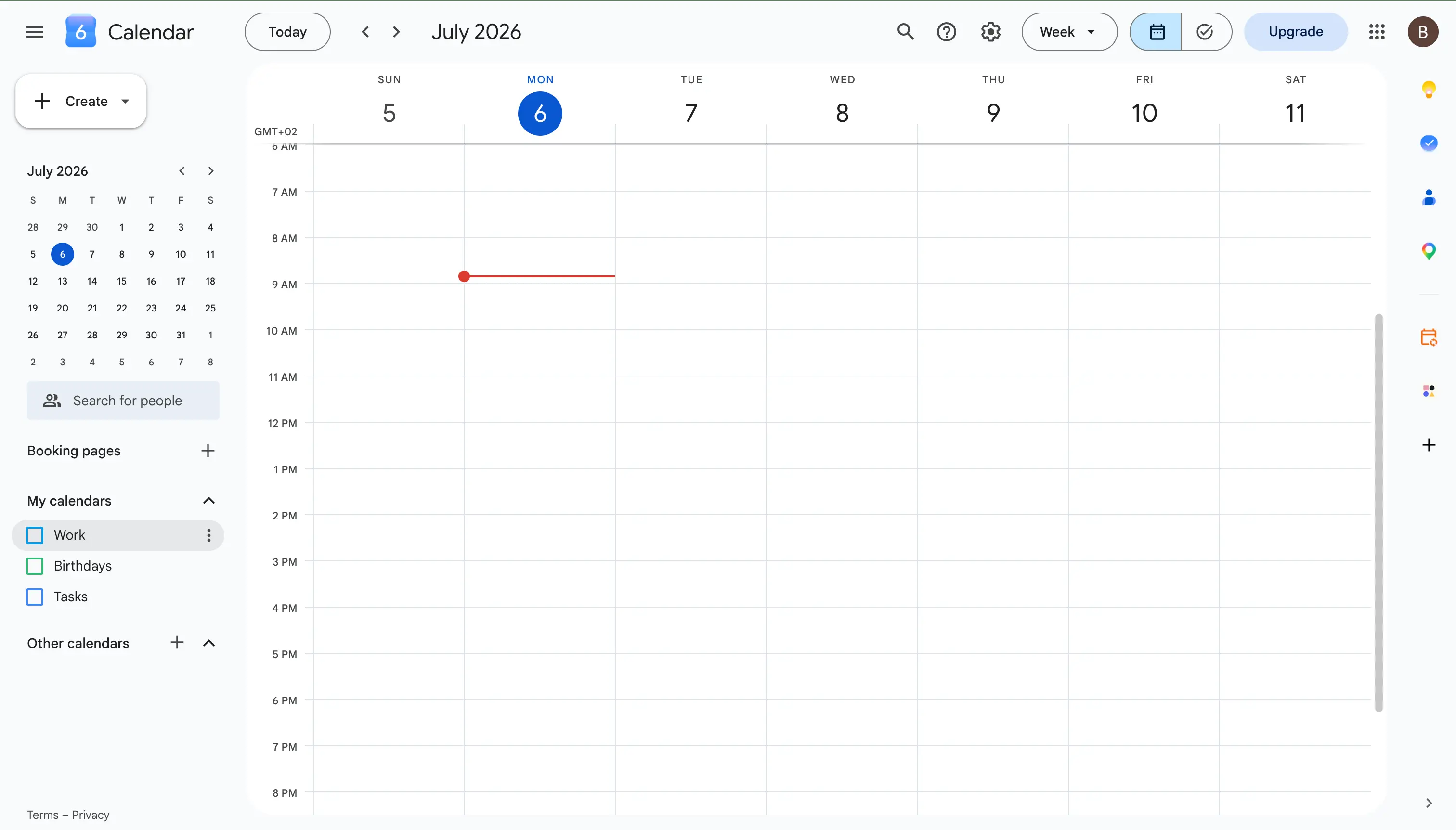
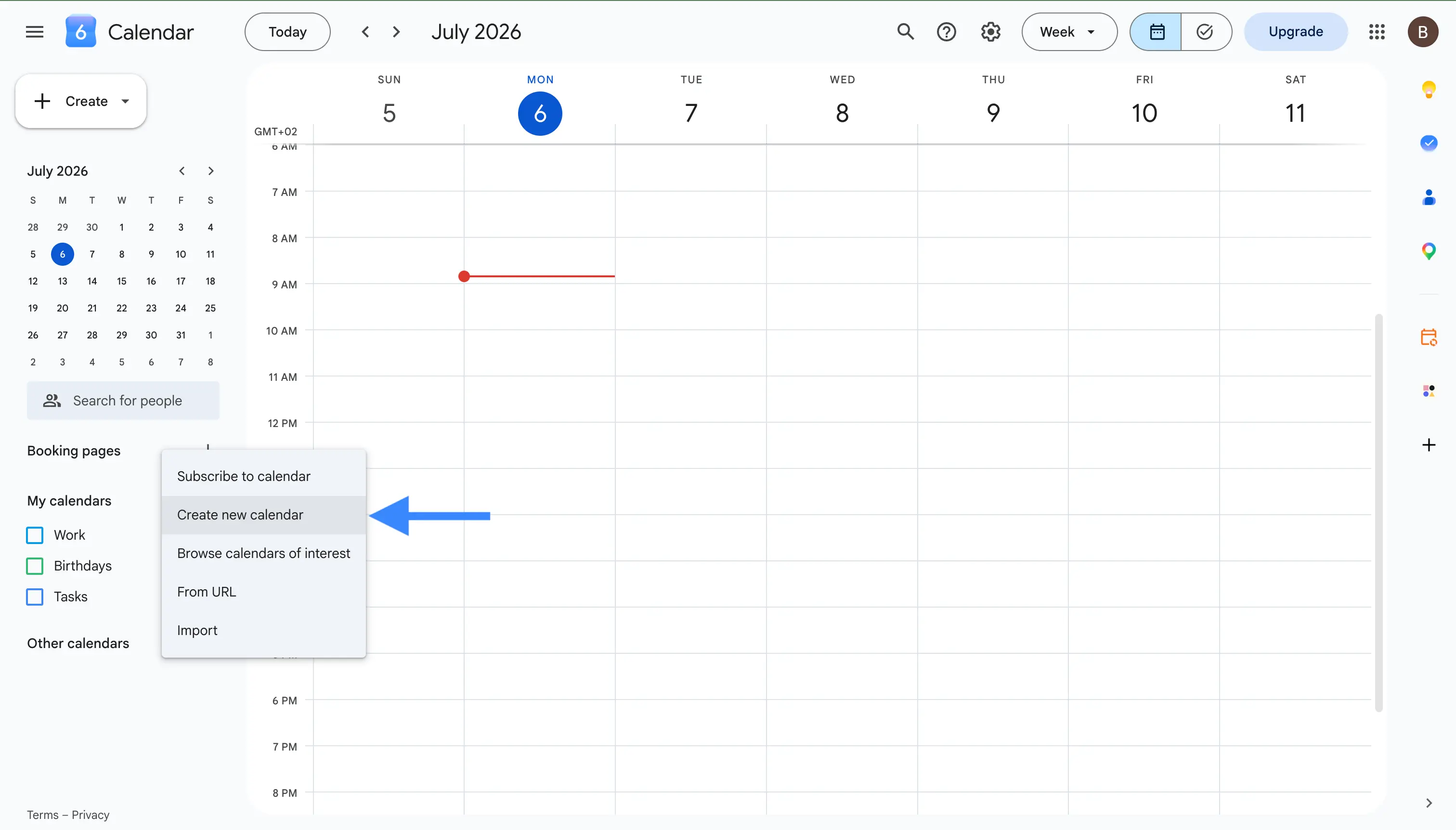
- In the left sidebar, find Other calendars, and click the plus icon next to it, then choose Create new calendar.
- Give the calendar a clear name, like "Marketing Team" or "Family," add a short description so people know what it is for, and check the time zone.
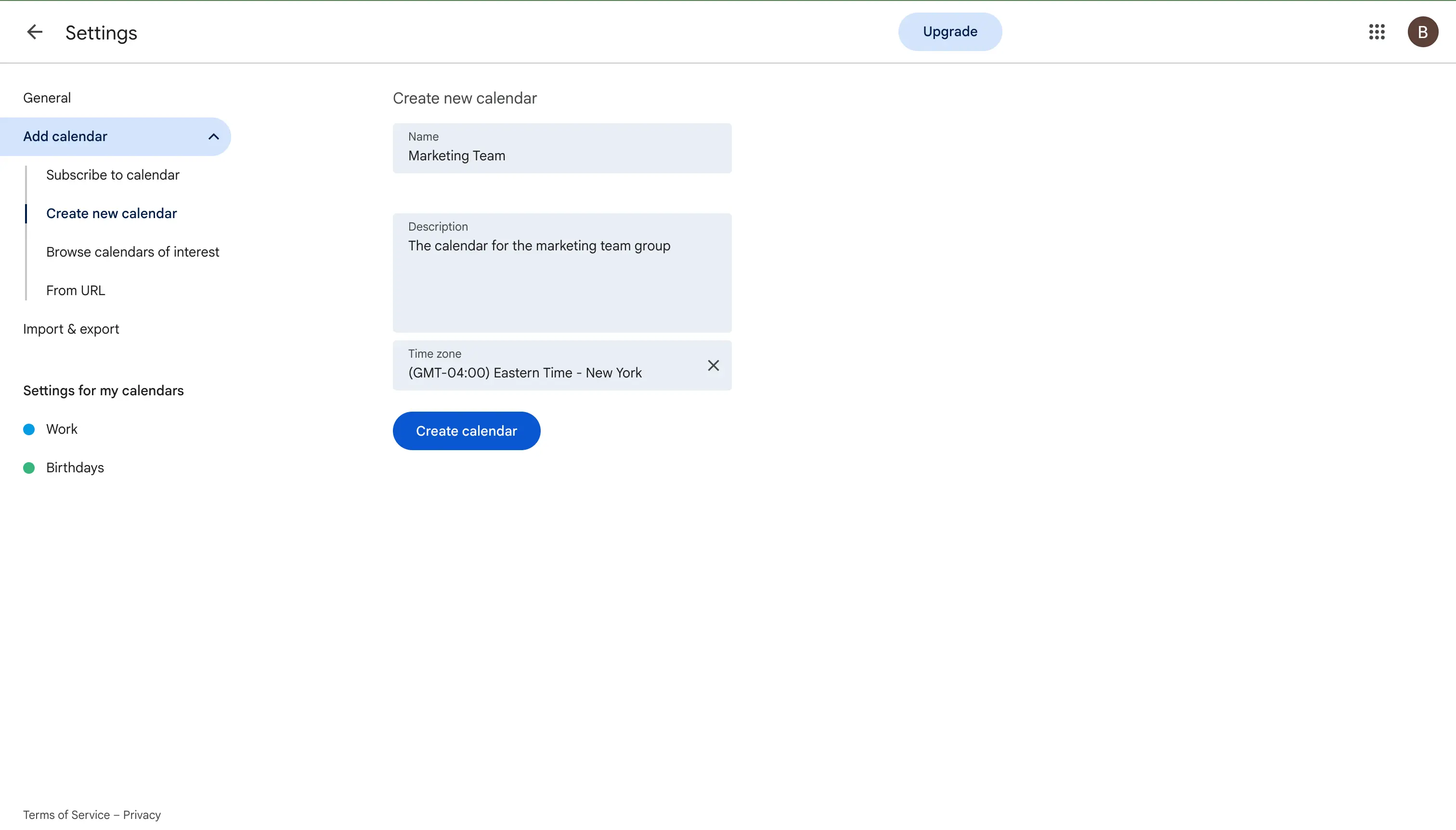
- Click Create calendar. After a moment, your new calendar appears in the left sidebar under My calendars.
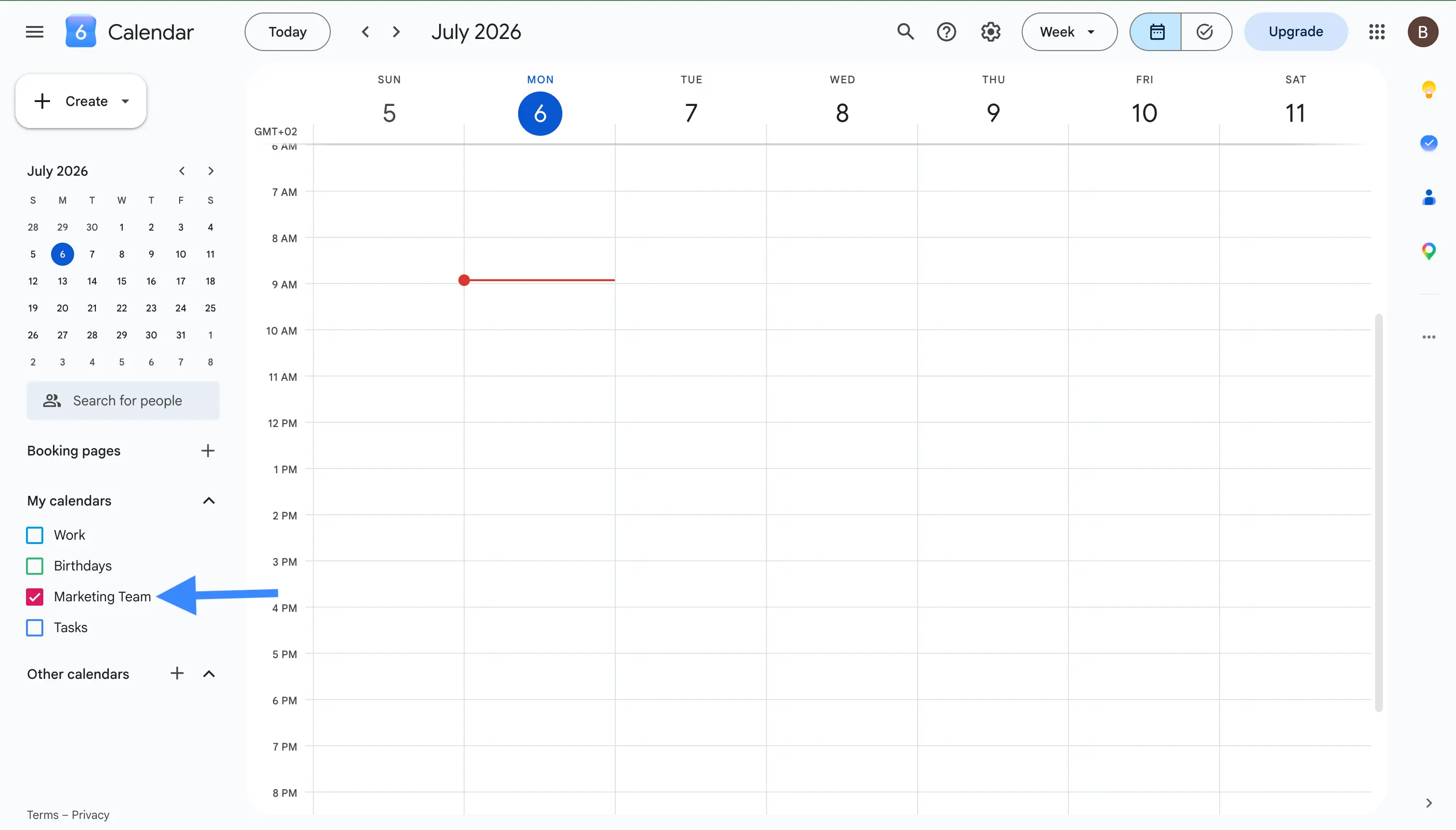
The person who creates the calendar becomes its owner. Keep that in mind, because if that person later leaves the team, someone else will need to be made an owner so the calendar does not get stuck. We cover this again in the tips below.
Step 2: Share the calendar with your group
A new calendar starts out private to you, so the next step is to give your group access. You can do this by adding people one by one, or by adding a single Google Group. If you already have a calendar full of events that you want the group to use, you can share that existing one the same way, since the steps below work for any calendar you own.
Share with people one by one
- In the left sidebar, hover over your new calendar, click the three dots, and choose Settings and sharing.
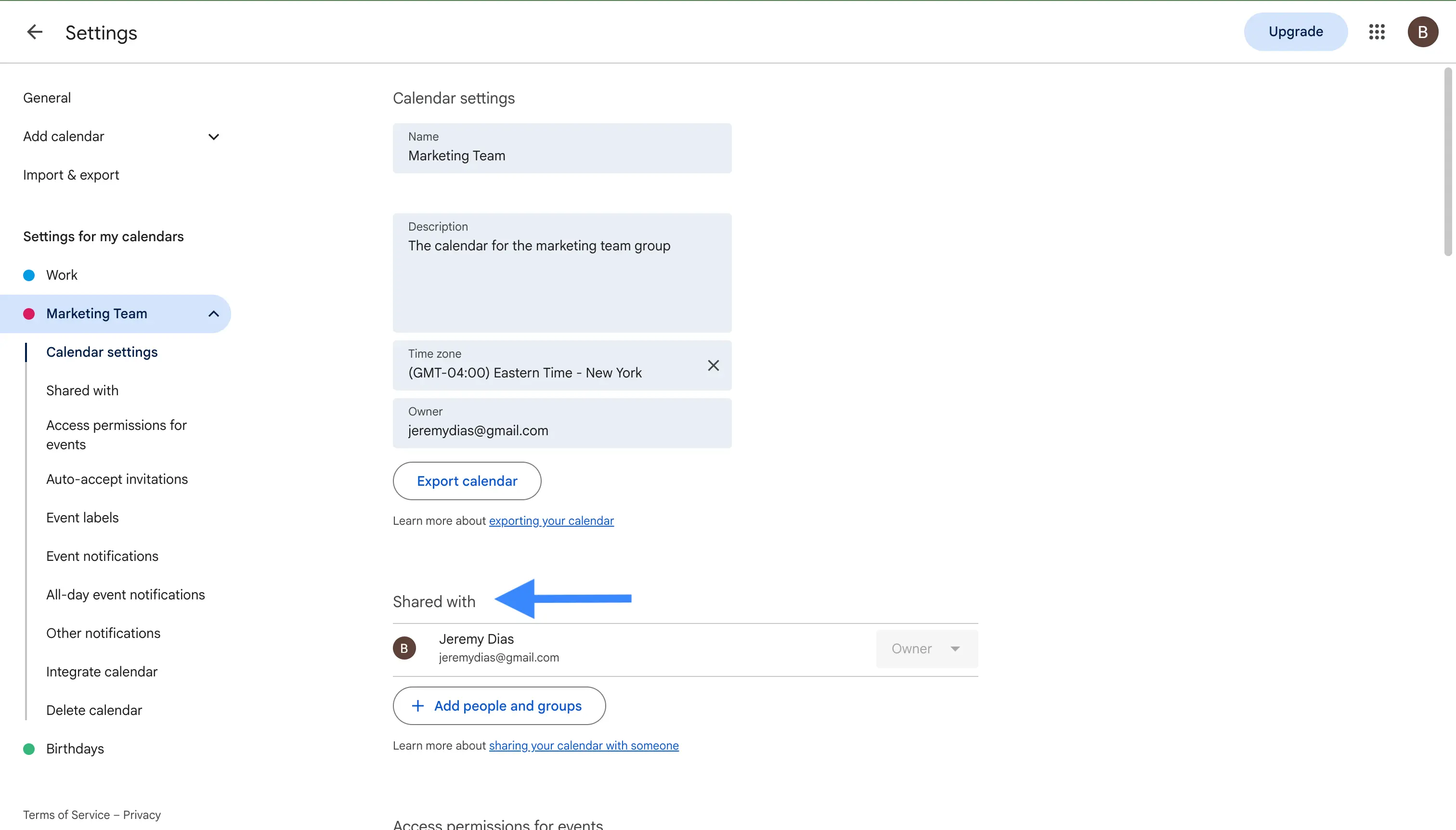
- Scroll down to Share with specific people or groups, and click Add people and groups.
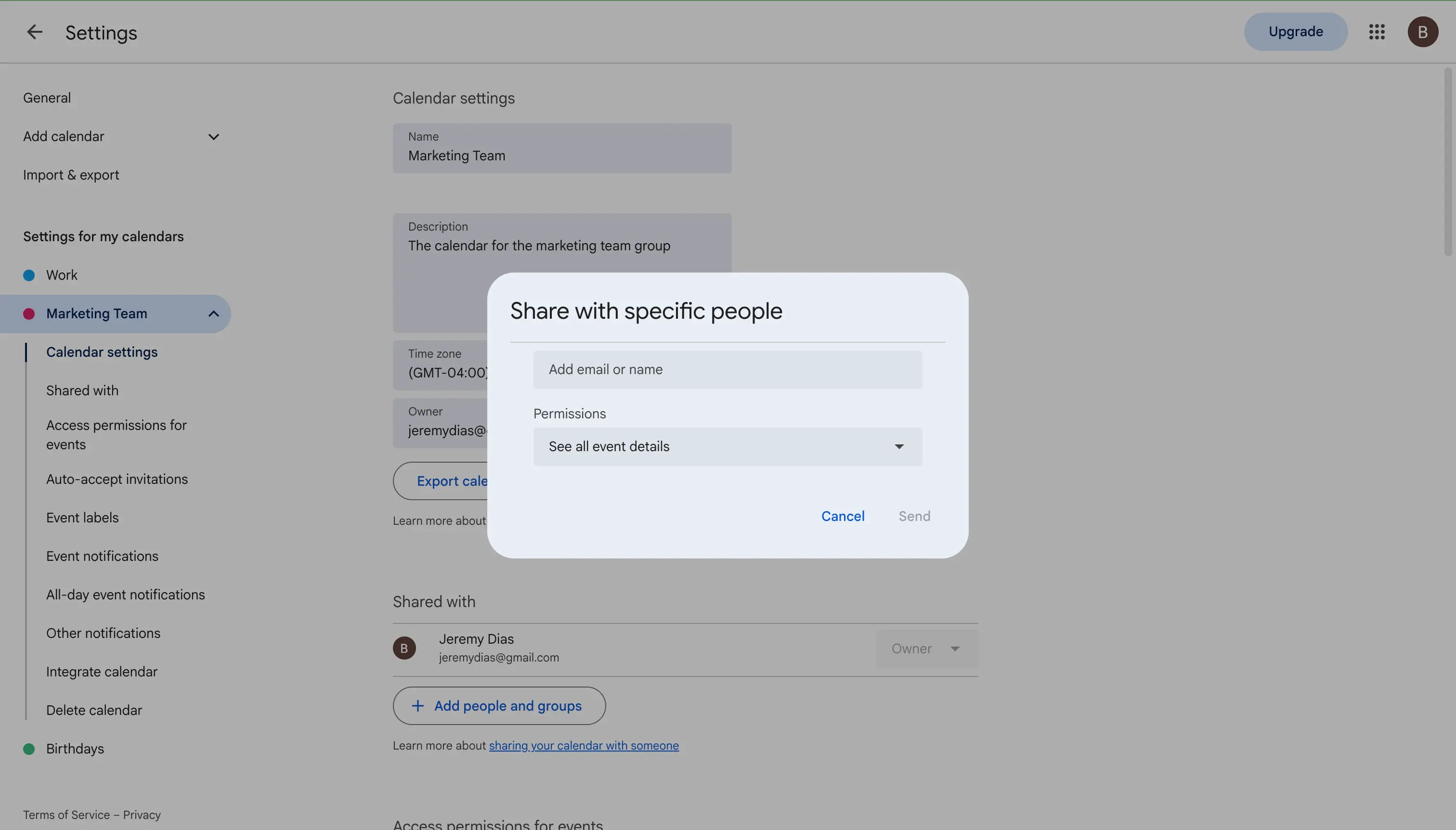
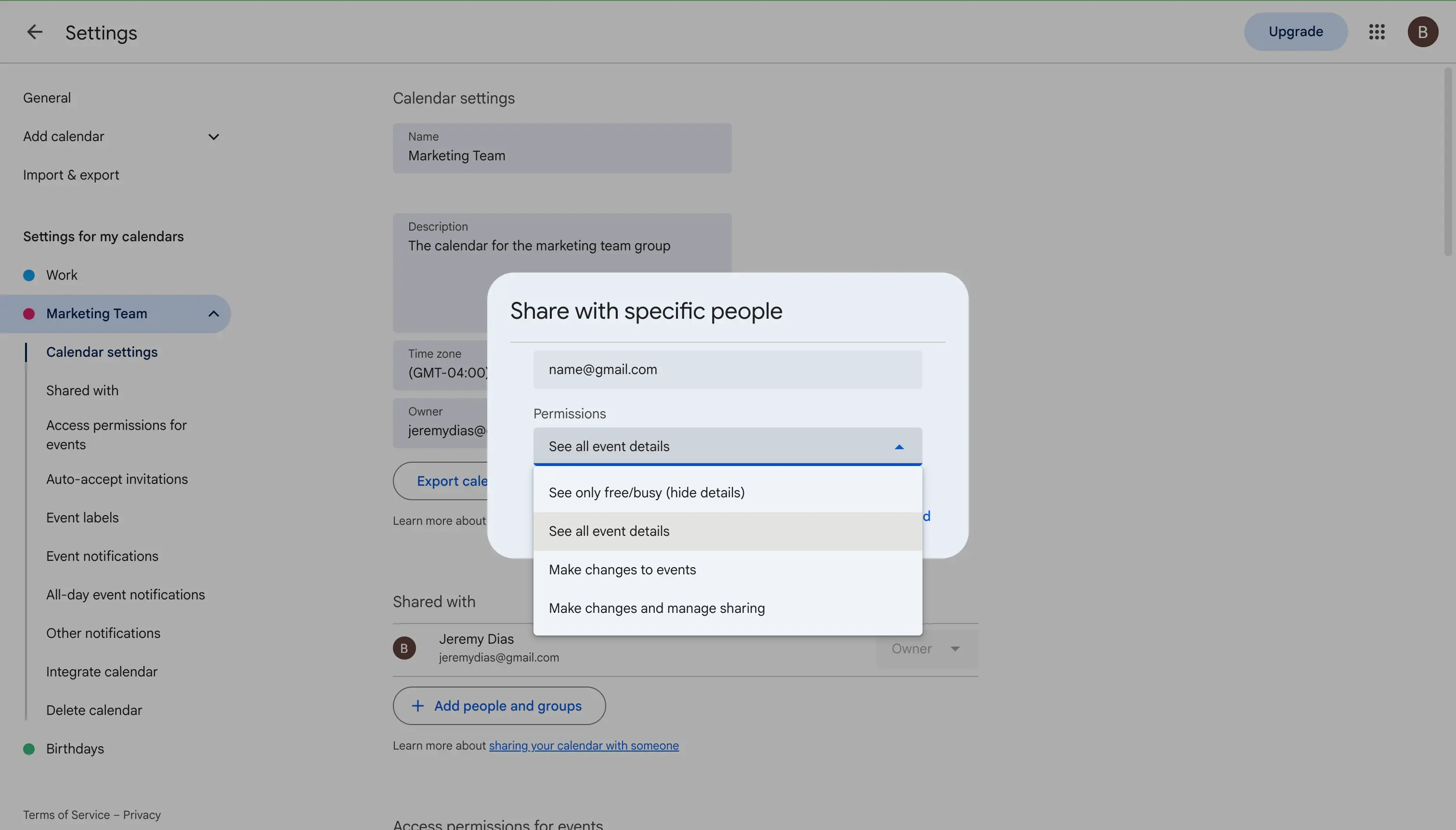
- Type each person's email address, choose a permission level from the dropdown, and click Send. Each person gets an email with a link to add the calendar.
Share with a whole Google Group
If your team is more than a handful of people, adding everyone by hand is slow, and you have to redo it whenever someone joins or leaves. A Google Group solves this. Instead of many email addresses, you add the group's single address in the same Add people and groups box. Everyone in that group gets access straight away, and when a person joins or leaves the group later, their access to the calendar updates automatically. In Google Workspace, a new member usually gets access within about an hour of joining. If you do not have a group yet, you can make one at Google Groups.
If you use Google Workspace at your company, you also get an organization-wide option. In the calendar's sharing settings, under Access permissions for events, tick Make available for your organization, and then pick an access level next to it. This lets anyone in your company find the calendar and subscribe to it without being added by hand. It is a find-and-subscribe option, not an automatic add, and people outside your organization cannot see it. Keep in mind that your administrator can decide whether you are allowed to share calendars at all, so on a work or school account some of these choices may be limited.
Permission levels explained
When you share the calendar, you pick how much each person or group can do. Google gives you four levels, and it is worth choosing carefully so that people can do what they need without being able to break anything.
| Permission level | What that person can do |
|---|---|
| See only free/busy (hide details) | See when the calendar is busy, but not the event titles or any details |
| See all event details | View every event in full, but not add or change anything |
| Make changes to events | Add, edit, and delete events on the calendar |
| Make changes and manage sharing | Full control, including changing who else the calendar is shared with |
A good rule of thumb is to give most people See all event details, give Make changes to events to the few who actually run the schedule, and keep Make changes and manage sharing for one or two owners.
How your team adds the group calendar
Sharing the calendar is only half the job. Each person you invited still needs to add it on their side before it shows up for them.
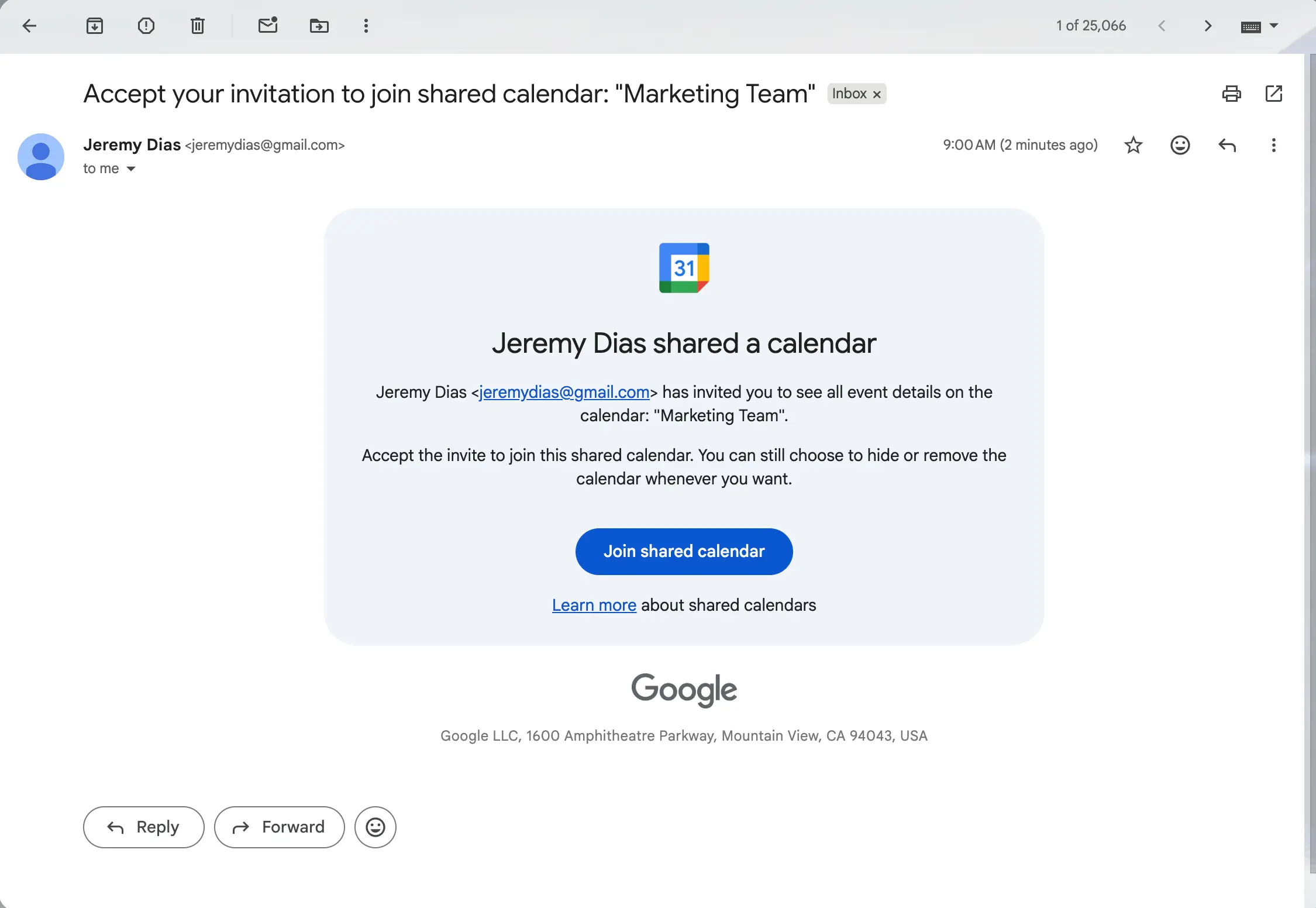
When you share the calendar, everyone you added receives an email with an Add this calendar link. All they have to do is open the email and click that link, and the calendar appears in their own Google Calendar under Other calendars. From then on, it stays visible next to their personal calendar, and they can turn it on or off with the checkbox in the sidebar.
If someone did not get the email, you can send them the calendar's link instead. In Settings and sharing, scroll to Integrate calendar and copy the Calendar ID. To add it, they click the plus next to Other calendars, choose Subscribe to calendar, paste the ID, and press Enter.
Managing your group calendar
Once your group calendar is up and running, you will sometimes need to change who has access or tidy things up. All of this happens in the same Settings and sharing page you used to share the calendar, and only an owner can make these changes.
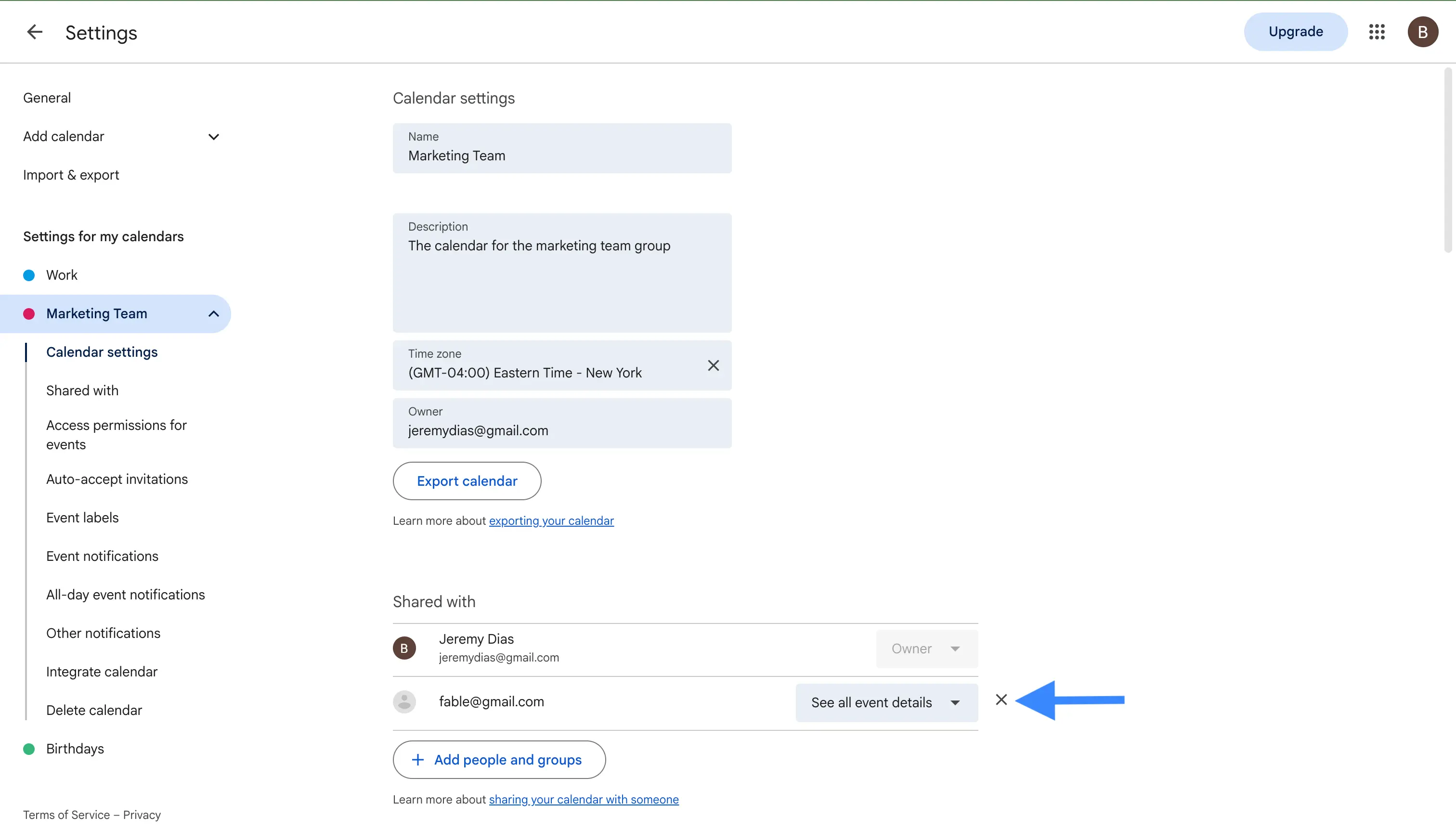
- Change what someone can do. Under Share with specific people or groups, find the person and pick a new option from their permission dropdown, for example moving them from Make changes to events down to See all event details.
- Remove a person. Next to their name, click the X to take away their access. The calendar stays in their list until they remove it themselves, but they no longer see any new changes.
- Stop sharing completely. Remove everyone from the list, and turn off the organization-wide option if you used it, and the calendar goes back to being private to you.
It also helps to know the difference between a few things that people often mix up.
- Deleting the calendar removes it for everyone, and only an owner can do it. This cannot be undone, so be careful.
- Unsubscribing, which means removing the calendar from your own Other calendars list, only affects you. The calendar stays in place for everyone else.
- Hiding the calendar with the checkbox in the sidebar simply tucks it out of view for you, without removing anything.
If an owner is about to leave, hand over ownership first. Give another person the Make changes and manage sharing permission, and on a Google Workspace account an administrator can also change a calendar's owner. Doing this before the original account is deleted keeps the calendar from being lost.
How your group gets notified about changes
A common surprise with group calendars is that adding an event does not automatically alert the whole team. Google leaves notifications up to each person, so every member controls what they are told about.
If someone wants an alert whenever an event is added, changed, or removed on the shared calendar, they turn it on for themselves.
- Open Settings and sharing for the group calendar.
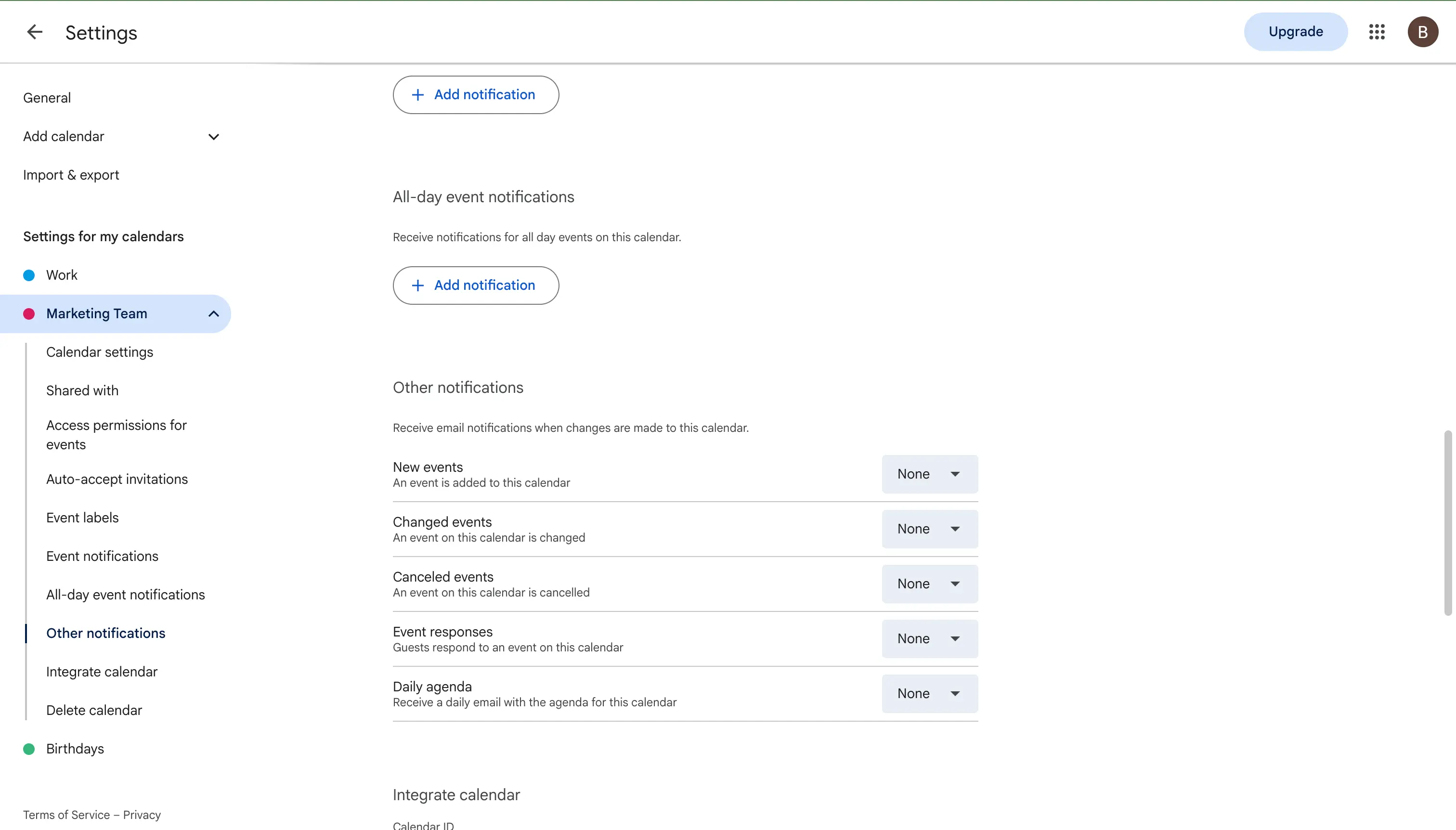
- Scroll down to Other notifications.
- Choose what to be notified about, such as new events and changed events, and pick how, which is usually by email.
Because this setting is per person, it is worth telling your team to switch it on when they first add the calendar. As the owner, you cannot set these reminders on everyone's behalf.
Use the group calendar on your phone
After a calendar has been shared with you and you have added it once, it follows you to your phone, though the exact steps depend on which app you use.
- Google Calendar app on iPhone or Android. Open the app, tap the menu, and make sure the shared calendar is ticked so its events show. If it is missing, open a browser, go to Google Calendar, and add the calendar there once, and then it appears in the app.
- Apple Calendar on iPhone. The Google Calendar app handles shared calendars best. Apple Calendar only syncs your main Google calendar by default, so a shared group calendar may not show up there at all.
One thing to keep in mind is that you can only change sharing and permissions from a computer. The phone apps let you view the calendar and add events, but not manage who it is shared with.
If a shared calendar does not show up, run through this quick list. Make sure you accepted the invitation and added the calendar, check that its checkbox is ticked in the sidebar, confirm you are signed in to the right Google account, and make sure sync is turned on for that account on your phone.
Another option: invite a whole group to a single event
Sometimes you do not need a whole shared calendar, you just want one event to reach everyone, such as a weekly meeting or a party. In that case, you can invite a Google Group to a single event instead of sharing a calendar.
When you create the event, type the group's address into the Add guests box, just as you would add any other guest. Everyone in the group is invited at once, and the guest list even updates to match the group, so people who join later are included too. For very large events, changes to the group can take up to a day to appear.
This is different from a group calendar. An event invite is a one-off, while a shared calendar is an ongoing home for all of the group's events.
Tips for a tidy group calendar
A group calendar is only useful if it stays easy to read. A few simple habits keep it that way.
- Use a clear name and color. A name like "Marketing Team" and its own color make the group's events easy to spot next to everyone's personal events.
- Add owners, not just one. Give at least two people the Make changes and manage sharing permission, so the calendar is never stuck if one person is away or leaves the company.
- Put the owner in the event title. For busy calendars, a short prefix like "Sam: Client call" tells everyone at a glance who each event belongs to.
- Keep details consistent. Ask people to always add the location or the meeting link, so nobody has to chase that information later.
- Use recurring events for routine things. For anything that repeats, like a weekly standup or a monthly review, set it up once as a recurring event instead of adding it again and again.
One thing to know: a shared calendar does not block everyone's time
There is an important limit to understand before your team relies on a group calendar. A shared group calendar is great for seeing everyone's events in one place, but it does not make those events count against each person's own availability.
When a colleague uses Google Calendar's Find a time feature to see when you are free, it only checks your primary calendar. Events on a shared group calendar, which sits as a separate secondary calendar for each member, are not counted. So two people can still book meetings on top of each other, even though both events are visible on the shared calendar.
If your goal is to stop double bookings, a shared calendar alone is not enough, because the events need to sit on each person's primary calendar to block their time. This is why many teams pair a group calendar with a calendar sync tool. You can read more about this in our guide on how to merge calendars.
The easier way for teams that use different tools
A group calendar works well when everyone is inside Google Calendar. It gets harder when your team is spread across Google, Outlook, and Apple Calendar, because a shared Google Calendar does not reach into Outlook or iCloud, and keeping everyone lined up by hand quickly becomes a chore.
For that, a calendar sync app is the simpler answer. Instead of one shared calendar that people only view, it clones events between each person's real calendars, in real-time and in both directions, no matter which provider they use. Events then land on everyone's primary calendar, where they actually block time and show up in availability checks.
Tools like OneCal keep Google, Outlook, and iCloud calendars in sync across a team, with full control over which details are shared. If you want to combine calendars for one person, see our guide on how to sync two Google calendars, or browse our roundup of the best calendar synchronization apps.
Frequently asked questions
Can I create a group calendar with a free Google account?
Yes. Anyone with a free Google account can create a calendar and share it with other people. Sharing with a whole Google Group and the organization-wide option work best with Google Workspace, but the basic group calendar is free.
How many people can I share a Google Calendar with?
There is no strict limit for normal use, but adding a lot of people one by one gets slow and the calendar can lag. For larger teams, share with a Google Group instead of many individual addresses.
Do I need a Google Group to make a group calendar?
No. You only need a Google Group if you want to share with many people at once and have access update automatically as the team changes. For a small group, adding people by email works fine.
Why doesn't the shared calendar show me as busy?
Because a shared group calendar is a separate secondary calendar, and Google's Find a time only checks your primary calendar for availability. To make the events block your time, they need to be on your primary calendar, or you can use a sync app that clones them there.
What happens if the person who created the calendar leaves?
The calendar belongs to whoever created it, so if that person's account is removed, the calendar can be lost. To avoid this, give at least one other person the Make changes and manage sharing permission ahead of time, or create the calendar under a shared or role-based account.
What is the difference between a group calendar and a Google Group?
A group calendar is a shared Google Calendar that several people can see and edit. A Google Group is a mailing list with one shared address. You can share a group calendar with a Google Group so that everyone on the list gets access, but the two are not the same thing.
What is the difference between "See all event details" and "Make changes to events"?
"See all event details" is read only, so the person can view every event in full but cannot change anything. "Make changes to events" lets them add, edit, and delete events, but not change who else the calendar is shared with.
Can I use recurring events on a group calendar?
Yes. Any event on the calendar can repeat, so for a weekly standup or a monthly review you set it up once and Google adds every future occurrence for you.
Can I share a group calendar with people outside my organization?
Yes, you can add an external email address in the sharing settings the same way, as long as your administrator allows external sharing. On a work or school account that setting can be locked down, so check with your admin if an outside address does not work.
Can people without a Google account see the calendar?
To add and interact with a shared calendar, each person needs a Google account. If you only want people to view it, you can make the calendar public and share its link, and then anyone can open it in a browser without signing in.