How to Merge Calendars: Google, Outlook, and iCloud - 2026 Guide
- Published on
Table of Contents
Merge Your Calendars the Smart Way
If you keep several calendars, it is easy to lose track of what is happening and where, so merging them into one is a common way to bring order to the chaos. In this guide, we will show you how to merge calendars step by step, whether you want to combine two Google calendars, two Outlook calendars, two iCloud calendars, or a mix of all three. We will also explain what does not transfer when you merge, and why syncing is often a better choice than merging for the long run.
Merging calendars vs syncing calendars
Before you start, it helps to understand the difference between these two words, because they solve two different problems and people often confuse them.
Merging copies the events from one calendar into another, one time only. After the copy is done, all of the events live in a single calendar, but the two original calendars are no longer connected in any way. If something changes on the source calendar later on, your merged copy will not update to match it.
Syncing keeps two or more calendars in step over time, so the same events show up on each one. Whenever you add, change, or delete an event, every connected calendar updates automatically, and nothing is left as a frozen copy that slowly goes out of date.
In short, merging is a good choice for a one-time cleanup, while syncing is the better option if you want your calendars to stay combined and current going forward. We cover both approaches in this guide, so you can pick the one that fits your situation.
How to merge two Google calendars
Google Calendar does not have a single "merge" button that combines calendars for you. Instead, the way to merge is to export the events from one calendar as an ICS file, and then import that file into the calendar you want to keep. The process is a little manual, but it is reliable and only takes a few minutes.
Step 1: Export the calendar you want to merge
To get your events out of the first calendar, you export them to a file that you will import in a later step.
- Open Google Calendar on your computer.
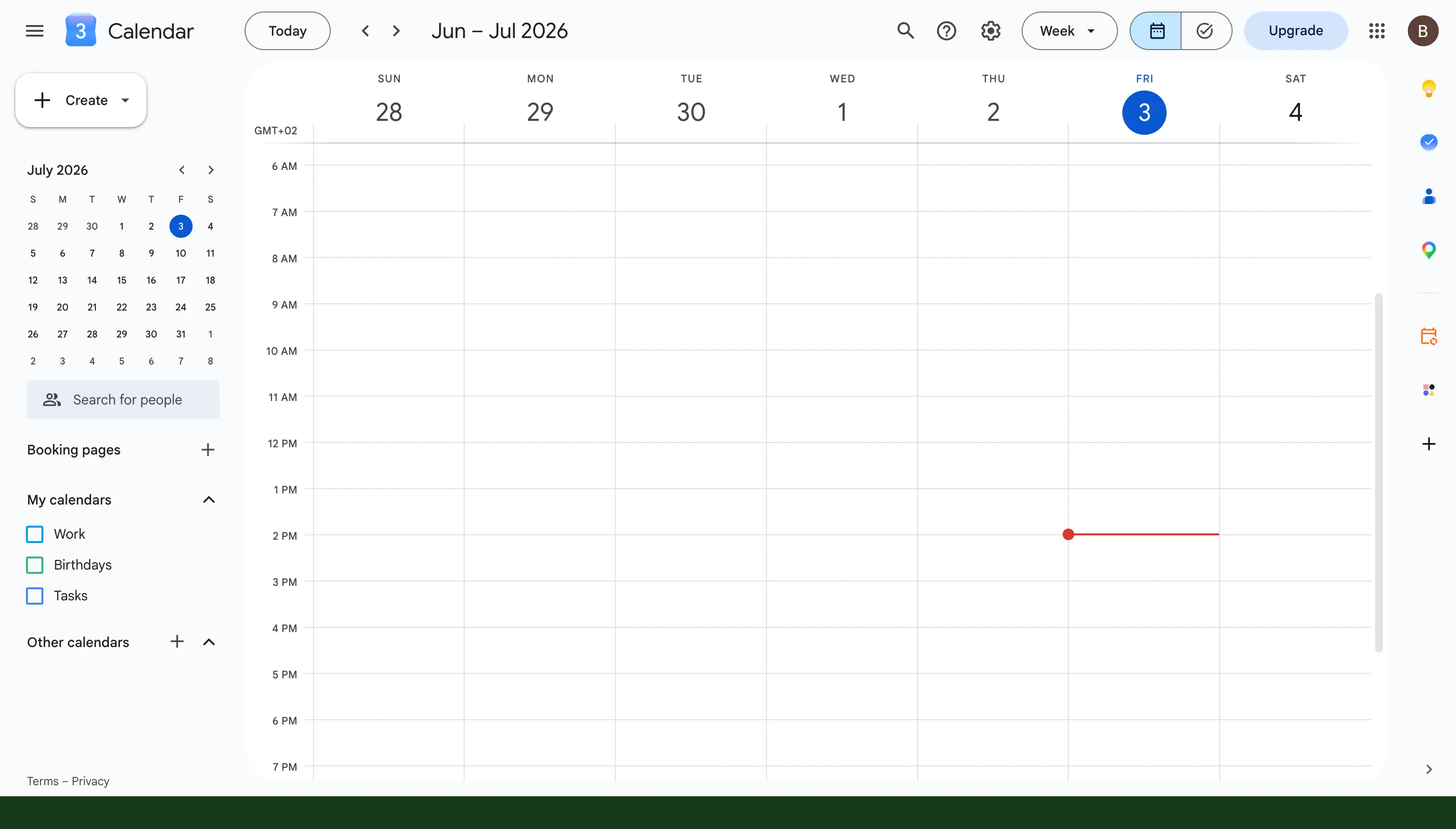
- Click the gear icon in the top right corner, and then choose Settings.
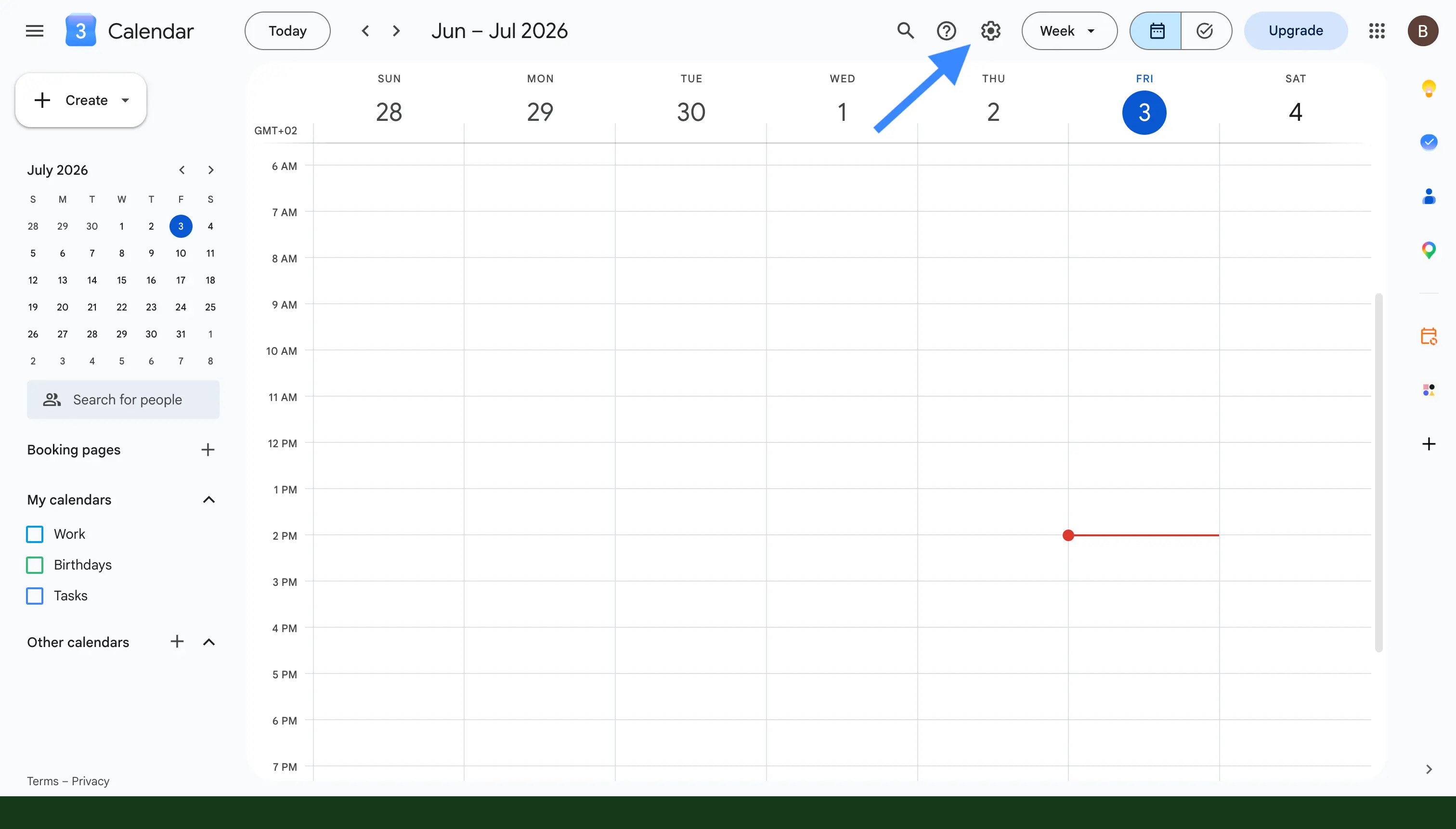
- In the menu on the left, click Import & export.
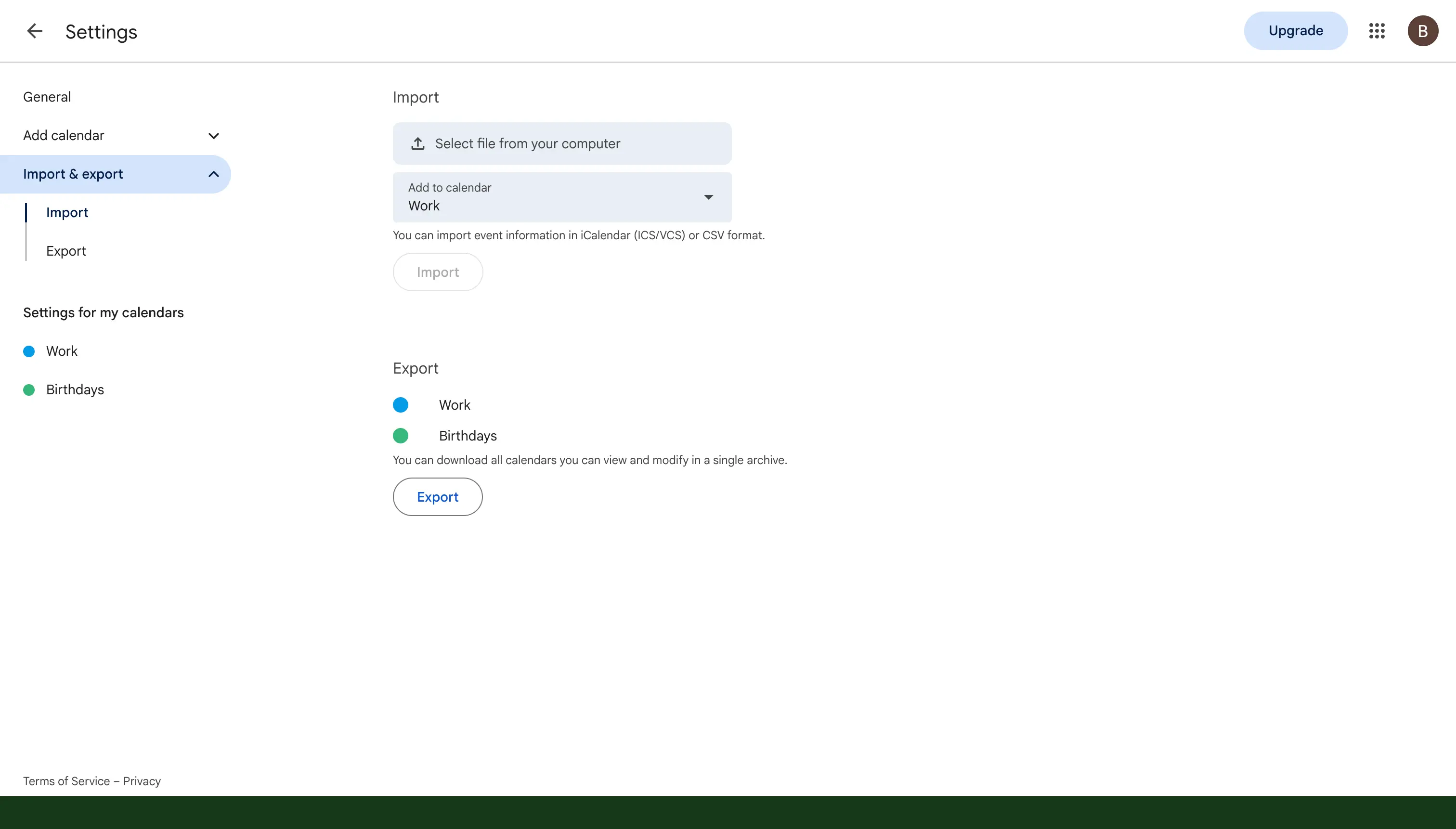
- Under the Export heading, click Export. Google will download a ZIP file that contains one ICS file for each of the calendars in your account.
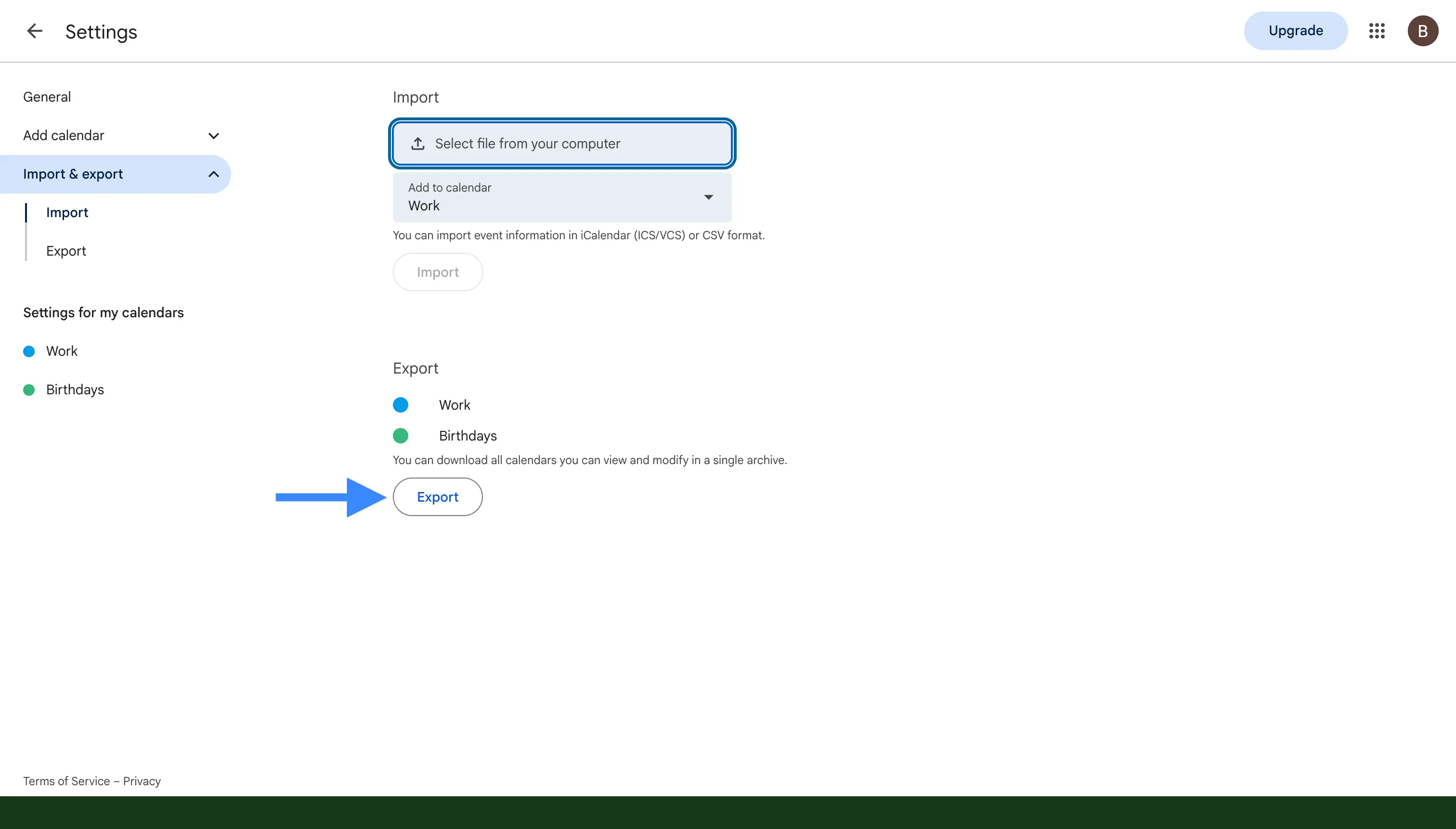
Step 2: Unzip the downloaded file
The file Google gives you is a compressed ZIP, so you need to open it before you can use what is inside. Double-click the ZIP file to extract it, and you will find a separate .ics file for each of your calendars. Look through them and pick out the file that belongs to the calendar you want to merge.
Step 3: Import it into your main calendar
Now that you have the ICS file, you can bring those events into the calendar you want to keep everything in.
- Back in Settings, click Import & export once more.
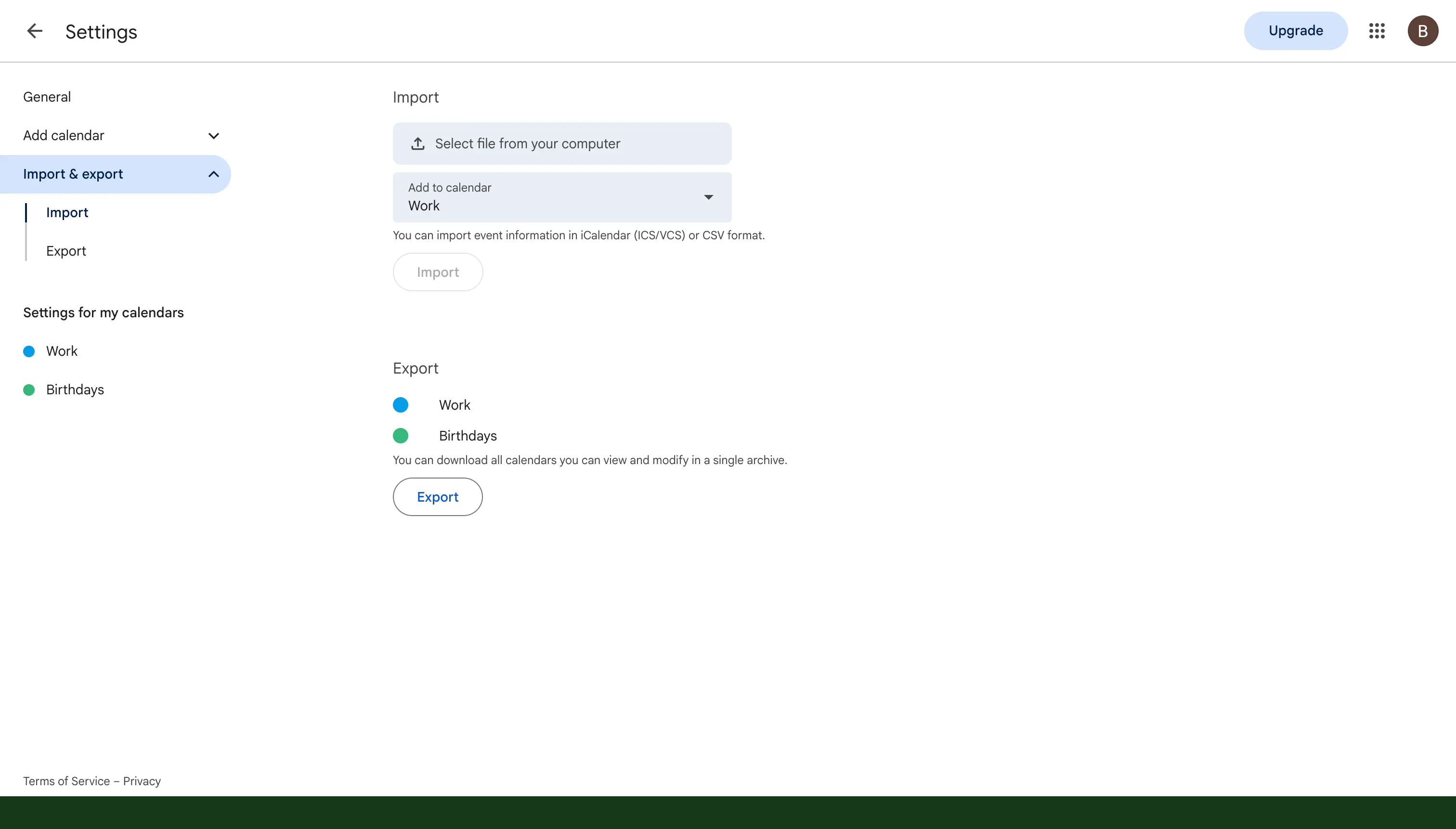
- Under the Import heading, click Select file from your computer, and then choose the
.icsfile you extracted in the last step.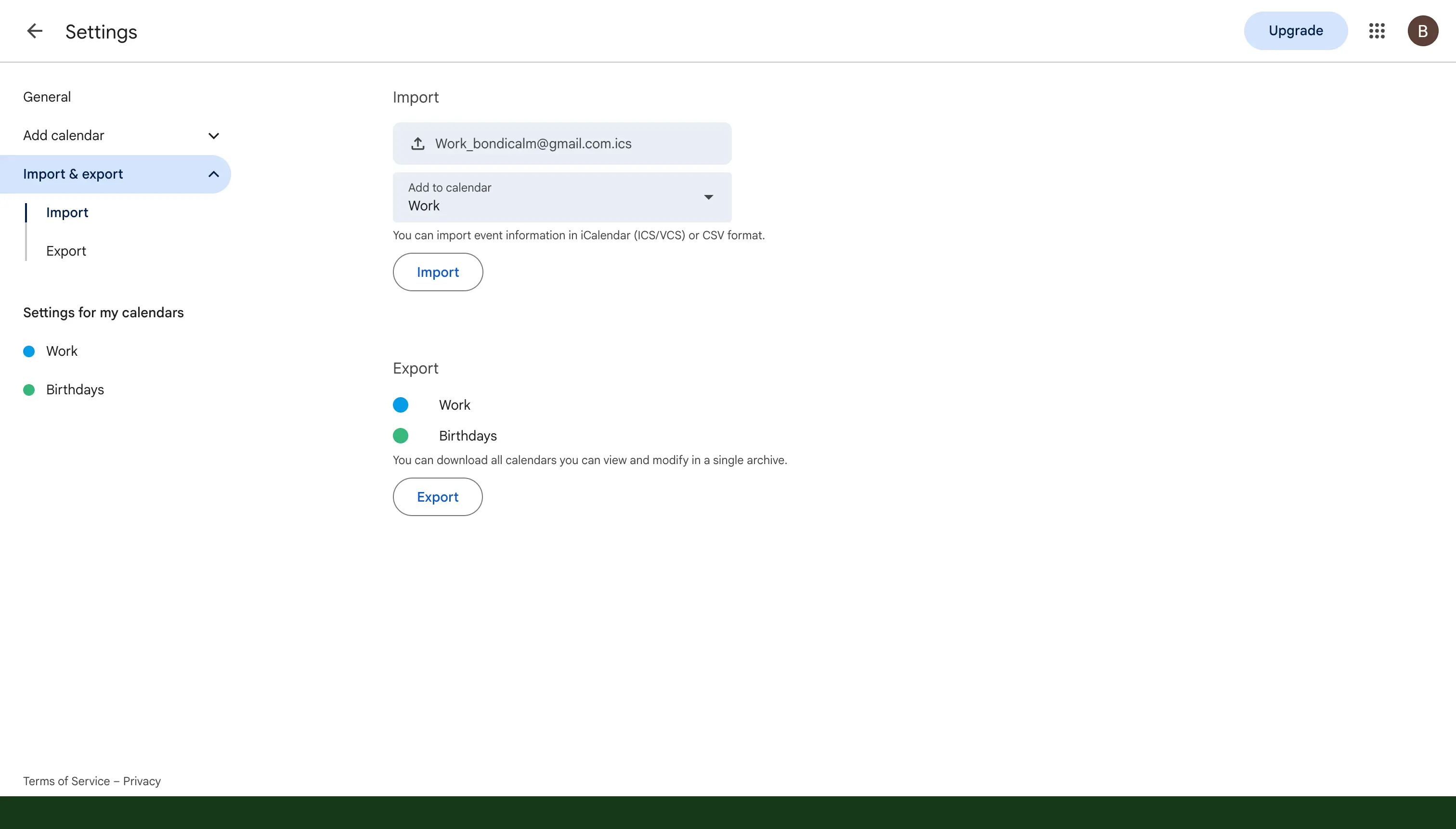
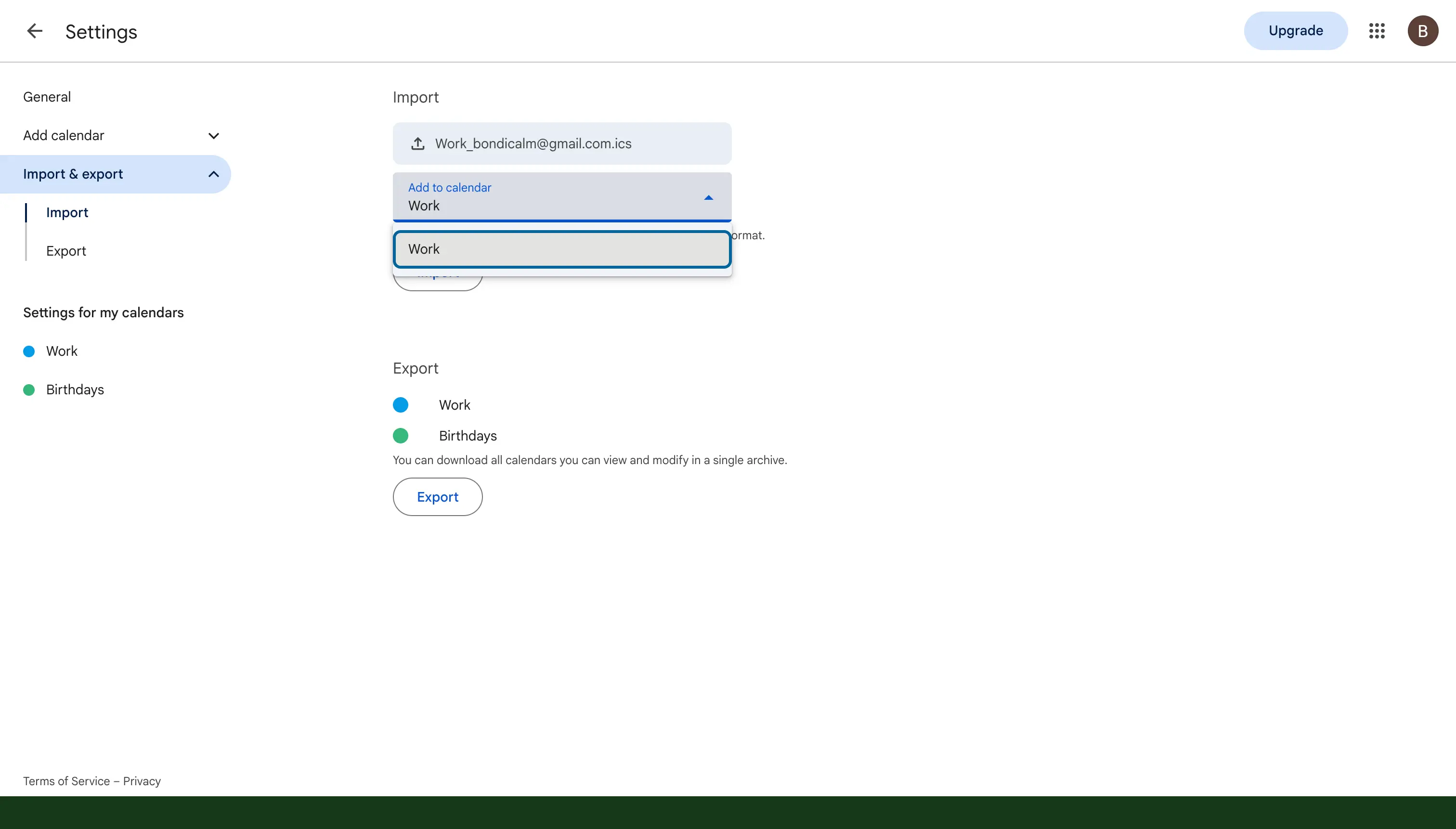
- Open the Add to calendar dropdown and pick the calendar where you want all of the events to end up. Choose your primary calendar if you want the events to block your time when others check your availability.
- Click Import, and Google will copy the events across.
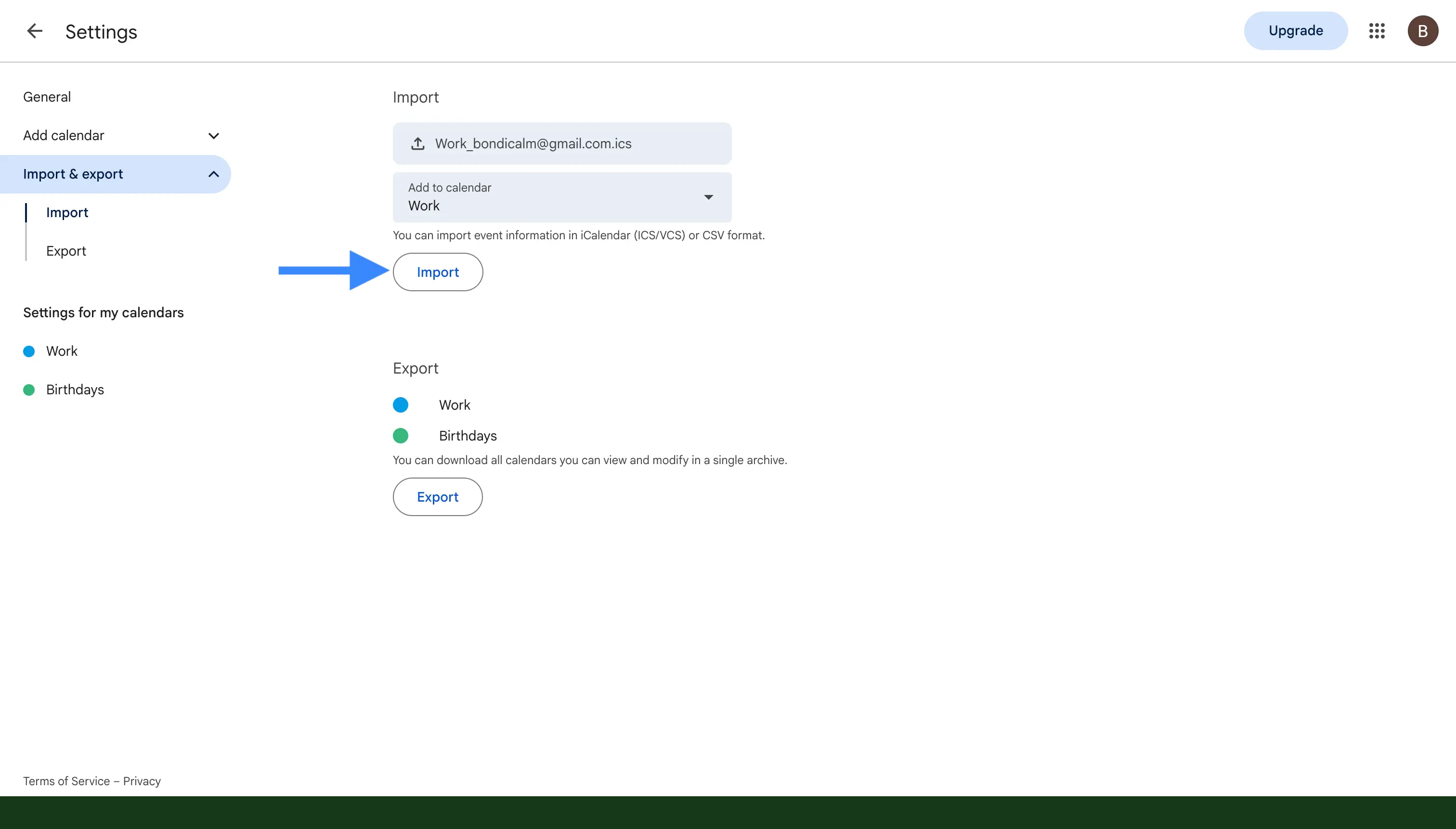
Once the import finishes, your events are copied into your main calendar and the merge is complete. If the two calendars live in different Google accounts, run the export while you are signed in to the first account, and then run the import while you are signed in to the second account. If you are not sure what an ICS file actually is, our guide on what is an ICS file explains it in plain terms.
For a more complete export, you can also use Google Takeout, which lets you download all of your Google Calendar data at once. It is especially handy when you have many calendars to combine, or when you simply want a full backup before you start merging anything.
How to merge two Outlook calendars
Outlook handles merging in different ways depending on which version you are using, so we will cover the classic Windows app, the newer versions, and Outlook for Mac below.
In classic Outlook for Windows
The classic Outlook app for Windows can export a calendar to a file and then import that file into another calendar, which effectively merges the events into one place.
This Import and Export wizard is available in the classic Outlook app on Windows, and in the older Legacy Outlook for Mac. In the New Outlook for Mac, the Import and Export options under the File menu are greyed out, because Microsoft removed the file-based tool in the redesign and moved to cloud syncing. This is not a problem with your account, it applies to everyone on the New Outlook for Mac. You can switch back to Legacy Outlook from the Outlook menu to get the wizard, but the simplest way to merge on a Mac is to import an ICS file, which we cover in the next section.
Step 1: Export the calendar to a file
First, you save the calendar you want to merge as a file on your computer.
- Go to File, then Open & Export, and then Import/Export.
- Choose Export to a file, and then select Outlook Data File (.pst).
- Select the calendar you want to merge, and save the file somewhere you can find it again.
Step 2: Import the file into your main calendar
Next, you bring that file back in and point it at the calendar you want to keep.
- Run Import/Export again, choose Import from another program or file, and then Outlook Data File (.pst).
- Tick Do not import duplicates, so you do not end up with two copies of the same events.
- Choose the file you saved, and import it into the calendar you want everything to appear in.
In new Outlook, Outlook on the web, and Outlook for Mac
New Outlook, the web version, and Outlook for Mac do not include the export and import wizard from classic Windows Outlook. Instead, you have two simple options for combining calendars, and both work the same way on a Mac and a PC.
- Import an ICS file. If you have a calendar saved as an ICS file, you can click Add calendar and then choose Upload from file, which is called Import in the New Outlook for Mac, and pick the file to bring its events in. On a Mac, this Add calendar and import path is the most reliable way to merge, since the file-based export and import wizard is not available in the New Outlook for Mac.
- Move events one by one. You can open an individual event, change the calendar it belongs to, and save it. This works well when you only have a handful of events that you need to move over.
A simpler alternative: overlay your calendars
If your real goal is simply to see everything in one place, you may not need to merge your calendars at all. Outlook can show several calendars stacked on top of each other, so that they look like a single calendar. In classic Outlook, open the View tab and click Overlay, and in new Outlook or on the web, you just tick more than one calendar in the calendar list. Your events then appear together in one view, while each calendar quietly stays separate underneath.
How to merge two iCloud calendars
Apple does not offer an export and import tool on iCloud.com or on the iPhone, so the reliable way to merge two iCloud calendars is to use the Calendar app on a Mac. You export one calendar as an ICS file, and then import it into the calendar you want to keep, which is the same idea as the Google steps above.
Step 1: Export the calendar you want to merge
First, you save the iCloud calendar you want to merge as an ICS file on your Mac.
- Open the Calendar app on your Mac.
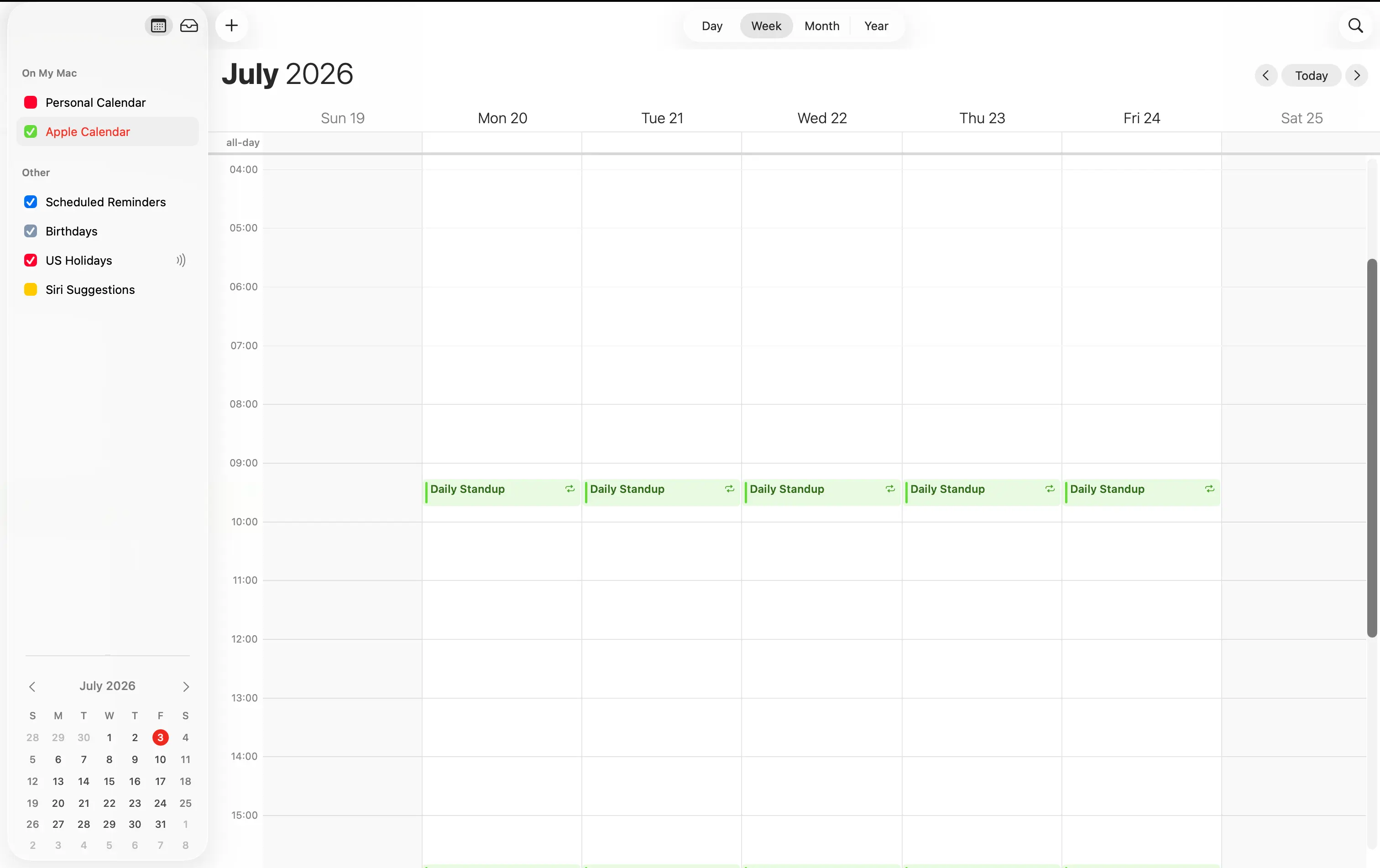
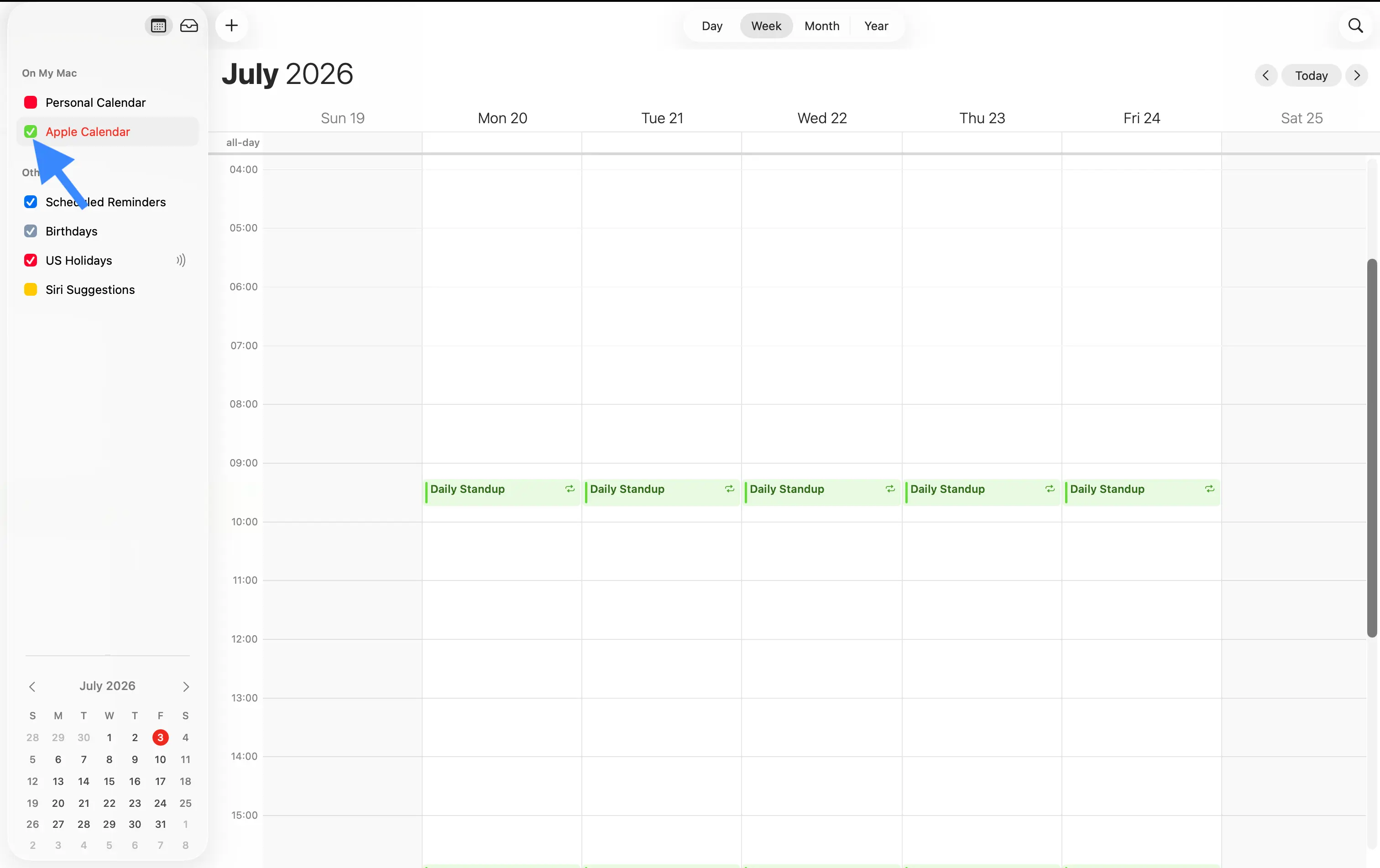
- In the calendar list on the left, click the calendar you want to merge so that it is selected.
- Go to File, then Export, then Export again, and save the
.icsfile somewhere you can find it.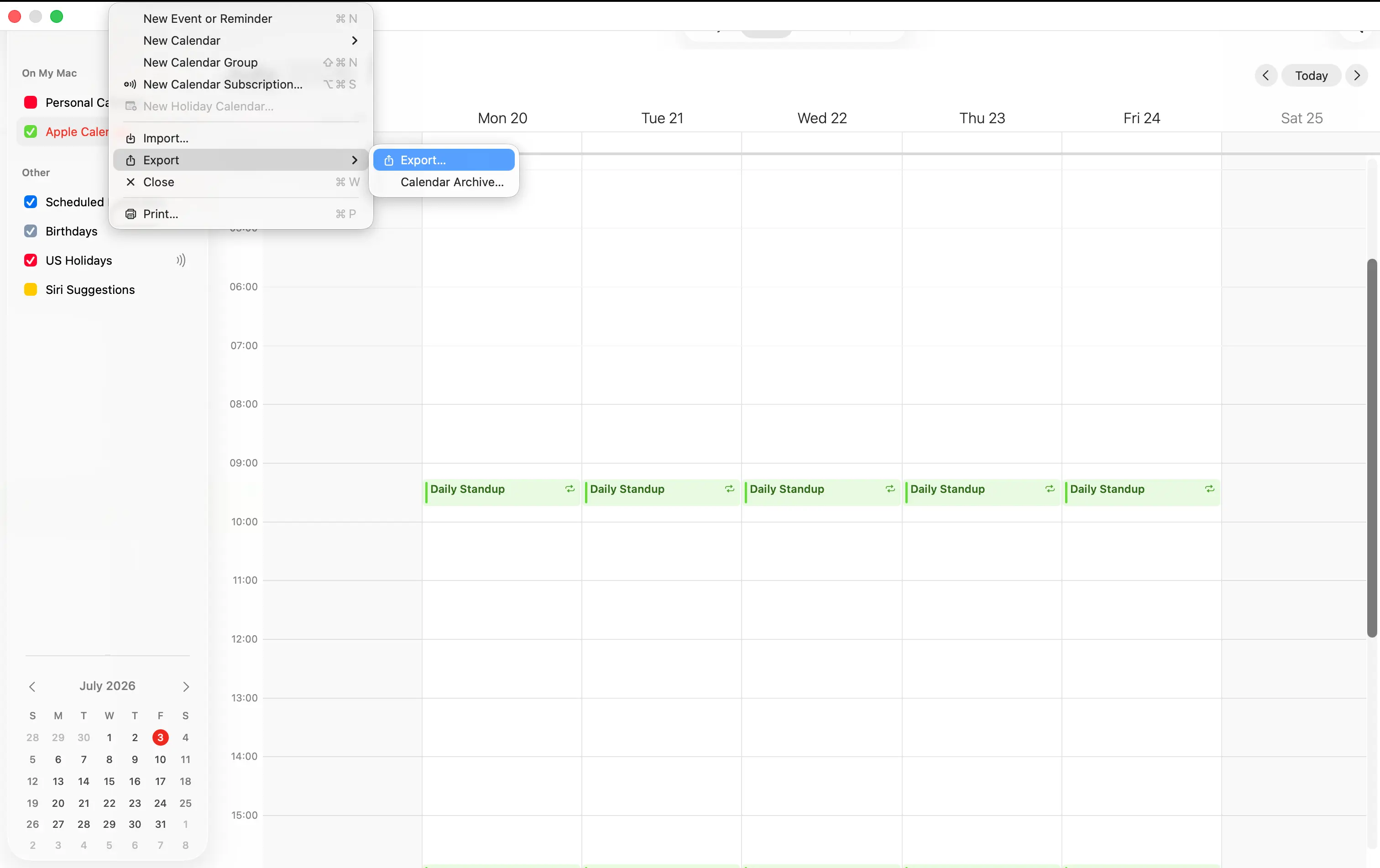
Step 2: Import it into your main calendar
Next, you bring that ICS file back in and point it at the calendar you want to keep.
- Go to File, then Import.
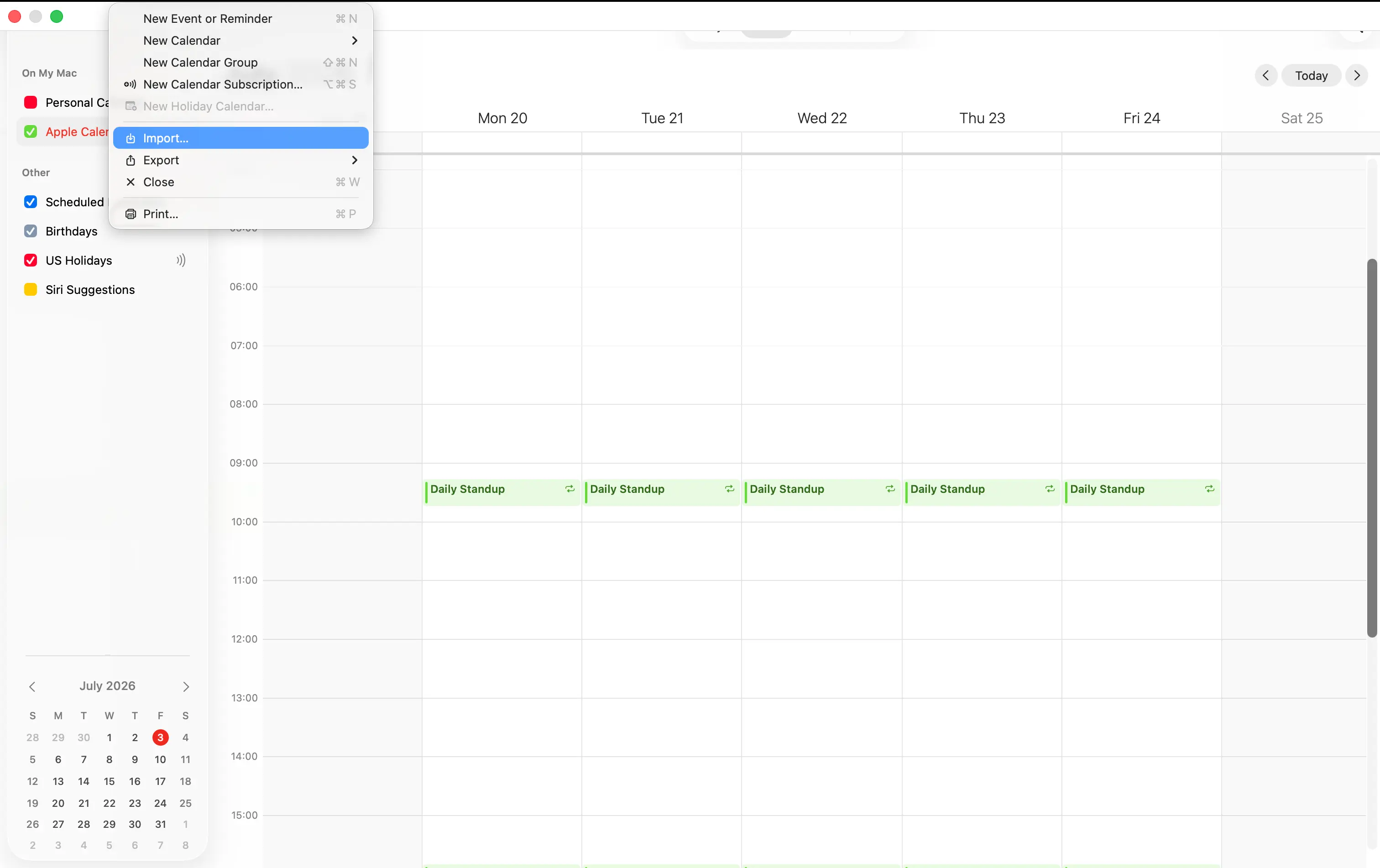
- Choose the
.icsfile you just saved, and click Import. - When Calendar asks which calendar to add the events to, pick the iCloud calendar you want to keep everything in.
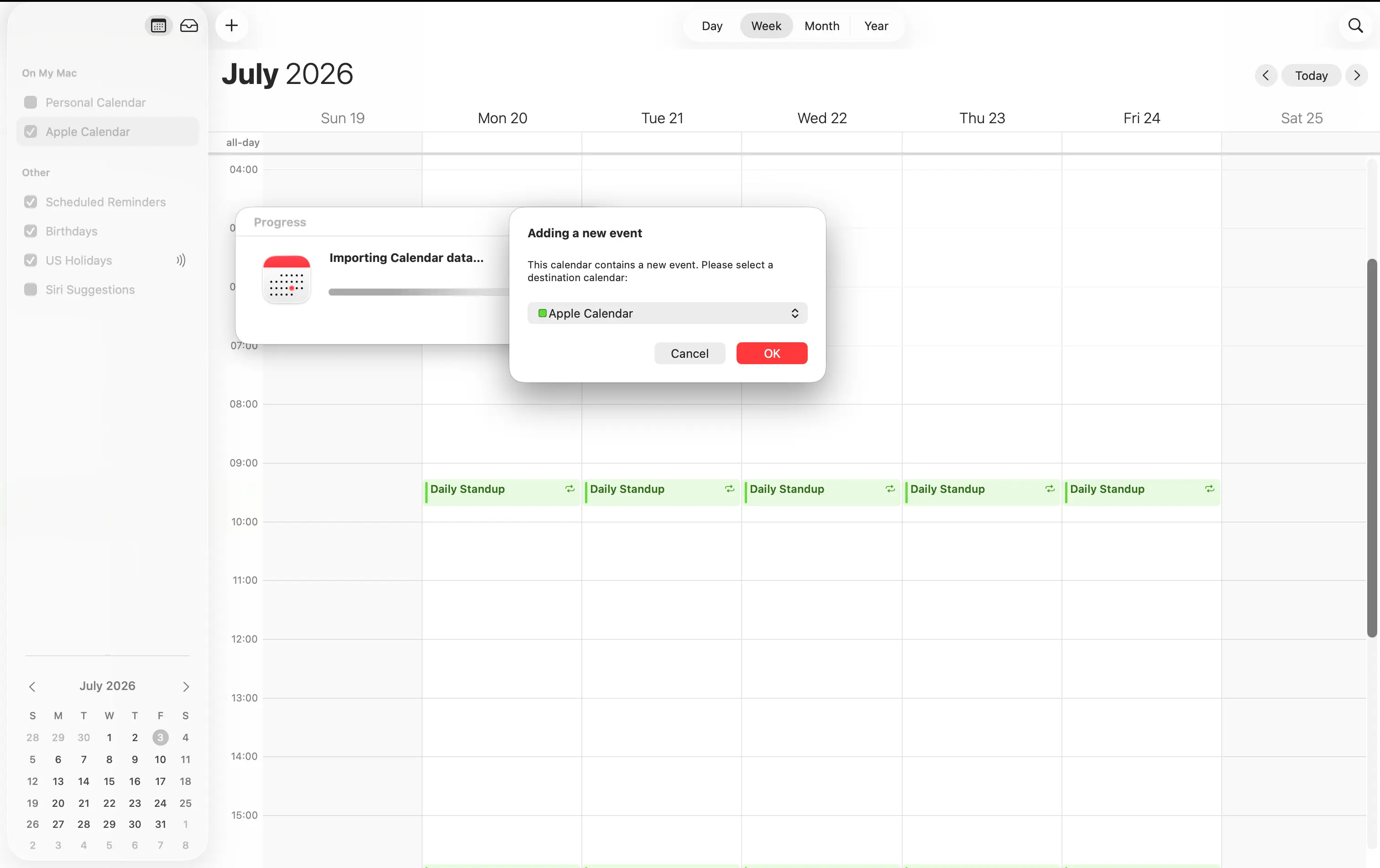
Because you do this in the Calendar app on a Mac, the merge syncs up to iCloud automatically, so the combined calendar also appears on your iPhone and iPad.
If you only have an iPhone and no Mac, there is no simple built-in way to merge two iCloud calendars, since the iPhone cannot export a calendar to a file. In that case, a calendar sync app is the easier route, which we cover below.
How to merge Google, Outlook, and iCloud calendars
This is where a one-time merge starts to fall short. You can import one provider's calendar into another, for example a Google calendar into Outlook, or an iCloud calendar into Google, using the same ICS export and import steps we covered above. The problem is that this only gives you a frozen copy of the events. As soon as you add a new event in one place, the calendars begin to drift apart again, and you are back where you started.
The truth is that there is no built-in way to truly merge a Google, Outlook, or iCloud calendar so that they stay combined across providers. The native options are limited to either a one-time import, like the steps above, or a read-only subscription that updates slowly and cannot be edited.
If you want your Google, Outlook, and iCloud calendars to act as one, and to stay that way, the right tool is calendar syncing, which we cover below. For a full walkthrough of one common case, see our guide on how to sync Google and Outlook calendars.
Imported and subscribed calendars do not block your time
There is one important detail to understand before you rely on a merged calendar, especially inside a company, because it catches a lot of people out.
When you import an ICS file, both Google Calendar and Outlook let you choose which calendar the events go into, so you can send them straight to your primary calendar. But when you subscribe to a calendar by its link, or accept a calendar that someone shared with you, the events do not go into your primary calendar. Instead, they land in a new secondary calendar that sits alongside your main one.
That is perfectly fine if you only want to see everything in one place. The catch is what happens with availability. Google Calendar's Find a time and Outlook's Scheduling Assistant only check your primary calendar when they work out when you are free. Events that sit on a secondary calendar are not counted, so a colleague can still book you over a meeting that only exists on your secondary calendar, and you end up double booked.
If your goal is to stop other people from booking over you, the events need to end up on your primary calendar. Importing an ICS file into your primary calendar does this, but subscribing to a calendar or accepting a shared one does not. This is another reason a calendar sync app is the safer choice for teams, because it clones events into your primary calendar, where the availability check can actually see them.
What does not transfer when you merge
A merge copies your events, but it does not copy everything. When you import an ICS or PST file, keep in mind that these details often do not carry over:
- Attachments on events.
- Custom reminders and notification settings.
- Sharing permissions and who a calendar was shared with.
- Guest lists and RSVP responses.
- Privacy settings, which may reset to the default.
- Recurring events, which can sometimes break or come in wrong.
It is a good idea to check these details after a merge, and to pay special attention to recurring events and time zones, since those are the two things that most commonly go wrong.
When you should not merge
Merging is not always the right move, so it is worth thinking twice before you do it if any of these situations apply to you.
- You want to keep work and personal separate. Once your events are combined into a single calendar, it is hard to pull them apart again, and mixing a private calendar into a work one can accidentally expose personal details to your colleagues.
- You only need to see everything together. If all you want is one clear view, it is better to overlay your calendars or turn them all on in the sidebar, rather than permanently merging them.
- You want the calendars to stay in step. A merge is only a one-time copy, so it cannot keep your calendars matching each other over time, which is a job for syncing instead.
The easier way: keep your calendars in sync
For most people who want a combined calendar, syncing is a better solution than merging. A merge is only a one-time copy, so it tends to leave you with duplicates to clean up and with calendars that soon drift apart again, whereas syncing keeps everything combined and current without any of that mess.
A sync app copies your events between calendars and then keeps doing it automatically, in real-time and in both directions. If you prefer, you can also hide the private details, so that a busy block shows up on your work calendar without any of the personal information attached to it. And because a good sync app is smart about duplicates, you never end up with two copies of the same event.
This is exactly what a calendar sync app like OneCal does. It clones events between your Google, Outlook, and iCloud calendars in real-time, so your calendars stay combined and up to date, with no duplicates and full control over your privacy.
Tools like OneCal are the easiest way to get a single, always-current view of everything. If you want to combine two Google calendars, see how to sync two Google calendars, or browse our roundup of the best calendar synchronization apps.
Troubleshooting: merging problems
If a merge did not go smoothly, here are the most common issues and fixes.
- You have duplicate events. Exporting makes a copy of your events and does not remove them from the original calendar, so it is easy to end up with two of everything. During an Outlook import, you can tick Do not import duplicates, and in Google Calendar you can remove the extra calendar or delete the duplicate events after the import is done.
- Recurring events look wrong. Repeating events sometimes break during a merge. It is often easiest to delete the broken series and recreate it once in your main calendar.
- Events show at the wrong time. This is usually a time zone mismatch. Check that your account and your device are set to the correct time zone, then review the affected events.
- Some details are missing. Attachments, notes, and guest lists may not survive the merge. There is no way to recover them automatically, so add anything important back by hand.
Frequently asked questions
How do I merge two Google calendars into one?
Export the first calendar from Settings, then Import & export, then Export. Unzip the download, then import the .ics file back in under Import, and choose your main calendar in the Add to calendar dropdown.
How do I merge two iCloud calendars?
Use the Calendar app on a Mac, since iCloud has no export and import tool on the web or on the iPhone. Select the calendar you want to merge, use File, then Export to save it as an ICS file, and then use File, then Import to bring that file into the calendar you want to keep. The merge then syncs to your iPhone and iPad through iCloud.
Can I merge Google, Outlook, and iCloud calendars?
Not permanently with the built-in tools. You can import one provider's calendar into another as a one-time copy, but it will not stay in step across providers. To keep Google, Outlook, and iCloud calendars combined and current, use a calendar sync app.
Why don't my imported calendar events show as busy?
Because those events are probably on a secondary calendar. When you subscribe to a calendar or accept a shared one, it comes in as a separate secondary calendar, and Google's Find a time and Outlook's Scheduling Assistant only check your primary calendar for availability. To have the events block your time, import them into your primary calendar, or use a sync app that clones them there.
Is merging calendars permanent?
The copied events stay in your main calendar until you delete them, so in that sense yes. But the merge itself is a one-time action. It does not link the calendars, so future changes on the original will not appear.
How do I merge calendars without creating duplicates?
In Outlook, choose Do not import duplicates during the import. In Google Calendar, import each calendar only once, and avoid importing a calendar you are also subscribed to. A sync app avoids duplicates automatically.
Should I merge or sync my calendars?
Merge if you want a one-time cleanup and do not need the calendars to stay connected. Sync if you want your calendars to stay combined and update automatically, which is the better choice for most people.