How to Share a Google Calendar - The Complete 2026 Guide
- Published on
Table of Contents
Keep Your Calendars in Sync, Not Just Shared
Sharing a Google Calendar lets other people see your schedule, book time with you, or collaborate on a shared agenda. In this guide, we'll cover every way to share a Google Calendar: with a specific person, with a whole group, on iPhone and Android, and via a public link. We'll also explain the permission levels, how to stop sharing, and the one thing sharing can't do (keep two calendars in sync).
Sharing vs syncing a Google Calendar - what's the difference?
Before we start, it's important to clear up a common point of confusion, because it determines which method you actually need.
Sharing a Google Calendar gives other people permission to view (or edit) your calendar. The events still live on your calendar - the other person is just looking at it. You control whether they see only free/busy times, full event details, or can make changes.
Syncing two calendars is different: it copies events back and forth so the same events physically appear on both calendars. This is what you need if you want your work events to show up on your personal calendar, or to combine two accounts into one view.
Google Calendar has a built-in sharing feature (covered in this article), but it does not sync calendars. If syncing is what you're after, see our guide on how to sync two Google Calendars.
With that out of the way, let's share your Google Calendar.
How to share a Google Calendar with a specific person
This is the most common scenario: you want one person (a colleague, partner, or assistant) to see your calendar. Google Calendar sharing is done from a computer - you can't set up new sharing from the mobile app (more on mobile below).
1. Open Google Calendar on your computer
Go to calendar.google.com and sign in to the Google account that owns the calendar you want to share.
2. Hover over the calendar and open its settings
In the left sidebar under My calendars, hover over the calendar you want to share. Click the three-dot Options menu that appears, then select Settings and sharing.
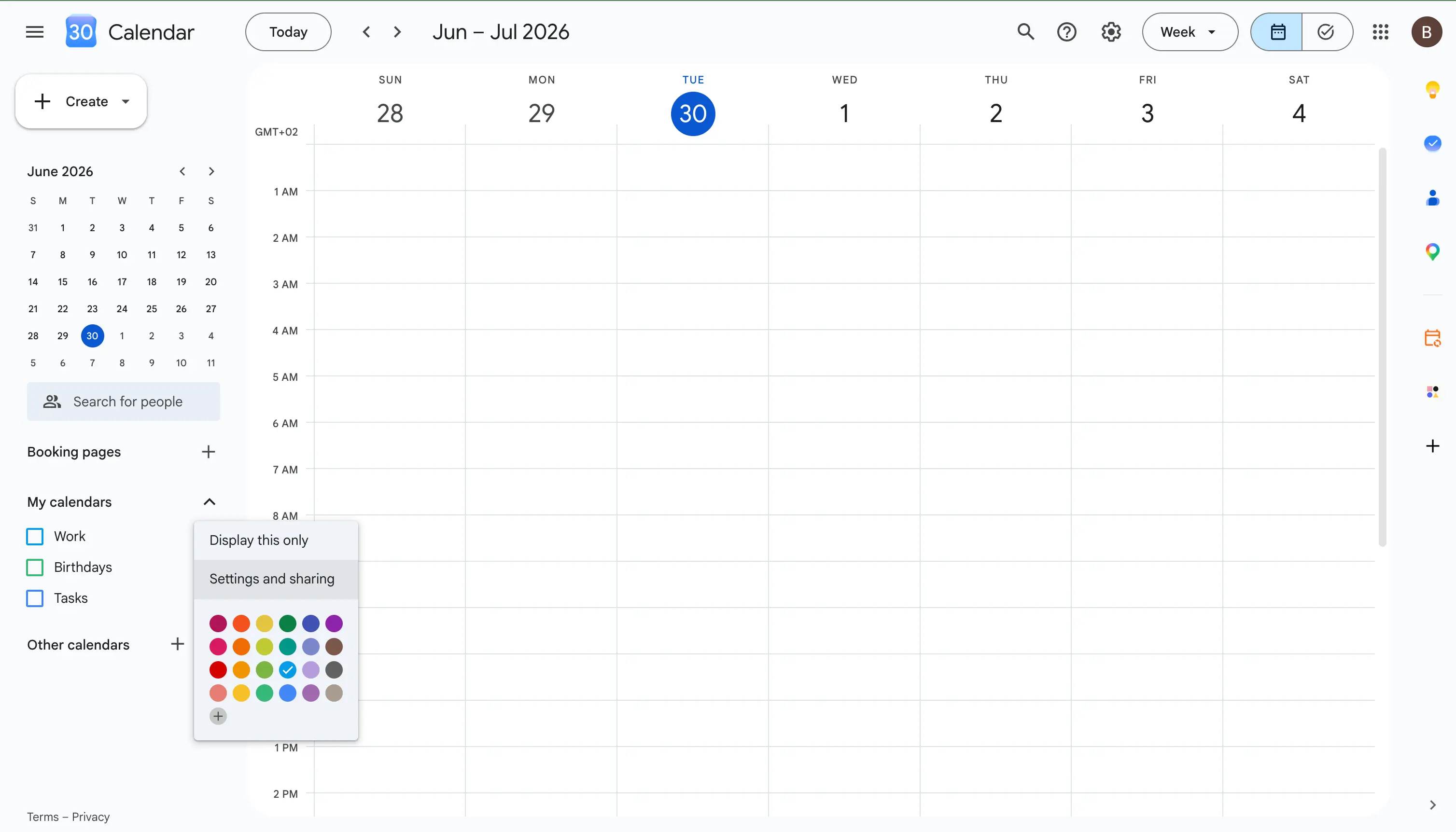
3. Go to "Share with specific people or groups"
Scroll down to the Share with specific people or groups section and click Add people and groups.
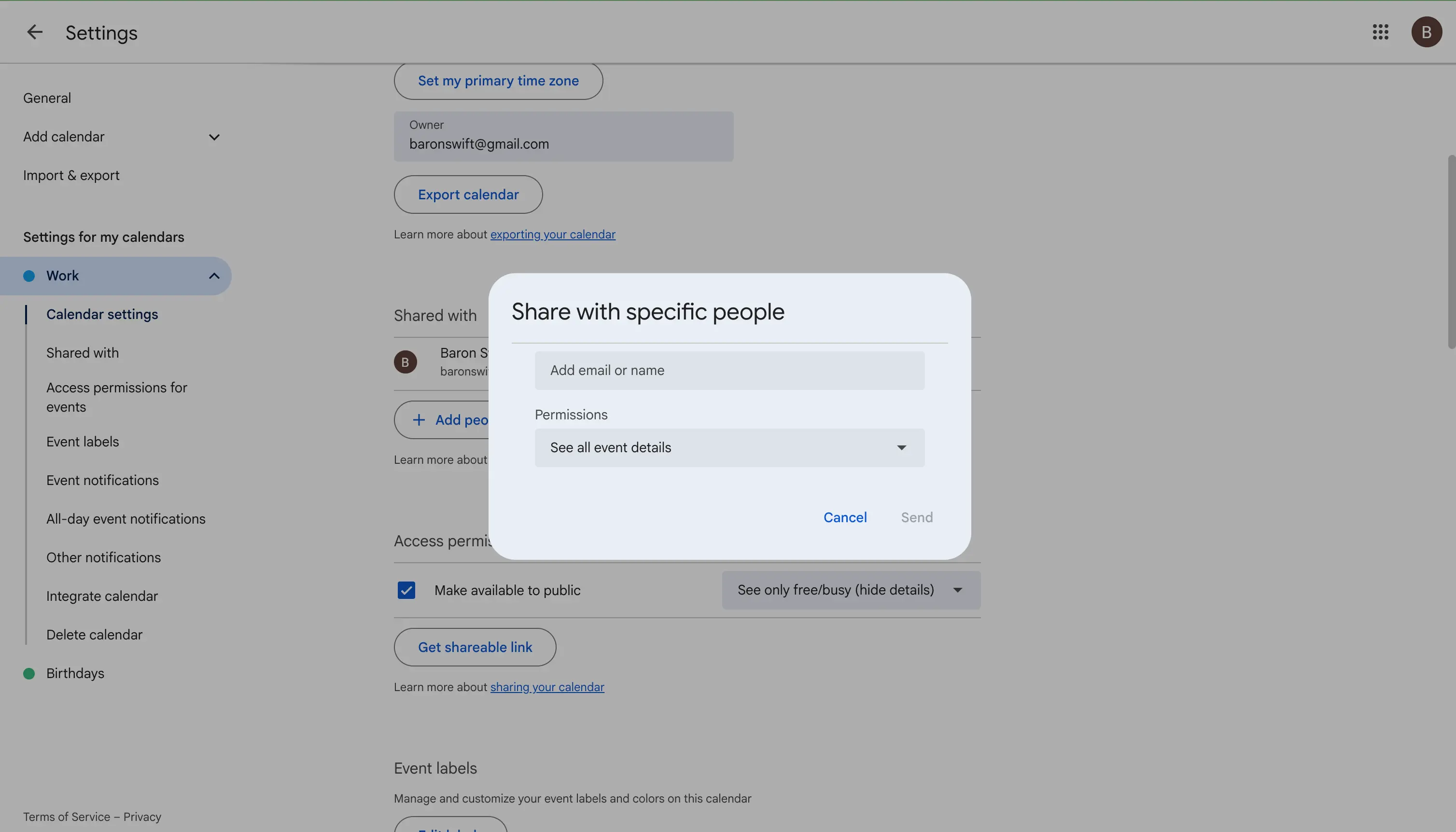
4. Enter the email address and choose a permission level
Type the person's email address, then choose what they're allowed to do from the permissions dropdown (see the next section for what each level means). Click Send.
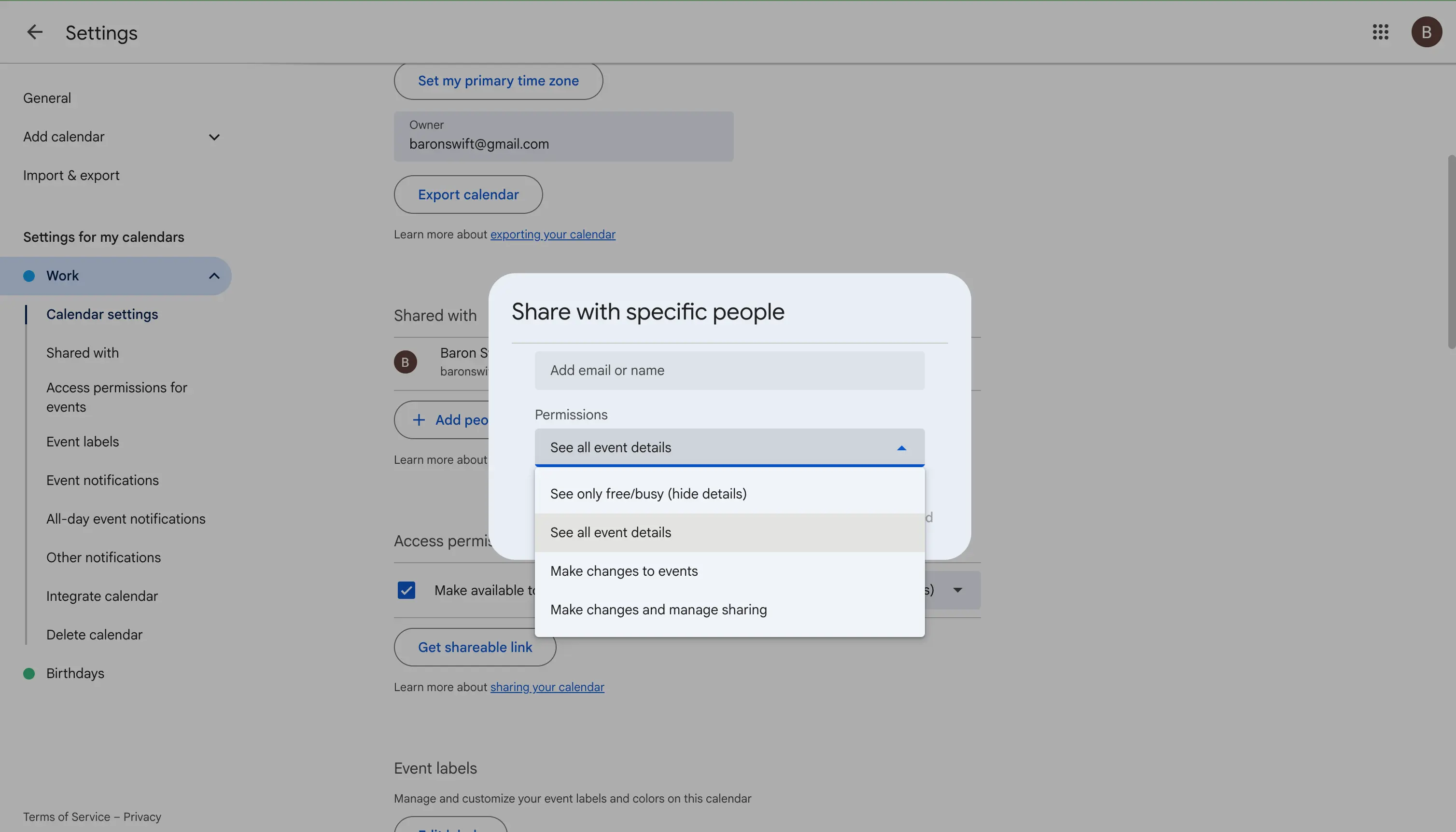
The person will receive an email invitation. Once they accept, your calendar appears in their Other calendars list, and they'll see it according to the permission you granted.
The person you share with needs a Google account to see your calendar inside Google Calendar. If they don't have one, share a public link instead (covered further down).
Google Calendar sharing permission levels explained
When you share a Google Calendar with someone, you choose one of four permission levels. Picking the right one matters for your privacy:
| Permission level | What they can see / do |
|---|---|
| See only free/busy (hide details) | They see when you're busy, but no event titles or details. Best for privacy. |
| See all event details | They can view every event's title, time, location, and description, but can't change anything. |
| Make changes to events | They can view, add, edit, and delete events on your calendar. |
| Make changes and manage sharing | Full control - they can also share your calendar with other people and change its settings. Only grant this to people you fully trust. |
If you're sharing for scheduling purposes only, See only free/busy is usually the safest choice.
How to create a shared Google Calendar for a group
If you want a calendar that a whole team, family, or club can use together - rather than sharing your personal one - the cleaner approach is to create a brand-new calendar and share that.
1. Create a new calendar
In Google Calendar, click the + next to Other calendars in the left sidebar and choose Create new calendar. Give it a name (e.g. "Team Events" or "Family"), add a description, and click Create calendar.
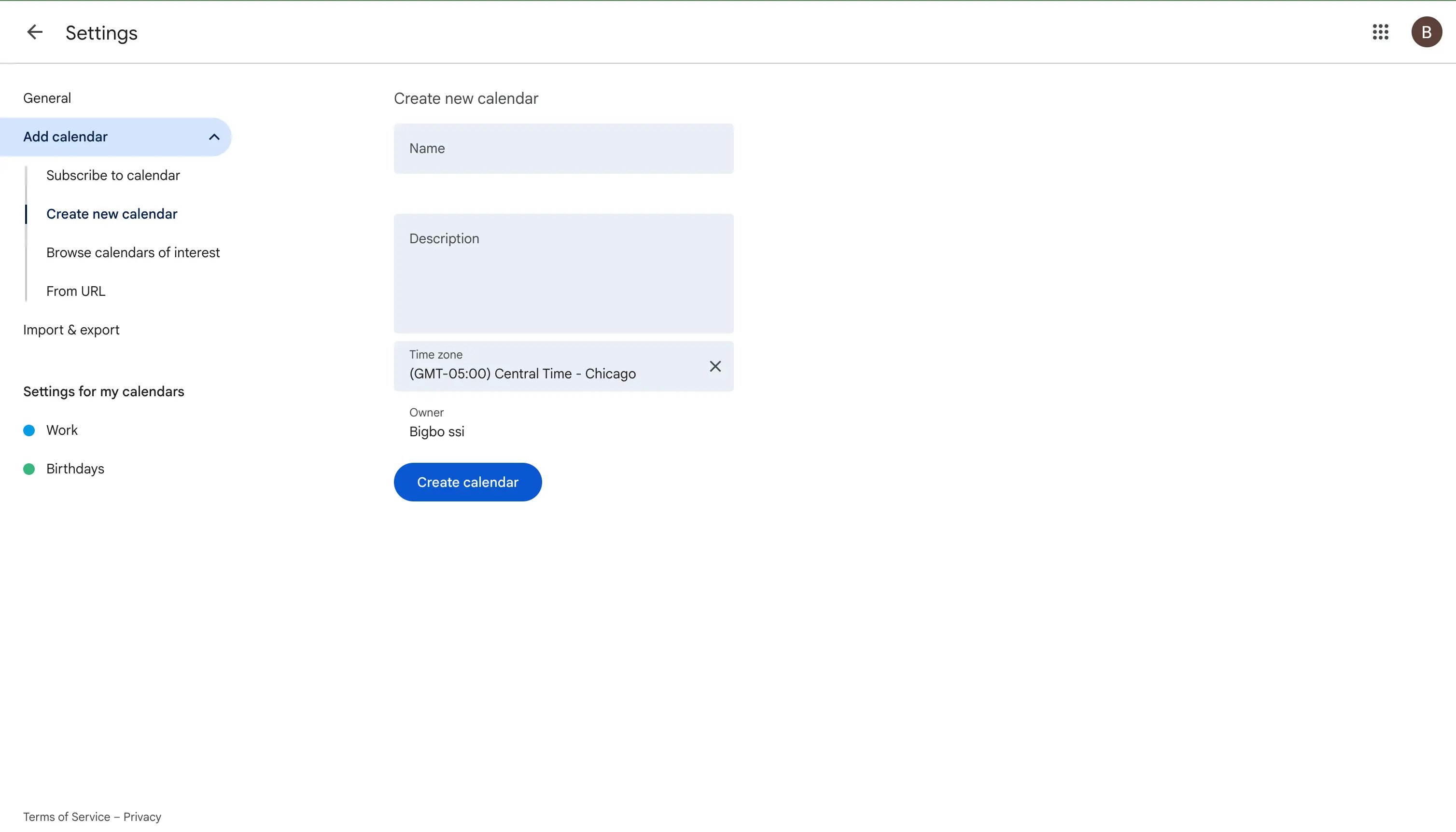
2. Open the new calendar's settings
Go back to Settings, and in the left menu select your new calendar under Settings for my calendars.
3. Share it with your group
Under Share with specific people or groups, add each person's email and assign permissions. For a collaborative group calendar, Make changes to events is common so everyone can add and edit.
This way, the shared calendar is separate from everyone's personal calendars, and any member can contribute without exposing their private schedule.
How to share a Google Calendar with a Google Group
If you share with the same set of people often, adding their emails one by one gets tedious. A Google Group lets you share with everyone at once using a single group email address.
- Make sure the people you want are members of a Google Group.
- Open Settings and sharing for your calendar.
- Under Share with specific people or groups, type the group's email address instead of a person's, then pick a permission level.
Everyone in the group now gets the same access. When someone joins or leaves the group later, their calendar access updates with it, so you do not have to manage each person by hand.
How to share a Google Calendar across your organization (Google Workspace)
If your company uses Google Workspace, calendar sharing inside the organization works a little differently, and some of it is controlled by your admin.
- Internal default sharing. Workspace admins can set a default so that everyone in the company can see each other's free/busy times automatically. This is set in the Google Admin console under Apps > Google Workspace > Calendar > Sharing settings.
- Internal vs external. Admins can allow full event details inside the company while limiting what can be shared with people outside the organization. This keeps internal scheduling easy without leaking details to the public.
- Sharing with people outside your company. You can still share with an external email, but if your admin has blocked external sharing, the option will not work. In that case, ask your admin or use a public link instead.
If you are not an admin and a sharing option is missing or greyed out, it is usually because of a Workspace policy. Your Google Workspace administrator can adjust these settings for you.
How to share a Google Calendar on iPhone or Android
The Google Calendar mobile app does not let you start new sharing - that has to be done once from a computer (see the steps above). However, after sharing is set up, here's how it works on each platform:
- Android: Open the Google Calendar app, tap the menu, and your shared calendars appear in the list. To manage sharing, you'll still need to use Google Calendar in a browser.
- iPhone: If you use the Google Calendar app, shared calendars sync automatically once you've set them up on desktop. If you use the native Apple Calendar app on iPhone and want to share an iCloud calendar instead, see our dedicated guide: how to share the iPhone Calendar.
A quick tip: to set up sharing from your phone, open your mobile browser, go to calendar.google.com, and request the desktop version of the site. You'll then have access to the full Settings and sharing menu.
How to make a Google Calendar public or get a shareable link
If you want anyone to see your calendar - or you need to share it with people who don't use Google - you can make it public or generate a shareable link.
Make a calendar public
- Open Settings and sharing for the calendar.
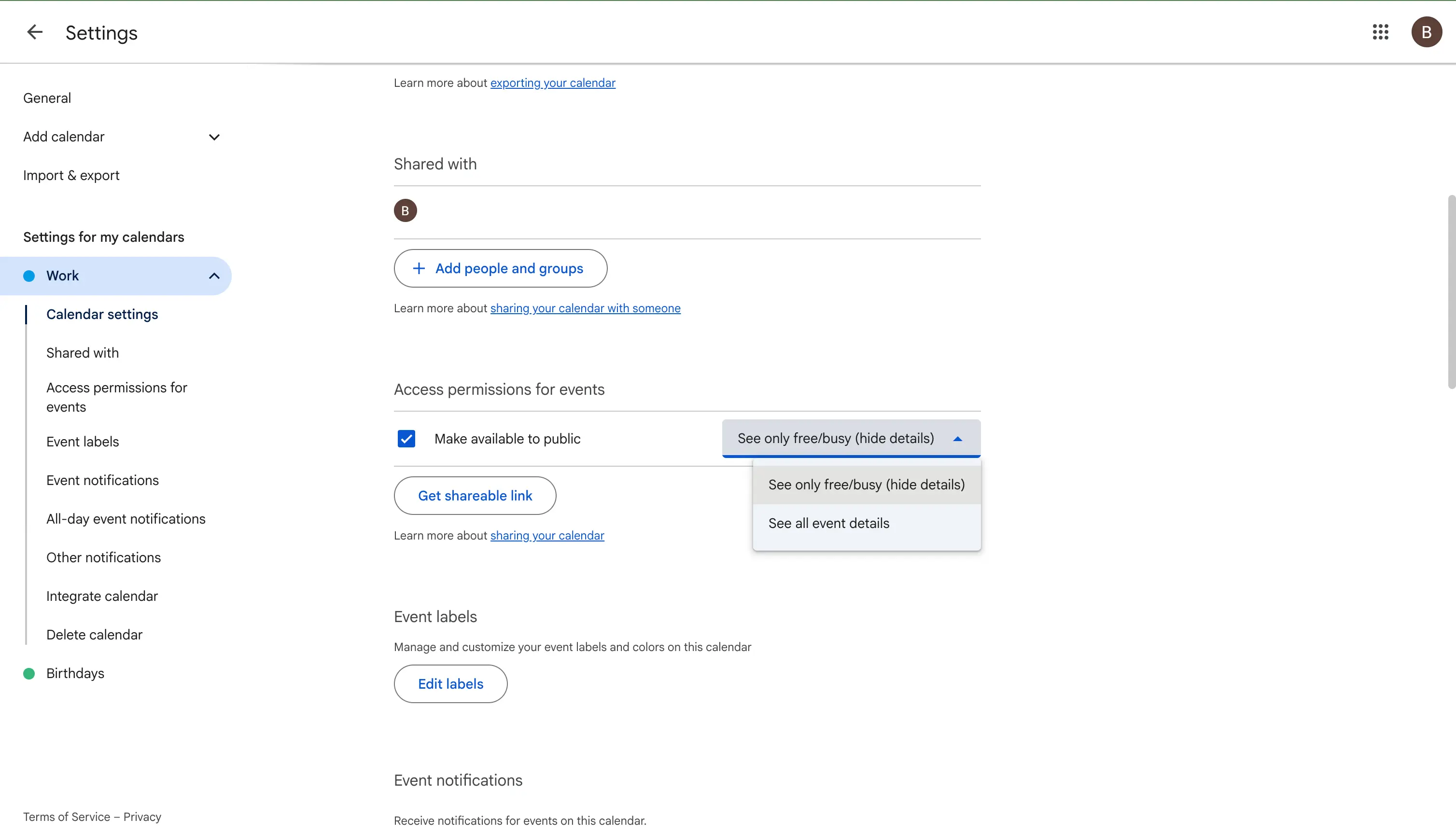
- Under Access permissions for events, tick Make available to public.
- Choose whether the public sees all event details or only free/busy.
Get a shareable / embed link
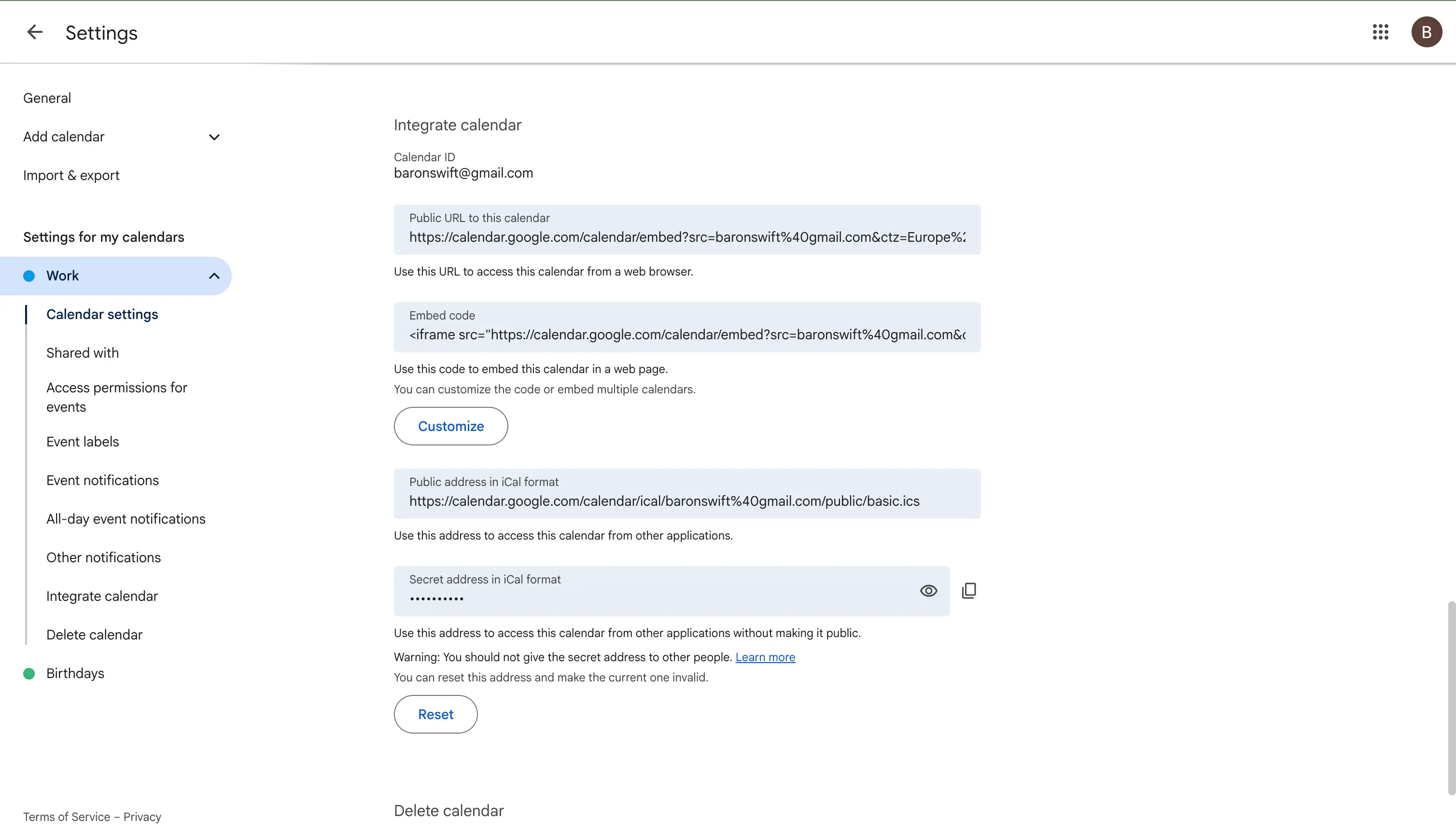
In the same settings page, scroll to Integrate calendar. There you'll find:
- A public URL to this calendar - a link anyone can open.
- A Secret address in iCal format (an
.icslink) - lets people subscribe to your calendar in Outlook, Apple Calendar, or other apps.
Be careful with Make available to public - it can expose your calendar to search engines and anyone with the link. Only use it for calendars that genuinely should be public (like an events or office-hours calendar), and prefer free/busy if you don't want details exposed.
How to manage notifications for a shared Google Calendar
When you add a shared calendar, you can choose whether you want to be notified about its events, which is handy for a busy team calendar you do not want pinging you all day.
- In the left sidebar, hover over the shared calendar and open its Options menu, then Settings.
- Under Other notifications, choose what you get alerts for, such as new events, changed events, or canceled events.
- To turn off all alerts for that calendar, set each option to None.
Each person controls their own notifications for a shared calendar, so changing yours does not affect anyone else.
How to stop sharing a Google Calendar
Changed your mind? Removing access takes seconds:
- Open Settings and sharing for the calendar.
- Under Share with specific people or groups, find the person.
- Click the X (Remove) next to their name.
To stop public sharing, untick Make available to public under Access permissions for events. The change applies immediately, and the person will no longer see your calendar.
Troubleshooting: Google Calendar sharing not working
If a shared calendar isn't showing up, try these fixes:
- The invite wasn't accepted. The recipient must open the email invitation and click the link to add your calendar.
- Check the "Other calendars" list. On the recipient's side, the shared calendar appears under Other calendars, not My calendars - and its checkbox must be ticked to be visible.
- Wrong Google account. Make sure the person accepted the invite while signed in to the account you shared with.
- Propagation delay. New shares can take a few minutes (occasionally up to a few hours) to appear. Refreshing or signing out and back in often helps.
- Free/busy only. If they can see you're busy but not the details, that's the permission level - bump it up to See all event details if needed.
How to avoid double-booking when you share calendars
Sharing helps people see when you are busy, but it has a limit. When someone views your shared calendar, they can read your free/busy times, but those events do not actually block time on their own calendar. If you live in two calendars, like a work account and a personal one, sharing alone will not stop a clash.
Here is the gap:
- You share your personal calendar with your work account so you can see both.
- A coworker sends a work meeting that overlaps a personal event.
- Because the personal event is only shared, not copied onto your work calendar, your work calendar still looks free, and you get double-booked.
To truly block time across both calendars, the events need to exist on both. That is calendar syncing, not sharing. A sync app copies your busy events from one calendar to the other (with the private details hidden if you want), so every calendar shows the same busy times and nothing can be booked over them.
This is exactly what a calendar syncing app like OneCal does. It clones events between your Google, Outlook, and iCloud calendars in real-time, so your availability is always correct on every calendar and you stop getting double-booked.
Frequently asked questions
How do I share my Google Calendar with someone?
Open Google Calendar on a computer, hover over your calendar, click the three-dot menu, choose Settings and sharing, then under Share with specific people or groups add their email and a permission level. They'll get an email invite to accept.
Can I share a Google Calendar with a non-Google user?
Yes - not through the "specific people" method (which requires a Google account), but by making the calendar public and sharing its link, or by sending the iCal (.ics) link so they can subscribe in their own calendar app.
Does sharing a Google Calendar sync it with another calendar?
No. Sharing only lets someone view or edit your calendar - it doesn't copy events onto a different calendar or account. To do that, you need a calendar sync app.
How do I share my Gmail calendar?
Your "Gmail calendar" is your Google Calendar - the steps are identical to those above. Sign in with your Gmail account and follow the sharing steps.
Can I control what others see on my shared Google Calendar?
Yes. Choose See only free/busy (hide details) to hide event titles and details, See all event details for read-only visibility, or Make changes to events to let them edit.
Sharing isn't the same as having one unified calendar
Sharing is perfect when you simply want someone to see your schedule. But if your real goal is to have your events appear across multiple calendars or accounts - for example, so your work and personal calendars block each other and you never get double-booked - sharing won't get you there.
That's a job for calendar syncing. Tools like OneCal clone events between your Google, Outlook, and iCloud calendars in real-time, so every calendar stays up to date automatically.
If you want to combine multiple Google Calendars into one, or bridge two different accounts, see our full guide on how to sync Google and Outlook calendars.